
Profile and name aliases
Where. Profile avatar (top right) → Profile. A dialog titled "Edit Profile".
What you can change.
- Photo: click the camera badge on the avatar. Images only, under 5 MB.
- First name, Last name, Display name → Save Changes.
- Email is read-only here. Change it in Settings → Account (see Account email).
- Name Aliases: type a nickname and click Add; remove with the ✕ on the chip.
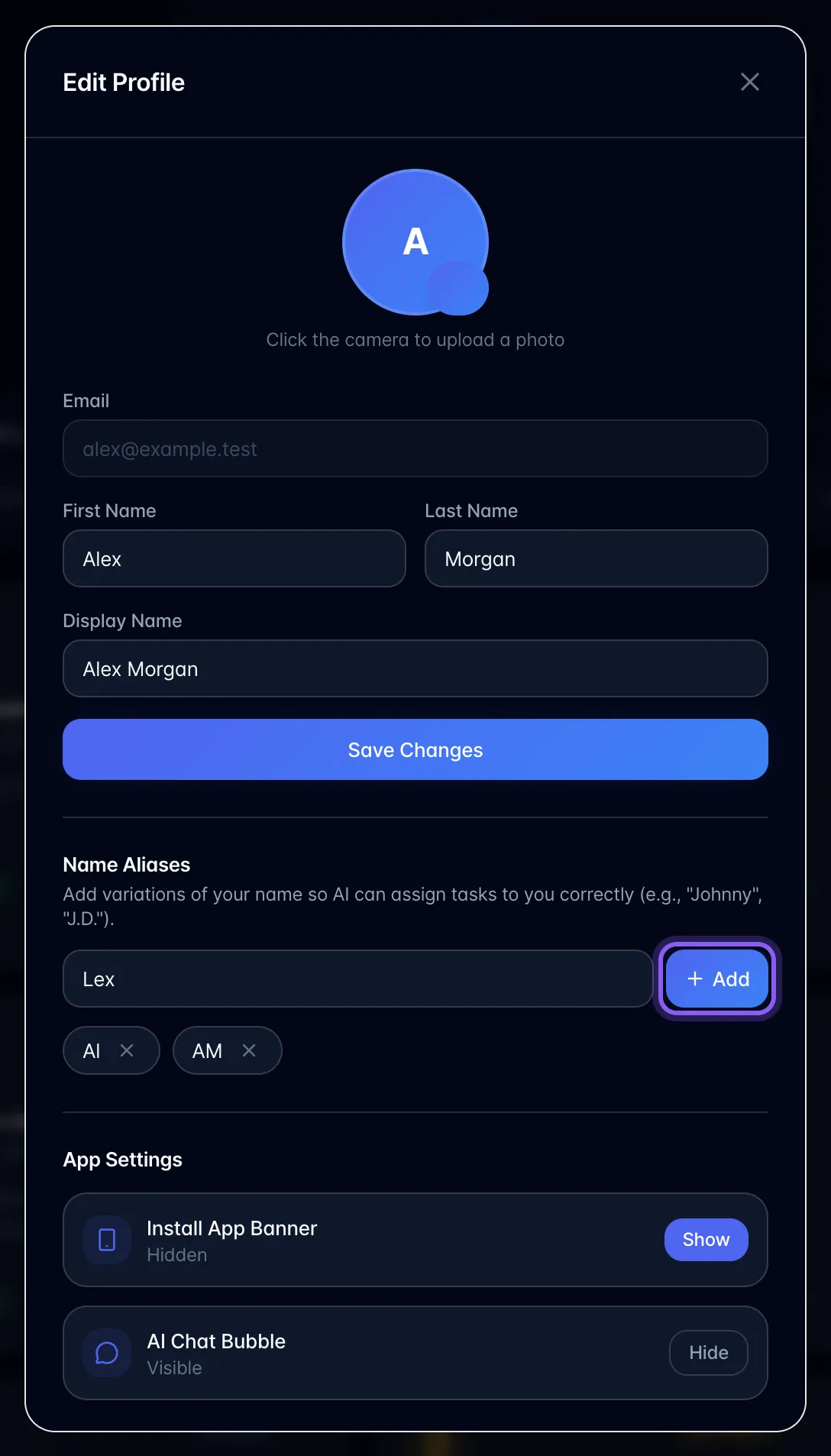
What name aliases are for. When myScribe extracts action items from a meeting it tries to match spoken names to real people. If colleagues call you "Johnny" or "JD", add those so tasks get assigned to you instead of being left unassigned. This is separate from renaming speakers on a recording.
Also in this dialog: two app switches, both stored per browser:
- Install App Banner: Show/Hide the "Install myScribe" banner on mobile.
- AI Chat Bubble: Show/Hide the floating assistant bubble.
Gotchas.
- After Save Changes, a green "Profile saved." line appears under the button. It goes away when you edit a name again.
- Aliases are added instantly, before you press Save.
- The display name is what teammates see in member lists and assignee pickers.
Plan gating. None: all plans.