
Sharing a recording
- Open a recording you own and choose the share icon (Share recording) in its header. The Share Recording dialog opens.
- Choose Team for all members of one team, Person for selected active teammates, or Guest Link for a link a visitor can open.
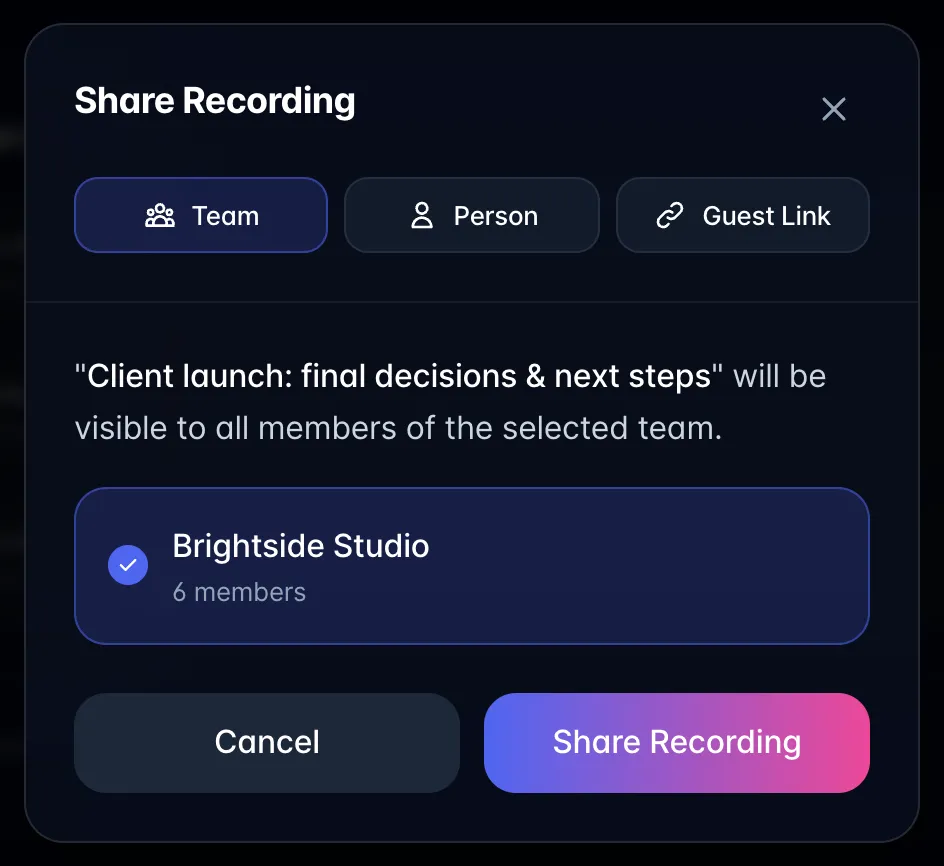
- Complete the share, then have teammates look in Library → Filters → Shared with me on phones (or Library → Shared with me on larger screens) or the team's sidebar view.
- On an active Guest Link, update the transcript, summary, tasks, and playback permissions as needed. Use Disable guest link to stop that link opening.
For full steps, including collection links and playback permissions, see Sharing a recording.
Only recordings someone explicitly shares become available to their team. Personal recordings cannot be shared. Disabling a guest link does not remove access someone already saved to their Library. Team collaboration does not move the recipient onto the sender's billing account.