
Notifications
There are three separate channels: the in-app bell, push notifications, and email.
9a. The bell (in-app)
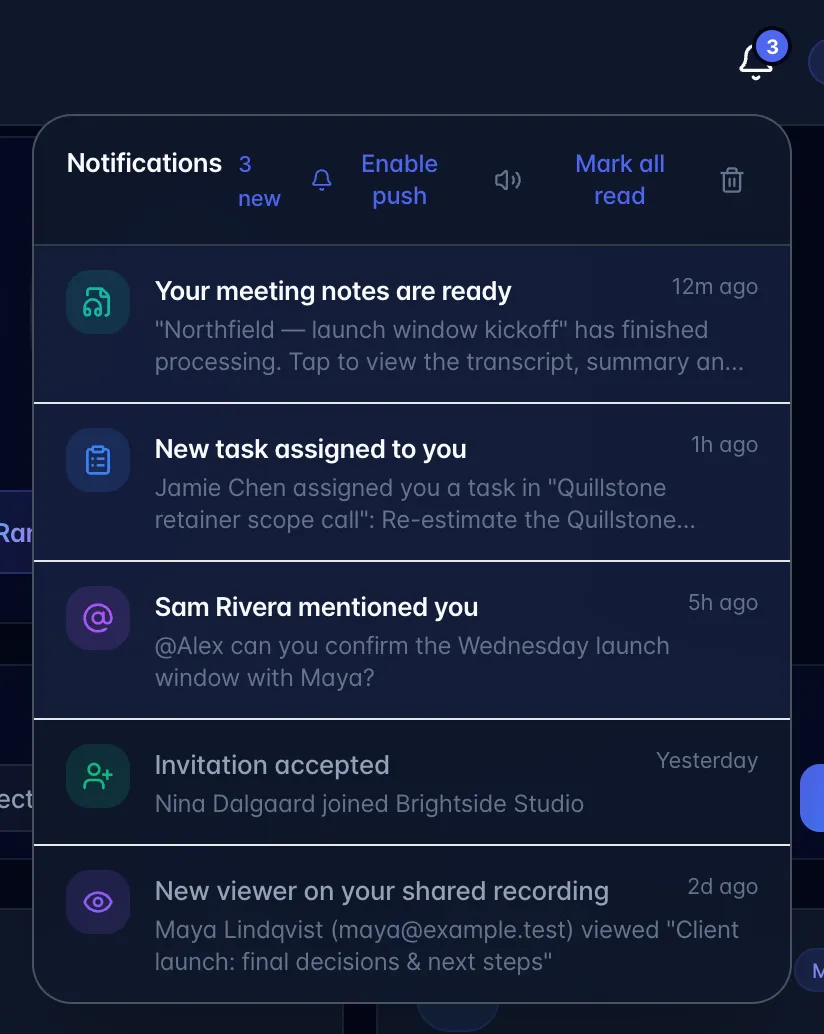
Where. Bell icon in the top-right header, on desktop and mobile.
What it does. Shows the 20 most recent notifications, newest first, with an unread count badge (99+ max). New ones arrive live and play a chime; the speaker icon in the bell's header mutes or unmutes it (Mute the notification chime). Clicking one marks it read and opens what it is about: usually the recording or task. Header controls: Enable push (turn on push for this device; shown until push is on), the speaker icon, Mark all read, and a bin icon (Clear all notifications).
What turns up in the bell: task assignments and task reminders, "Your meeting notes are ready", @mentions and comments on your tasks, AI comments, "A recording was shared with you", "Invitation accepted", "New viewer on your shared recording", and "Recording access requested".
Gotchas.
- Mark all read and Clear all act on every notification you have, not only the 20 shown.
- The bin icon first asks "Delete all N notifications? This can't be undone." Choosing Clear all there deletes them permanently; Cancel keeps them.
9b. Push notifications (phone/desktop alerts)
Where. Two places, same thing: the Enable push button in the bell dropdown, or Settings → Notifications → Push on this device.
How. Click Enable push, or turn on the Push on this device switch, then allow notifications in the browser prompt. The switch then reads "This device receives push notifications".
What gets pushed. "Your meeting notes are ready" when a recording finishes processing, task reminders, task assignments, mentions, comments on your tasks, AI comments, shared recordings, guest views and accepted invitations. Tapping one opens what it is about. Each category's Push switch in Settings → Notifications turns its pushes off for all your devices.
Gotchas.
- Per device and per browser. Signing in on a laptop and a phone means opting in twice.
- If the browser prompt was previously blocked, the bell shows a crossed-out bell icon (Push is blocked in this browser's site settings). The user must allow notifications in the browser's site settings.
- Turning the Push on this device switch off stops that device immediately; the stored subscription is tidied up the next time a send fails.
- On iPhone, browser push requires the app to be installed to the Home Screen as a proper web app, which conflicts with the install guide's step telling users to turn "Open as Web App" off for background recording. If a customer wants both, they have to choose; flag this rather than promising push on iOS.
The installed native iOS/Android build does not currently offer native push delivery. Its startup notification prompt stays off while delivery is being prepared. The browser push instructions above apply to the website or supported Home Screen web app.
9c. Email notifications and the preference switches
Where. Settings → Notifications (listed under the General heading). Below Push on this device are eleven rows. Most have both an Email and a Push switch; Recording Ready is push only, and the last two are email only: Upcoming Tasks · Task Assignments · Recording Ready (push only) · Shared Recordings · AI Comments · Mentions · Task Comments · Guest Views on Shared Links · Team Invitations · Weekly Digest (email only) · Tips & Getting Started (email only).
Everything is on by default; the rows are created the first time the screen is opened.
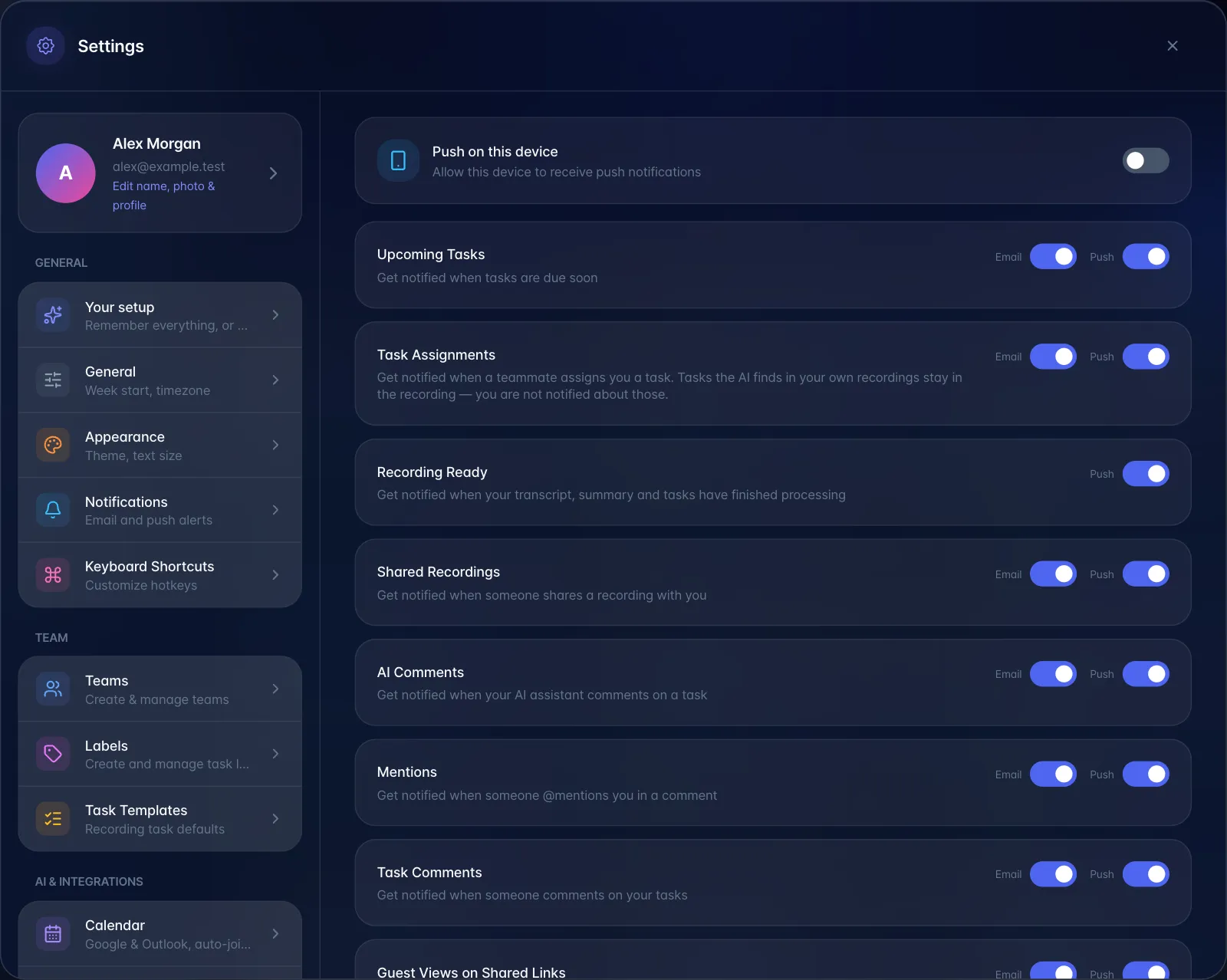
What the switches do:
- Push switches turn off that category's pushes to every device (see 9b). The bell entry still appears.
- Email switches turn off that category's emails. The bell entry still appears.
- Upcoming Tasks: Email governs task reminder emails.
- Task Assignments: Email governs the email sent when a recording gives you tasks. It names the meeting, when it started, who recorded it and who else spoke. It goes only to members of the recorder's team (Automatic extraction from meetings).
- Tips & Getting Started: Email governs the welcome email that arrives shortly after you sign up and the reminder a day or two later if you have not captured anything yet.
- Weekly Digest: Email governs the recap sent Monday mornings when you have had activity in the past week.
- AI Comments sends no email today, so its Email switch has no effect; its Push switch works.
Unsubscribe links. Reminder and engagement emails carry a one-click unsubscribe link that lands on a myScribe page confirming which category was switched off, with a button to re-enable it. That page works without signing in.