
Memory (shown in the sidebar as "Memory")
What it is
A single interactive map of everything in your library (every recording, meeting, saved article, PDF, YouTube link and pasted note) laid out as glowing dots around a centre point, grouped by what kind of thing they are and wired together by what they have in common.
It is mainly a browsing and discovery surface: you use it to notice things: which client dominates your last three months, which two meetings talk about the same thing without you having connected them, which topic keeps recurring. You can also fix names here: renaming a dot or a group label writes straight through to the recording, project, person, company or tag behind it, and duplicate people and companies can be merged into one. You can't create or delete content from it.
Turning it on
It is an opt-in beta and is off by default for everyone.
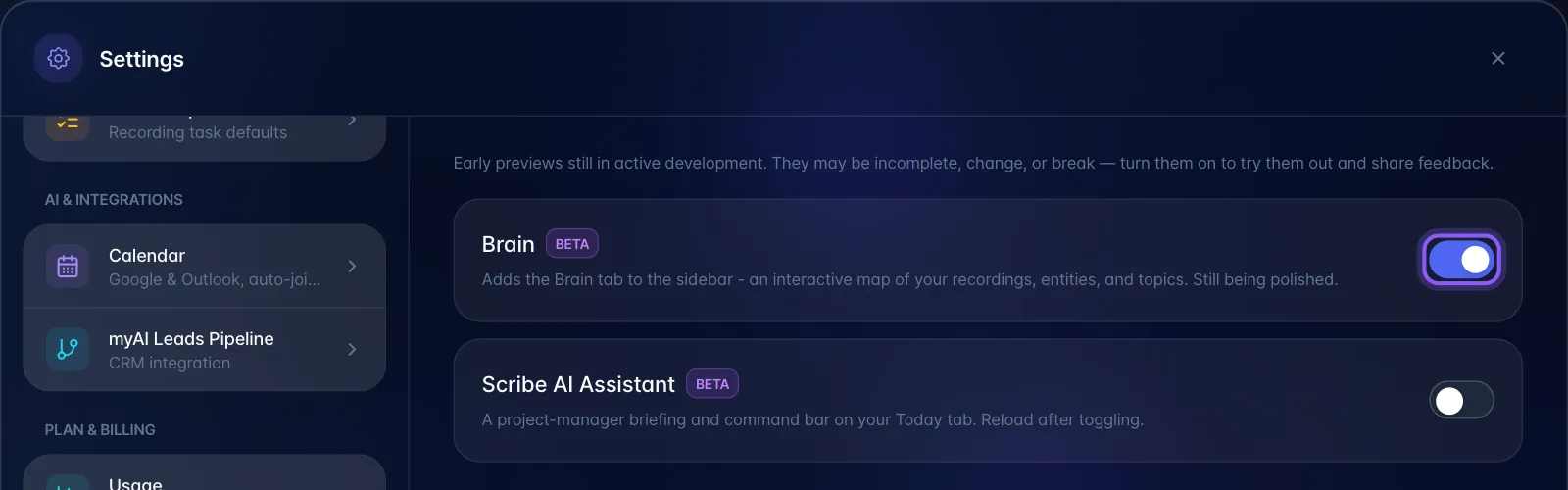
- Open Settings → Experimental Features.
- Find Memory (marked "Beta").
- Flip the toggle on.
- A Memory entry appears in the left sidebar (also labelled "Memory" when the sidebar is collapsed).
Important: this preference is stored on your account and mirrored in the browser for a fast first paint. Turning it on on one device makes the Memory available anywhere you sign in with the same account after the app reloads its profile.
Turning it off while you're looking at it drops you back to the Today tab. If the app remembers you were last on the Memory tab but the toggle is off on that device, it opens Today instead.
Where it lives
- Desktop: left sidebar → Memory. It takes over the whole content area below the header, edge to edge.
- Mobile: it is not in the bottom tab bar. Open the menu (sidebar) and pick Memory from the same list.
- The view heading and sidebar both use Memory, marked Beta.
What you're looking at
Everything is arranged in concentric arcs around a central "S" sigil, divided into wedge-shaped sectors. Each sector has a label around the outside showing its name and a count.
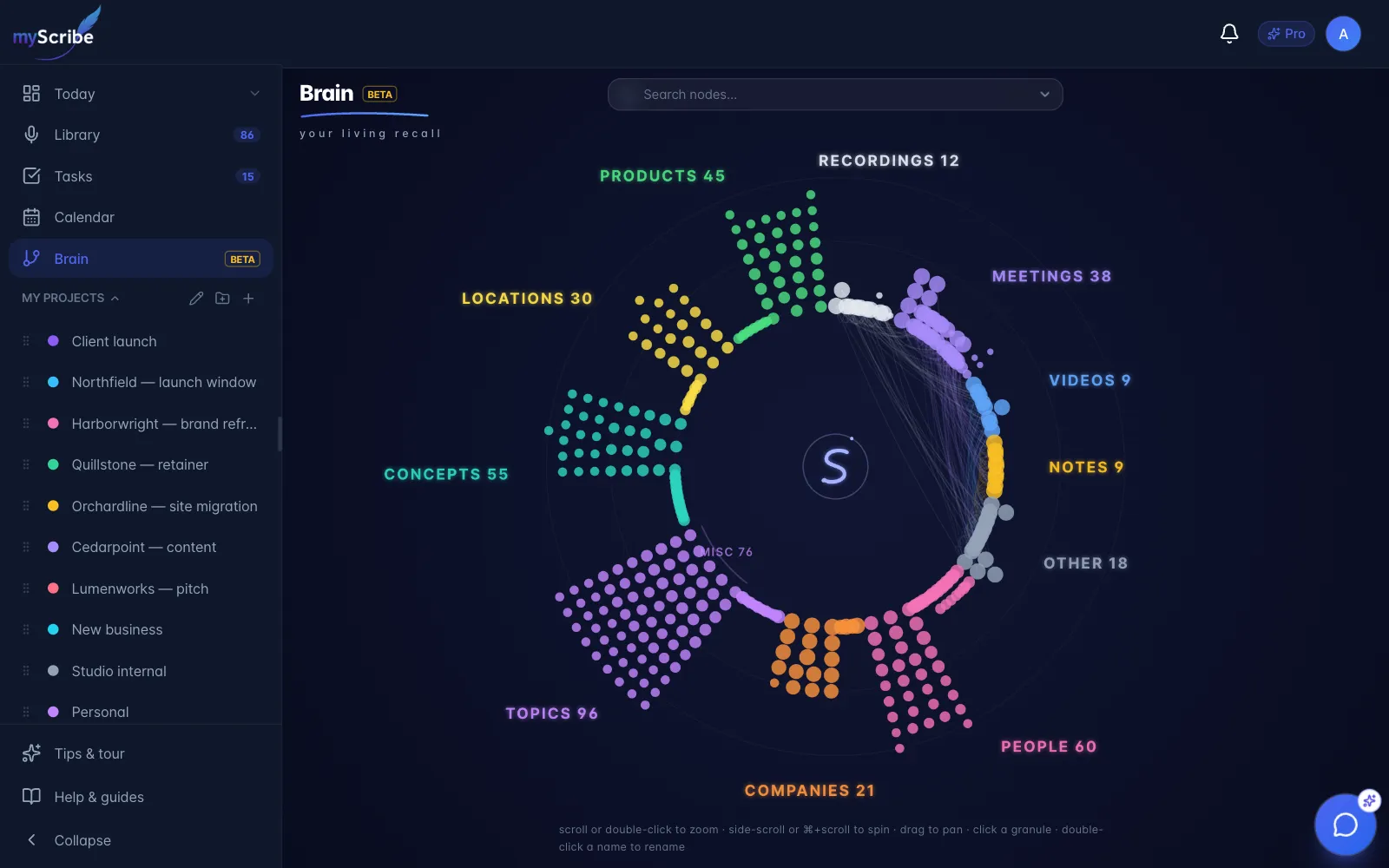
Sectors, in clockwise order from 12 o'clock (empty ones are simply not drawn):
| Content sectors | Entity sectors | Other |
|---|---|---|
| RECORDINGS, MEETINGS, VIDEOS, YOUTUBE, ARTICLES, PDFS, NOTES, OTHER | PEOPLE, COMPANIES, TOPICS, CONCEPTS, LOCATIONS, PRODUCTS, ENTITIES | TAGS |
- A dot (granule) is one item, one entity or one tag.
- Dot size = number of connections. A well-connected recording is visibly fatter than an orphan. It is not duration, importance or recency.
- Bigger sectors get a wider wedge, but the scaling is deliberately squashed (square-root) so a sector with 1,300 recordings doesn't swallow the whole circle and starve a sector with six.
- Inside a sector, better-connected dots pool in the inner rows; loosely connected ones drift to the outer edge.
Named sub-groups (the labelled neighbourhoods)
The name a group gets, in priority order:
- The project the items are filed under (project name).
- Otherwise, the most-connected thing they all link to: usually a company, a client, or a recurring topic ("EPA", "SPCC", "oil and gas").
- Otherwise, the month they were created ("Mar 2026"): recordings and meetings cluster naturally in time, and month groups are laid out oldest → newest so the arc reads as a timeline.
- Anything left over lands in Misc.
Rules that matter:
- A group needs at least 2 items to get its own name; single strays fold into Misc.
- A sector shows at most 10 named groups; beyond that the smallest ones are re-bucketed by month or folded into Misc.
- Group labels only appear once you zoom in. They're hidden until the group's arc is wide enough on screen to read. If a user says "I don't see any group names", the answer is "zoom in": this is the single most likely support question about this feature.
- Labels are truncated at 20 characters.
Clicking a sector label flies the camera to frame that sector. Clicking a sub-group label flies to just that group.
Context threads (the faint curved lines)
Two items that share something stay permanently wired together with a faint curve. Three things can create a thread:
- They both link to the same entity or tag (a company, a person, a topic, a tag).
- They're in the same project.
- The AI judges their content semantically similar: labelled "Related content".
Hover a thread and a tooltip shows Item A ↔ Item B and shared: <what they share>. Click a thread and a Connection card opens on the left with both items and a click-through to either.
Behind the scenes: to avoid a hairball, each shared context chains its items in a ring rather than wiring every pair to every other pair. So if five recordings all mention "Acme", you get four threads along the arc, not ten. Two recordings that genuinely share a topic may therefore have no visible thread directly between them: they're still connected via the chain. Worth saying plainly in an article so people don't read a missing line as "these aren't related".
Thread hovering only works when your cursor isn't over a dot and you're not dragging, and you have to be within about 10 pixels of the curve.
Clicking a dot: the preview card
Click any dot and a card opens top-left with:
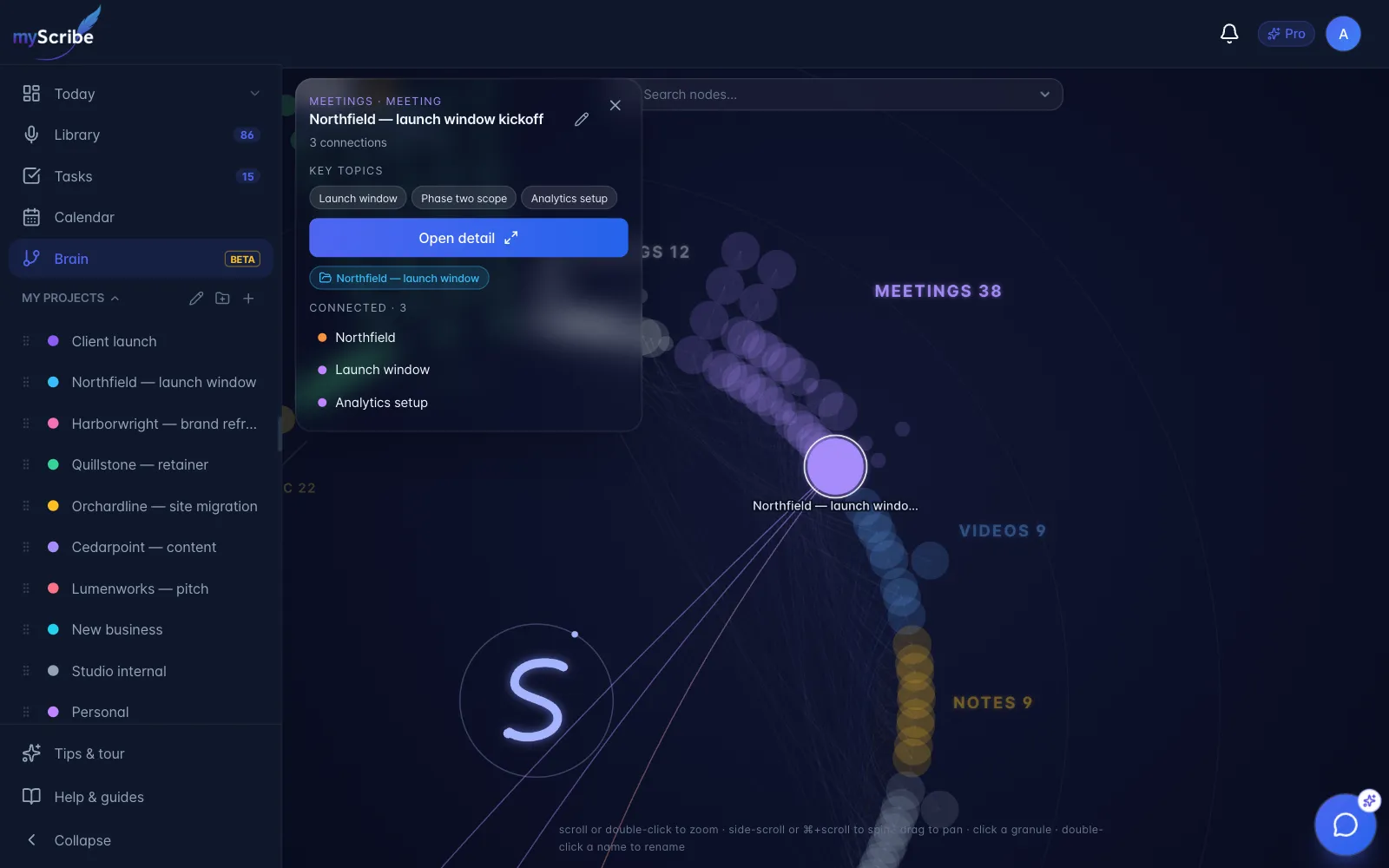
- The sector name and, for content items, the content type.
- The item's title and its connection count.
- Key topics: chips pulled from the item's AI summary (the same topics the Summary tab shows). If there are no key topics it falls back to the first few lines of the summary; if there's no summary at all it says "No AI summary yet."
- Open detail: opens the normal recording/content detail view on top of the graph, so closing it puts you back exactly where you were.
- Any projects the item belongs to, as coloured chips.
- Connected: a list of everything linked to it (top 30, sorted by how connected each one is, with a "+N more" line). Click any row to fly to it; click the arrow icon on a content row to open its detail directly.
Getting around
| Gesture | What it does |
|---|---|
| Scroll | Zoom in/out toward the cursor |
| Two-finger sideways scroll | Spins the whole ring so neighbouring sectors sweep into view |
| ⌘ + scroll (Mac) / Ctrl + scroll (Windows) | Spins the ring manually |
| Drag | Pan |
| Pinch (touch) | Zoom, and twist to rotate |
| Hover | Dots magnify dock-style; tooltip shows title, sector and link count; connections light up |
| Click empty space | Clears the selection |
| ⌘K / Ctrl+K | Opens the global command palette |
There's a one-line hint along the bottom of the view: desktop only, hidden on small screens.
The ring "breathes": it drifts a couple of degrees and eases back, and each dot rides a tiny wave. Nothing ever migrates away permanently; a dot you found is where you left it. All of this is suspended if the device has "reduce motion" turned on.
The search box inside Memory ("Search nodes…")
Top centre. Type and everything that doesn't match dims to near-invisible; matches stay lit. Press Enter to fly to the first match.
This searches node labels only: recording titles, entity names, tag names. It does not search transcripts, summaries or article text. (The one that searches transcript text is the Library search box: see section 3.)
View options (the chevron at the right of the search box)
- Dot size slider (0.5× to 2×). Saved per browser.
- Zoom in / Zoom out (+ / −): enlarge crowded areas or step back. Mobile pinch, desktop scroll and double-click also zoom, with an expanded close-up range. Drag to pan between nearby shapes.
- Fit to view: re-frames the whole ring.
- Reload data: re-fetches entities, entity links and tags.
- ⌘K · search + AI: opens the command palette.
Heads-up on Reload data: it refreshes entities, links and tags only. It does not re-fetch your recordings list or the "Related content" similarity links. To pick up brand-new recordings, reload the page.
Empty state
If there's nothing to draw: "Your memory is empty (for now) Save articles or finish recordings: entities and tags fill in automatically."
Limits and gotchas
- Mixed workspace scope. The dots for your content come from every workspace you're a member of, but entities and tags are loaded from one workspace only: your personal/primary one. In a team setup this means team recordings appear as dots, but the people, companies and tags extracted from them do not, and those recordings look strangely unconnected. - Tasks and projects are not dots. Projects appear only as sub-group names. Tasks don't appear at all.
- PEOPLE ≠ your speakers or teammates. The PEOPLE sector holds names the AI found in the content. It is not your speaker labels, not your workspace members, and renaming a speaker does not create or rename a person here.
- Zero-connection entities float around. A company created from a folder name (via the project/company system) exists as an entity but has no content links until the AI actually extracts it from something. It shows as a small, isolated dot.
- Nothing is pruned automatically. Every entity the AI has ever extracted stays in the map, including one-offs and mistakes. Merging duplicates into one is the only clean-up available: there's no way to delete a stray entity outright.
- It's a beta and it says so. Performance is fine at a few thousand dots; very large sectors switch to a cheaper grouping algorithm above ~450 items, which clusters slightly less tightly.
- Touch works, but it's a desktop-first experience: no keyboard shortcut on mobile, no hint text, and the panels take up a lot of a phone screen.