
Library search: the one that reads transcripts
What it is
The search box on the Library tab. This is the only search in the app that reads inside your transcripts, and the fact that it does is not obvious from the UI.
Where it lives
Sidebar → Library (or Library on the phone's bottom tab bar) → the Search library… box. On phones, search stays visible beside Filters. Tap Filters to expand Type, Project, People, and Shared with me; tap it again to collapse them. A number on Filters shows how many of those filters are active. Collapsing the controls keeps your selections. Return a selector to its all-items option or turn off Shared with me to clear that filter.
Use Grid view for the existing thumbnail cards or List view for compact phone rows. Rows show up to two title lines, type, date, duration when available, status, sharing/privacy indicators, and up to two tags with a count for additional tags. Open an item to see the full details. Personal rows hide tags. The row's selection control and owner-only Personal padlock act separately from opening the recording. Import is the plus button beside the view controls on phones; on larger screens it also shows its text label.
How to use it
- Go to Library.
- Type into the search box. Results appear about a third of a second after you stop typing.
- The normal library grid is replaced by a results list headed "N results".
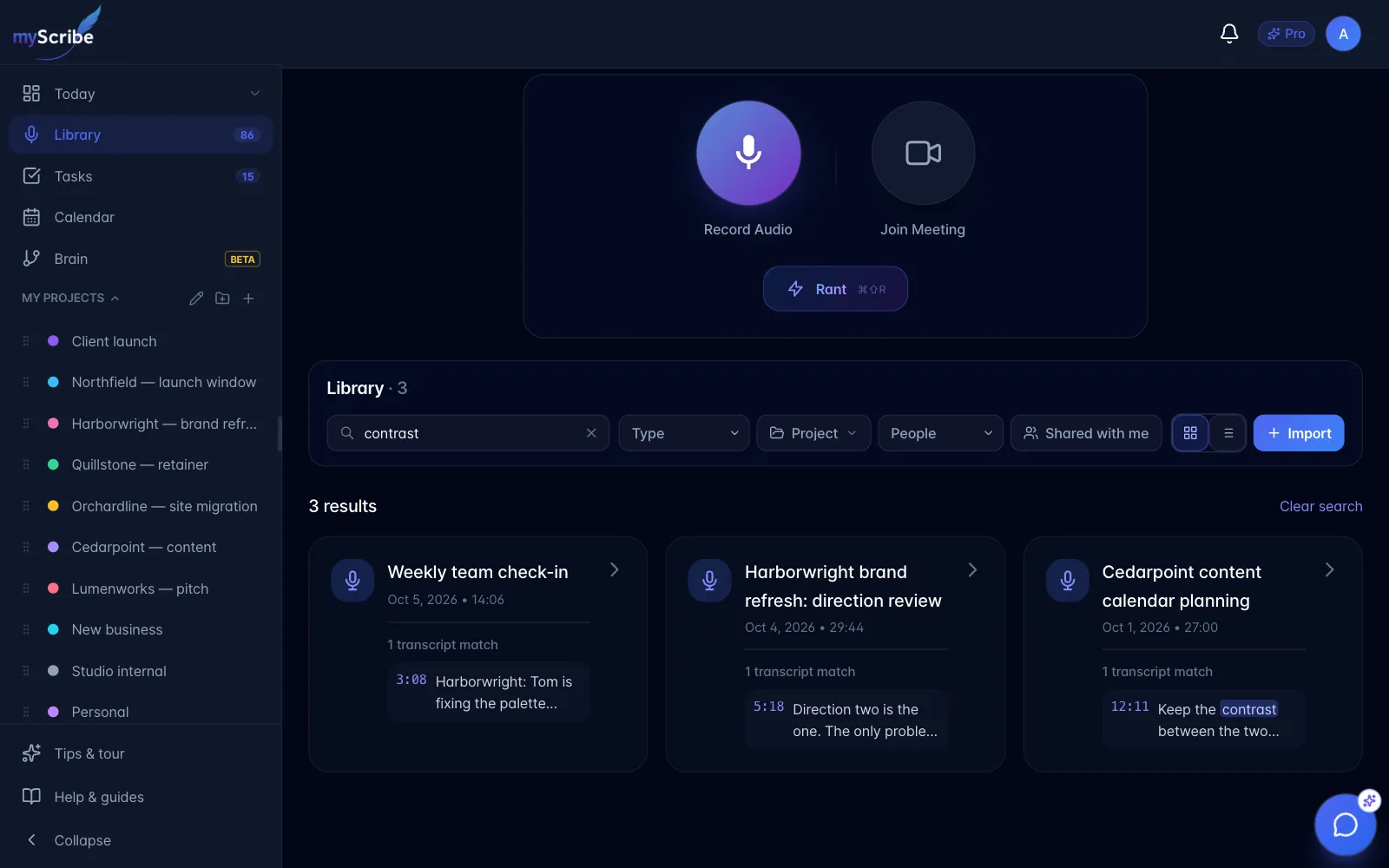
- In Grid view, each result card shows the title, date and duration, plus up to 3 quoted excerpts with highlighted search terms and timestamps. Phone List view shows compact metadata and the first excerpt; open the row to jump to the first match. Switch to Grid view to choose among the quoted matches.
- Click the card to open the item on its Transcript tab, jumped to the first transcript match. The matched line scrolls into view and is highlighted for a few seconds, and the player is set to that moment. A result that matched only the title opens on the Transcript tab at the start.
- Click one of the quoted excerpts to open the item jumped to that moment, with that line scrolled into view and highlighted.
- Every result opens as one step in your browser history, so one Back returns you to the search.
- Clear with the × in the box or the Clear search link above the results.
What it actually does
Two searches run at once and are merged:
- Recording/content titles, matched as a plain case-insensitive substring.
- Transcript text, matched as a plain case-insensitive substring, capped at 100 matching lines.
That's it, no fuzzy matching, no synonyms, no AI. It's a literal "does this string of characters appear" search.
Limits and gotchas
- It matches inside words. Searching "cat" will match "education" and "communicate". Short search terms produce a lot of noise.
- No fuzzy or semantic matching. "budget" will not find "spend", "costs" or "how much are we paying". For a meaning-based question, use the AI chat.
- The 100-line cap bites, and it biases toward the start of recordings. The transcript search returns at most 100 matching lines across your whole library, taken in order of their timestamp within the recording. For a common word that means you get matches from the opening minutes of recordings and nothing from the ends. Rare terms are unaffected; common ones silently under-report.
- Grid view shows up to 3 excerpts per item, with "+N more matches" beneath. Phone List view previews the first excerpt.
- It searches every workspace you belong to, including team workspaces you're not currently looking at. That's often useful and occasionally surprising.
- Saved articles and PDFs are searchable but the excerpts are useless. Their entire text is stored as one giant transcript line, so a match shows a single "match" at 0:00 with the document's opening sentences, not the sentence you searched for. The item is found correctly; the preview just isn't helpful.
- A URL that couldn't be scraped isn't searchable. If a page was paywalled or blocked, myScribe saves the item but with under 400 characters of body text, no summary, no tags, no entities, and effectively nothing to search.