
Content tags (the little chips on library cards)
What they are
2–4 short lowercase topic labels the AI attaches to each piece of content, so you can tell at a glance what a card is about without opening it.
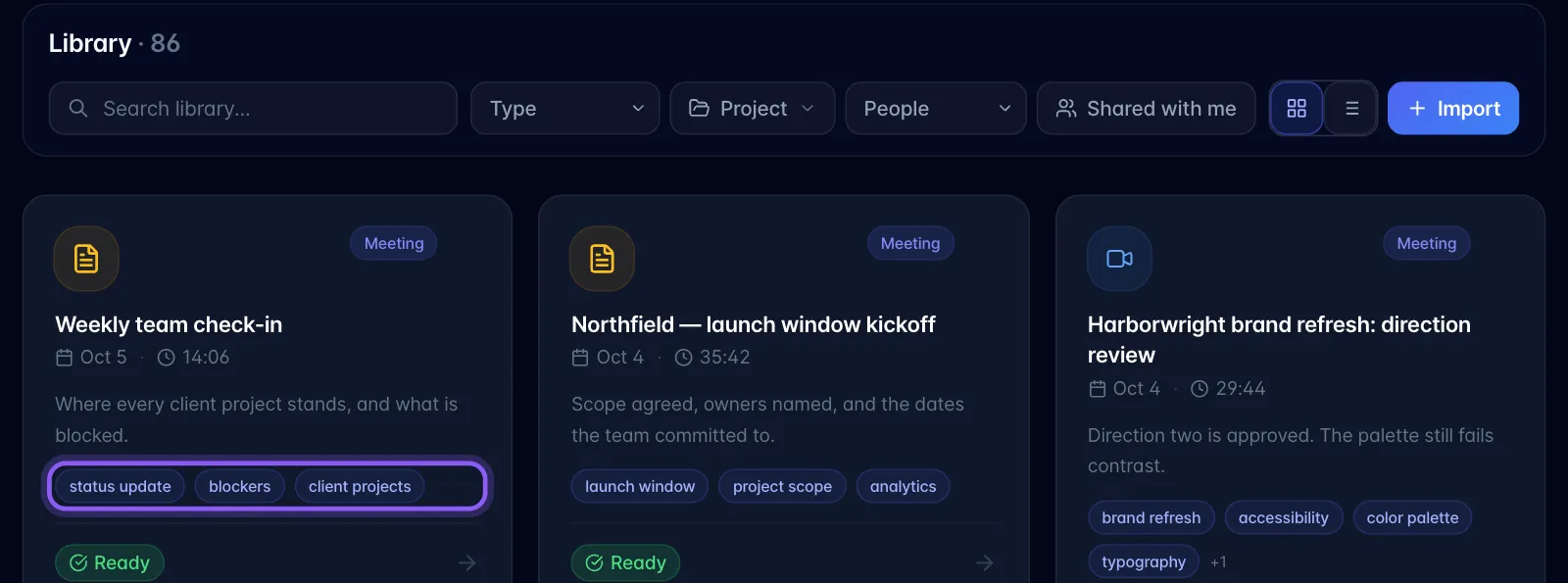
Where you see them
- Library → on each card, below the summary. Up to 4 are shown; extra ones collapse into a "+N" counter.
- The Memory's TAGS sector, where each tag is a dot connected to every item carrying it, which makes them one of the strongest sources of context threads.
Where they come from
The same background job that extracts entities. Same trigger list, same exclusions: recordings, meetings, saved URLs and PDFs get tags; pasted text imports do not.
Limits and gotchas
- They are created automatically and you can't add your own. The only edit available is renaming: open the Memory, click a tag's dot in the TAGS sector, and use the pencil. There's no way to add, recolour or delete a tag anywhere in the app. Hovering a chip shows "Auto-tag", but there's no manual counterpart today.
- You can't filter or search by tag. They're purely visual on the cards. Clicking one does nothing. (Inside the Memory you can click the tag's dot to see everything carrying it: that's the closest thing to a tag filter, .)
- 2–4 tags per item, always lowercase, max 48 characters.
- Tags are workspace-wide: the same tag label is reused across items rather than duplicated.
- Because tags gate the "have we already processed this?" check, an item that has tags will never be re-analysed for entities.