
Orientation: where capture lives
- Open Today for your tasks, calendar, and Scribe briefing, or Library for recordings and imports. The app remembers your last view. The briefing appears once Scribe AI Assistant is turned on in Settings → Experimental Features, and starts collapsed. Select the sparkle row labeled Today's briefing, This week's briefing, or This month's briefing to expand it; select the row again to collapse it.
Every briefing includes a factual overview and an Inspire me section. It follows the selected rolling dates: today, the next seven days, or the next thirty days, in the displayed timezone. It checks your assigned tasks, your own unassigned tasks, and your connected calendar; overdue carryover is separate. Inspire me offers an optional next step based on your saved profile, focus and projects, including quiet periods. It does not create a task or invent a deadline. Without saved knowledge, the suggestion is general. Private/locked recording-derived material and disabled inferred memories are excluded. Opening the card rechecks tasks, calendar and profile changes, not only new recordings. If AI permission or enrichment is unavailable, a labeled local overview and suggestion remain available; no data is sent to an AI provider for that fallback. Enrichment needs saved Google processing background permission; embeddings are optional. Requests and polling are bounded, with Try briefing again for failures or unfinished enrichment.
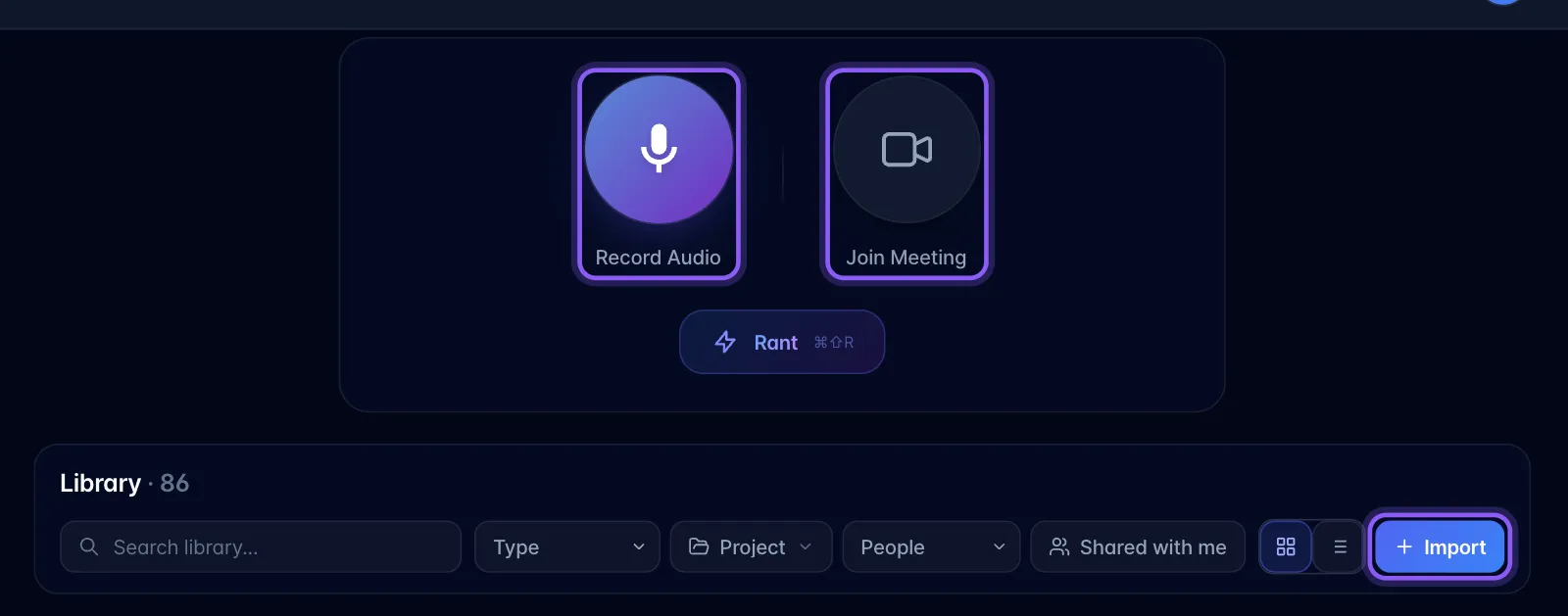
- Choose Record Audio, Join Meeting, or Import. On mobile, tap the centre Record button. From your device groups Upload media, PDF, and Photos; Text & links groups Paste text and Save a link. Text your assistant and Voice settings follow. Record Audio and Join Meeting sit side by side near the bottom, with Rant and Call your AI underneath. Record Audio opens the same recording setup as Today.
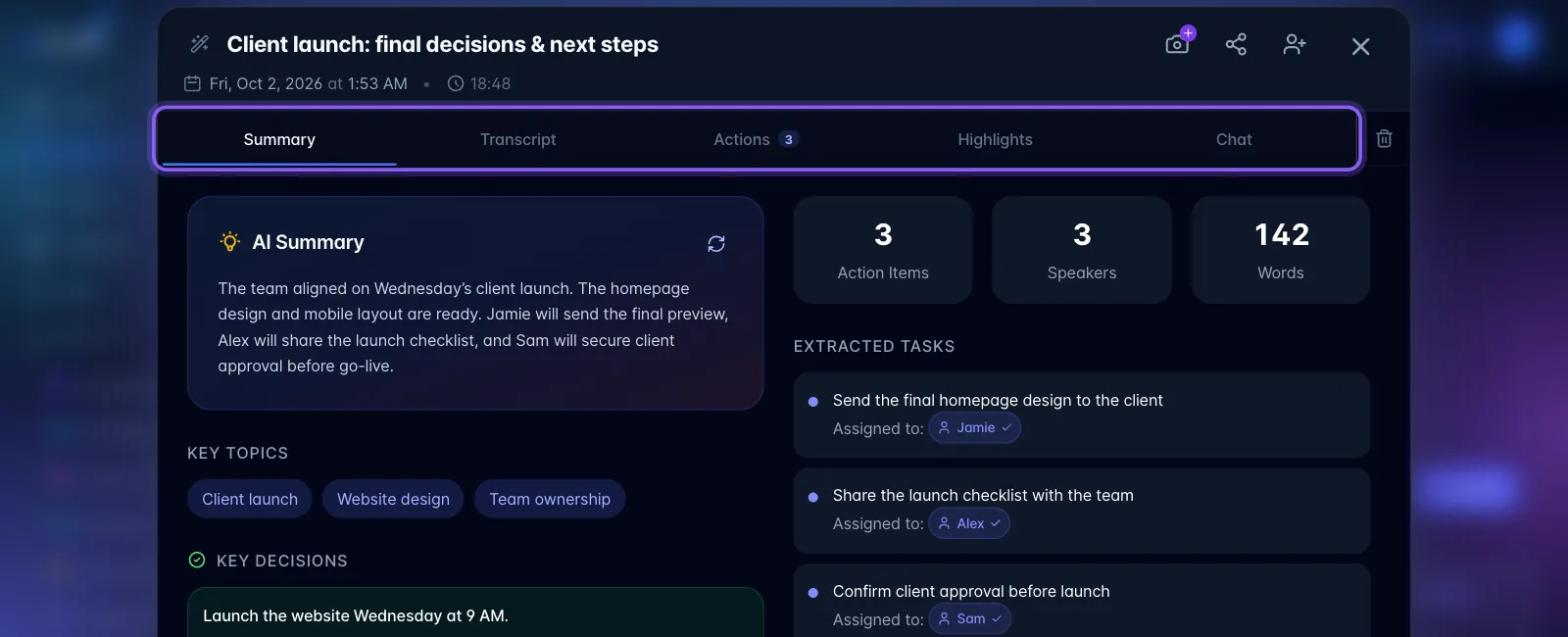
- Open a recording. Use Summary, Transcript, Actions, Highlights, and Chat. A Photos tab appears when photos are attached; photo sessions have Photos, Actions, and Chat.
- On phones, scrolling content in any recording tab folds the header options into the recording title. Tap that compact title to expand the options again; scrolling back to the top also restores them. The current tab stays selected and playback continues. With the keyboard open or a short screen, the expanded options can scroll.
- The recording remembers your last tab. In Chat, audio playback starts collapsed to leave more room for messages. Choose Show playback to expand it; Hide playback collapses it again. Video stays open. On mobile, a collapsed video has a Show video button beside the tabs.
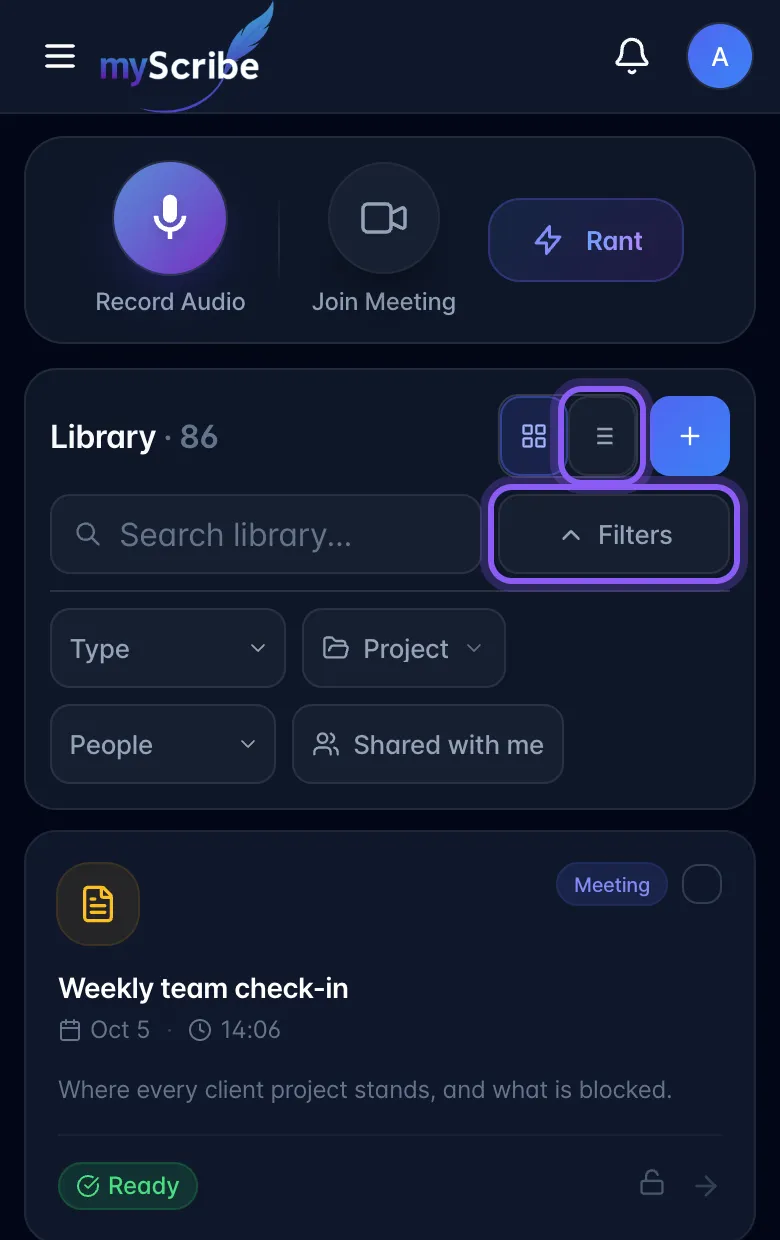
- In Library on a phone, use Filters to narrow the list and List view for compact rows. Grid view keeps the larger cards. For accounts in selected-account early access, the All statuses filter finds recordings by private My status labels.
- Use Help & guides in the sidebar to search these instructions. Tips & tour reopens the guided walkthrough.
Expanding audio in Chat is your choice: clicking Chat again does not collapse it. Switching away from Chat restores the playback layout you had before entering it.