
Recording audio in the browser
What it is. myScribe records from your device's microphone, in the browser, and transcribes it. Audio only: it never captures video or your screen.
Where.
- Desktop/web: Today or Library → Record Audio (the purple mic circle).
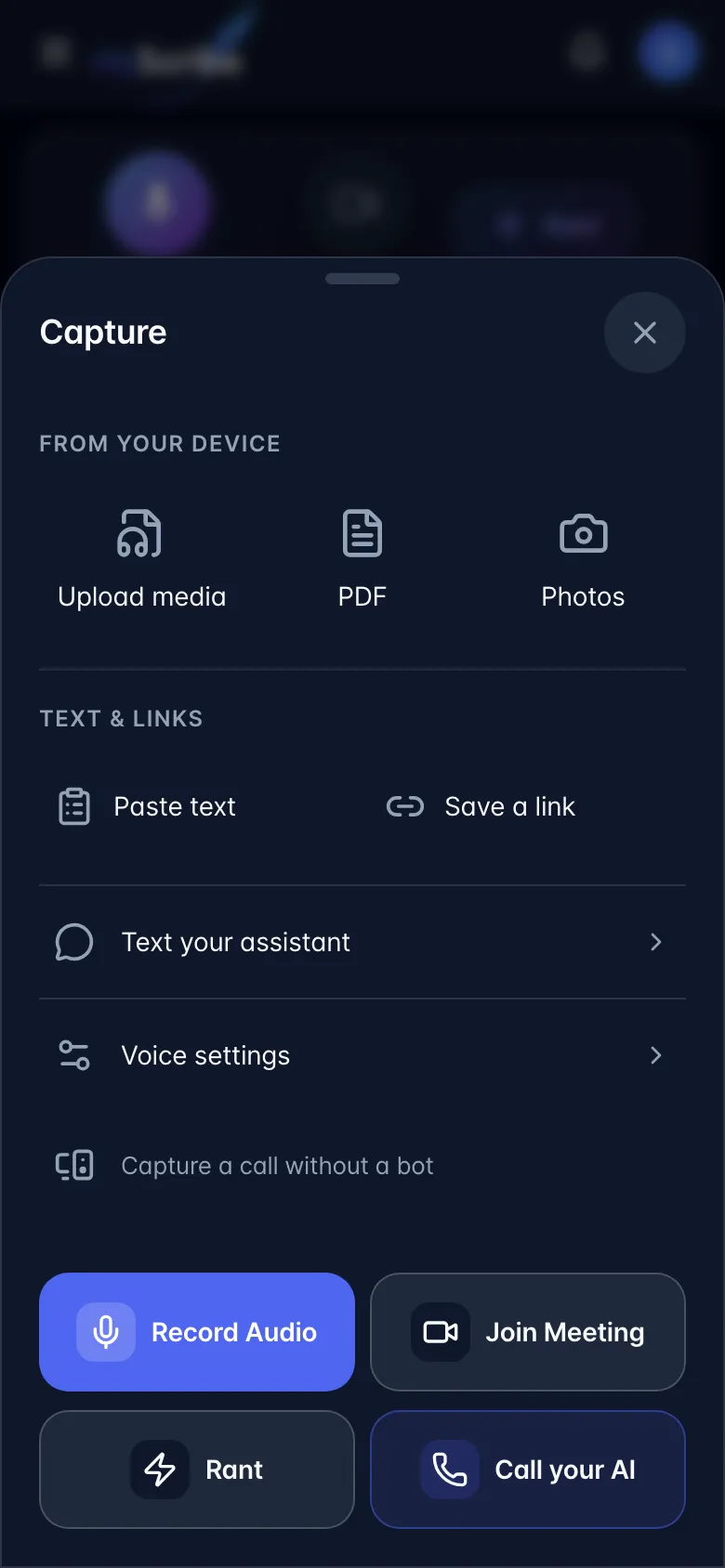
- Mobile: bottom tab bar → the round microphone button in the centre → Capture → Record Audio, Join Meeting, or Rant. The source groups appear first, followed by Text your assistant and Voice settings. Record Audio and Join Meeting are near the bottom, with Rant beside Call your AI underneath.
- Close Capture with Close capture (×), tap outside, or swipe downward from anywhere on the card, including its buttons. A short pull returns the card to its position without activating a button. Swipe upward to reach lower actions on a short screen. Downward swipes always dismiss, even when the content is scrolled; choose Back to top in the header to return to the first actions. The Library stays still behind the card.
How to use it.
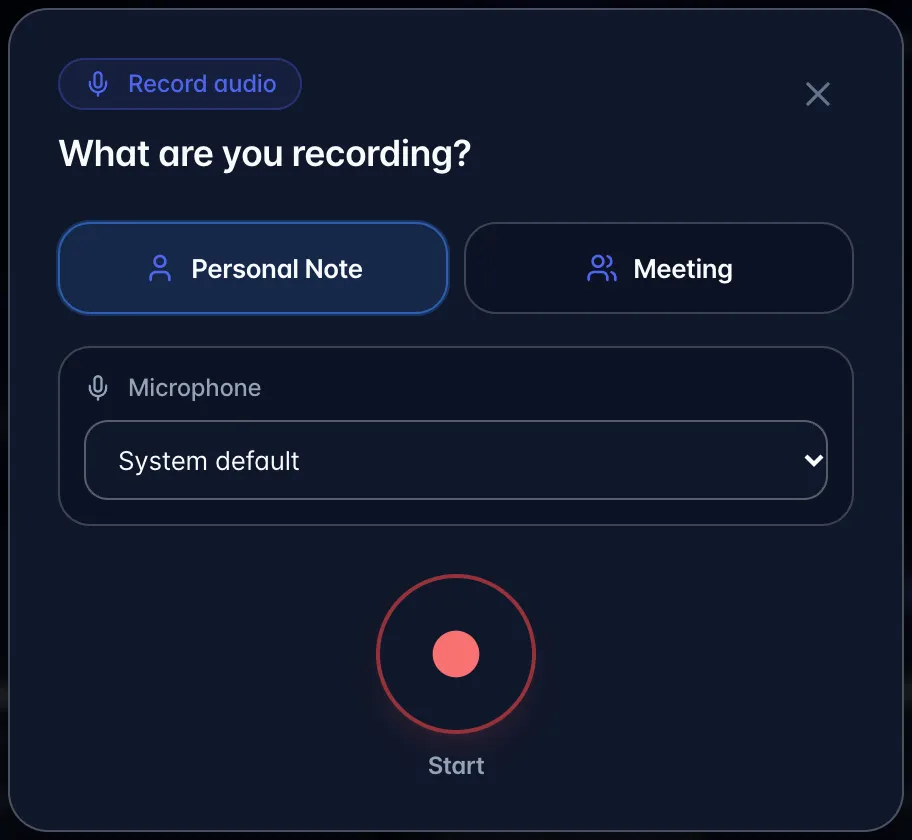
- Click Record Audio. The recording setup opens with a two-option toggle, Personal Note or Meeting. Hover over an option (press and hold on a touch screen) to see its hint:
- Personal Note - "Best for one speaker. Faster processing, with the voice treated as you."
- Meeting - "Best for multiple speakers. myScribe separates and labels each voice."
- The setup preselects Meeting while a calendar event or meeting bot is live. Otherwise it remembers the last mode you recorded with on this account. Change it if needed, then press Start.
- Grant the microphone permission when the browser asks. A visible countdown runs before capture begins.
- Recording starts. You get a live timer, a waveform, and Pause / Resume.
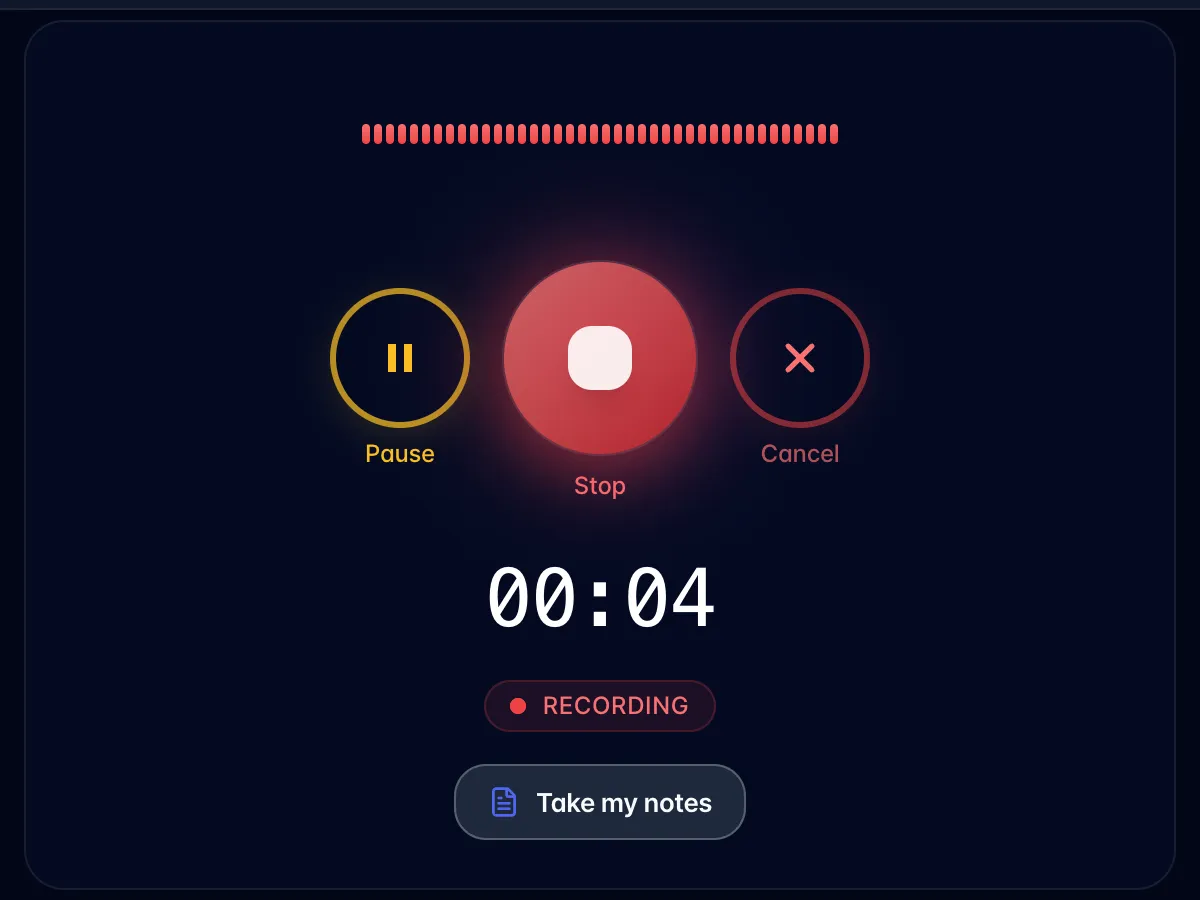
- Press stop. The file uploads (full-screen progress ring), a recording row is created, and the app opens it. Transcription starts only with your saved service-specific background permission. If permission cannot be verified, the media stays saved; review Profile → AI sharing, then retry from the Transcript tab. The recording keeps the date and time it began, including interrupted recordings.
If saving is interrupted. Keep the tab open. Recording save needs attention offers Download backup and Retry save for the available capture. Download before closing the tab, clearing browser data, or signing out; browser storage can be unavailable or evicted. Automatic retries slow down after failures and reuse the same uploaded bytes instead of creating a new upload each time. An unusually small capture is retained for download and review, not silently discarded; it may not contain usable audio. Recovery restores the recording privately and does not start AI processing. Audio saved; transcription not started means the audio is saved, not that transcription succeeded. To transcribe, review Profile → AI sharing → Review AI sharing, select Summaries and extraction with Google Gemini and at least one transcription service, enable each service's separate Allow background processing for this service choice, then Allow AI sharing. Reopen the recording and choose Regenerate Transcript. Only enable services you agree to use.
What the mode choice changes. This is the single most consequential choice in capture:
- Meeting / Conversation → transcribed by the diarizing engine, with speaker diarization (working out who is speaking, so each turn gets its own label) on. You get "Speaker A / Speaker B…" turns you can then name.
- Personal Note → transcribed by the fast single-track engine, which has no speaker diarization at all. Every line is labelled as one voice. If more than one speaker is later detected, the Transcript tab offers Re-run with speaker labels.
What else happens behind the scenes.
- Audio is captured at a deliberately low bitrate: 32 kbps mono Opus on desktop/Android, 48 kbps mono AAC on iOS (iOS Safari has no WebM support). Speech transcription resamples to 16 kHz mono anyway, so the browser default (~128 kbps) would store roughly four times the bytes for no benefit. Roughly 14 MB per hour.
- The file lands in private storage under your own user folder, and the row records what bitrate it was captured at.
- Safety nets while recording: the screen is kept awake (Wake Lock), closing the tab triggers a "you'll lose your recording" browser warning, a phone call or revoked mic permission stops-and-saves rather than dropping the audio, and backgrounding the page on iOS forces an emergency stop-and-save.
Limits and gotchas.
- 5-hour hard ceiling. At 5 hours the recording auto-stops and saves itself with the message "Recording auto-saved after 5 hours. Your data is safe!"
- Free and Pay-as-you-go: 60 recorded minutes per calendar month, no rollover. If you're already at 60 minutes you can't start; if you cross 60 minutes mid-recording the app stops and saves for you rather than letting you lose it ("Saved! That's your 60 free minutes for this month").
- The live-recording counter sums microphone recordings created under your user this month, using media duration where available. Uploads, bot meetings, rants and text imports do not consume this live-recording counter. The bot admission check separately totals workspace recordings.
- Storage gate. If your organisation is over its included storage and has no card on file, a prompt appears instead of the recorder. You can "continue for now" twice; after that new captures are blocked until you upgrade or add a card. Content already in the app is never touched.
- There is no in-browser video recording, and no screen recording. Online call (below) uses the browser's share prompt only to reach the call's sound; the picture is discarded immediately.
Plan gating. Available on every plan. Only the monthly minute cap differs (free / pay_as_you_go = 60 min; paid plans are metered, not capped).