
Marking a recording Personal
Where. In Library, use the recording card's padlock. Only the owner can change it. On desktop the padlock of a recording that is not Personal stays hidden until you hover over the card; on touch screens it is always shown.
- Choose the padlock (its tip reads Make it Personal) to mark the recording Personal. Its amber badge identifies it in Library.
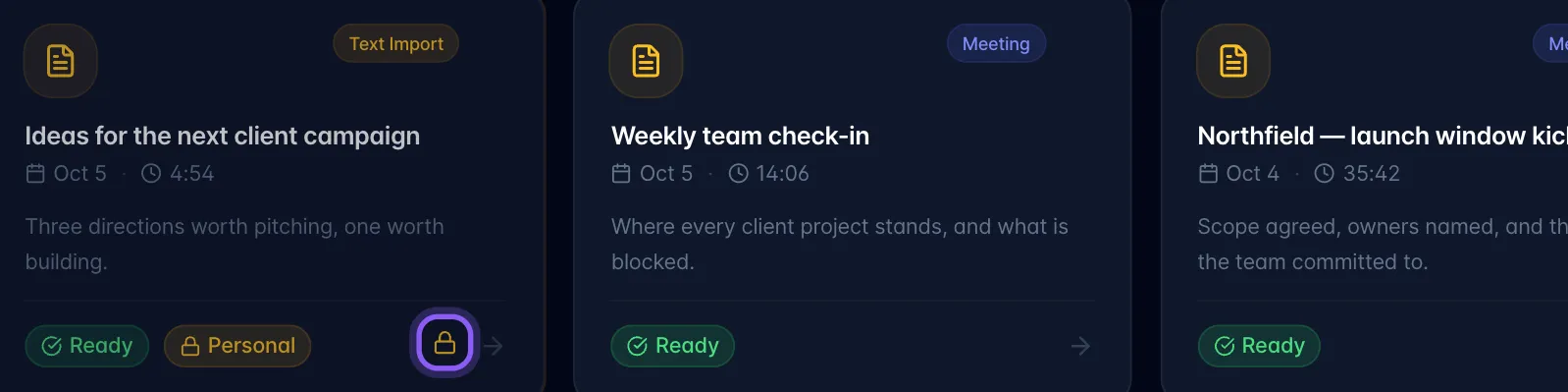
- Its linked tasks are kept out of the general Today and Tasks views. The global AI assistant, including its voice and Scribe views, excludes the Personal recording and its linked content from searches and task answers.
- To ask about it yourself, open the recording and use its own Chat tab. That conversation is private to your signed-in account.
- Sharing is blocked while Personal is on, including existing guest links. To switch it back, choose the amber padlock again (its tip reads No longer Personal). The recording then returns to ordinary task and AI views and can be shared again.
Personal hides and excludes content; it does not delete the recording or its tasks. Only its owner can delete a Personal recording; team membership does not grant that permission. It is not a separate password or encryption feature, and it cannot recall copies someone already downloaded. Personal Note recording mode is a different setting: it chooses single-speaker transcription and does not replace this privacy control.