
Editing a recording: hiding sections
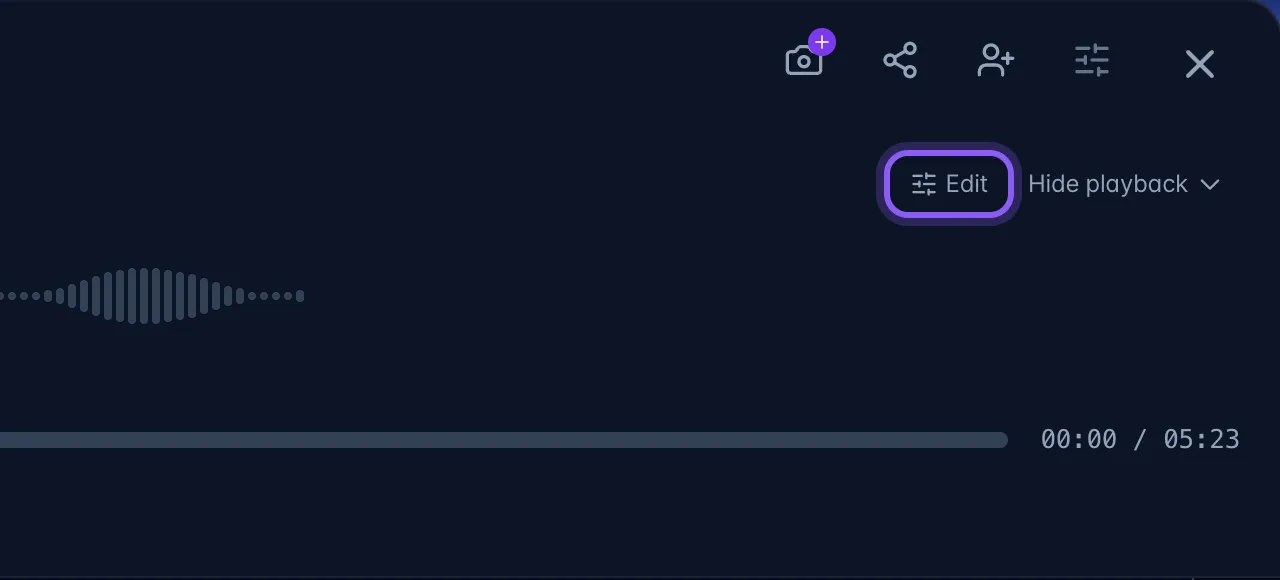
Where. Open a recording you own. For audio, choose Edit beside Playback; for video, choose Edit over the player.
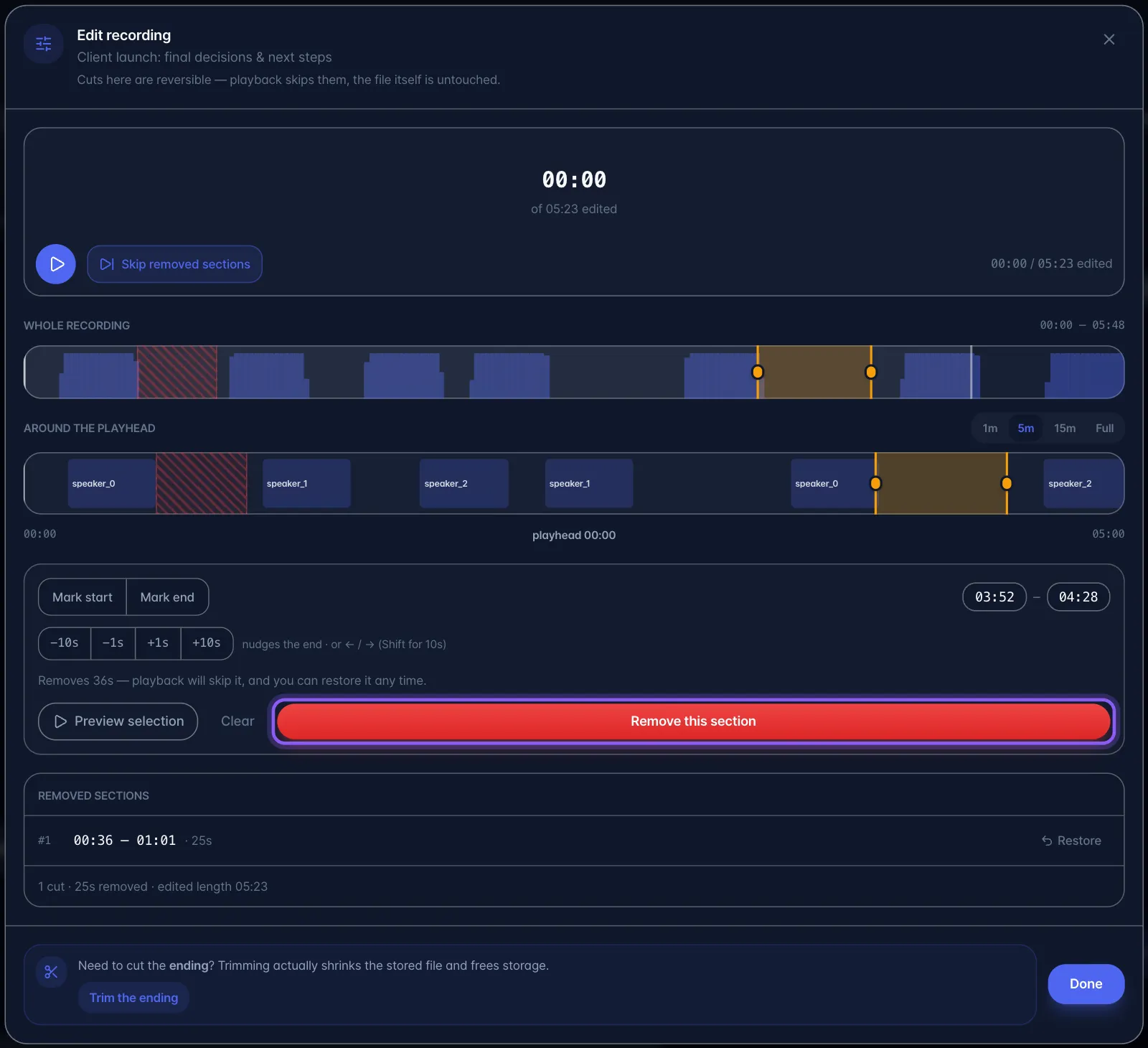
- Find the section on the editor timeline. Set its start and end with the selection controls or the time fields.
- Preview the selection and choose Remove this section.
- If action items came from that range, review the question about them. Choose whether to keep those items or delete them along with removing the section. Canceling that question leaves the removal unconfirmed.
- Once saved, playback skips that range and the visible transcript omits it. The main playback clock reflects the edited timeline; use the editor's displayed times when adjusting a cut.
- Under Removed sections, choose Restore to put a range back into playback.
Removing a section preserves the original media file and is reversible. Deleting associated action items is a separate choice; restoring playback does not restore deleted tasks. Modify end point is different: read its confirmation because it shortens the stored file.
Escape cancels an active time edit or the action-item question before leaving the editor.