
Deleting a recording
What it is. Removing a recording from myScribe for good.
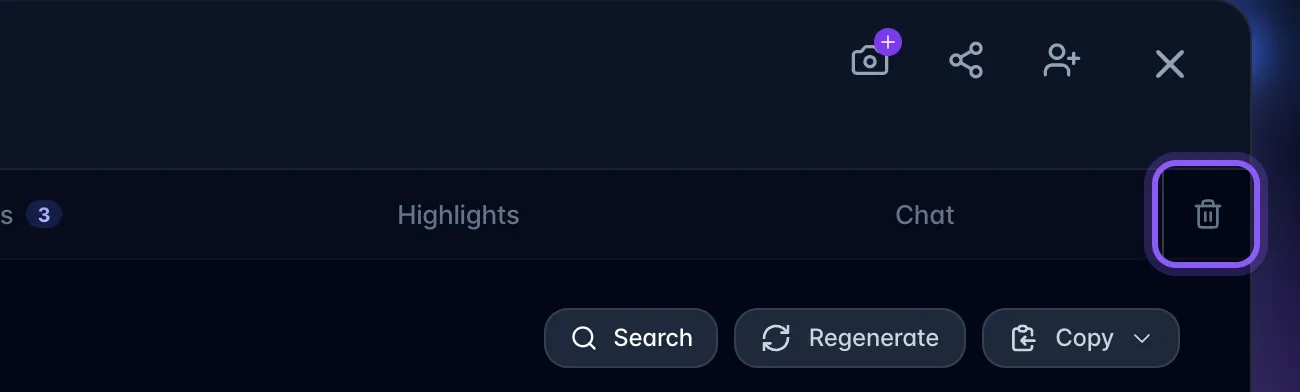
Where. Open a recording or meeting you own and select the trash icon at the far right of its tab bar. Review the confirmation, then choose Delete Forever. Cancel or Escape returns to the open recording without deleting it. You can also hover a recording card → the bin icon, or select several with the checkboxes and use bulk delete in the toolbar.
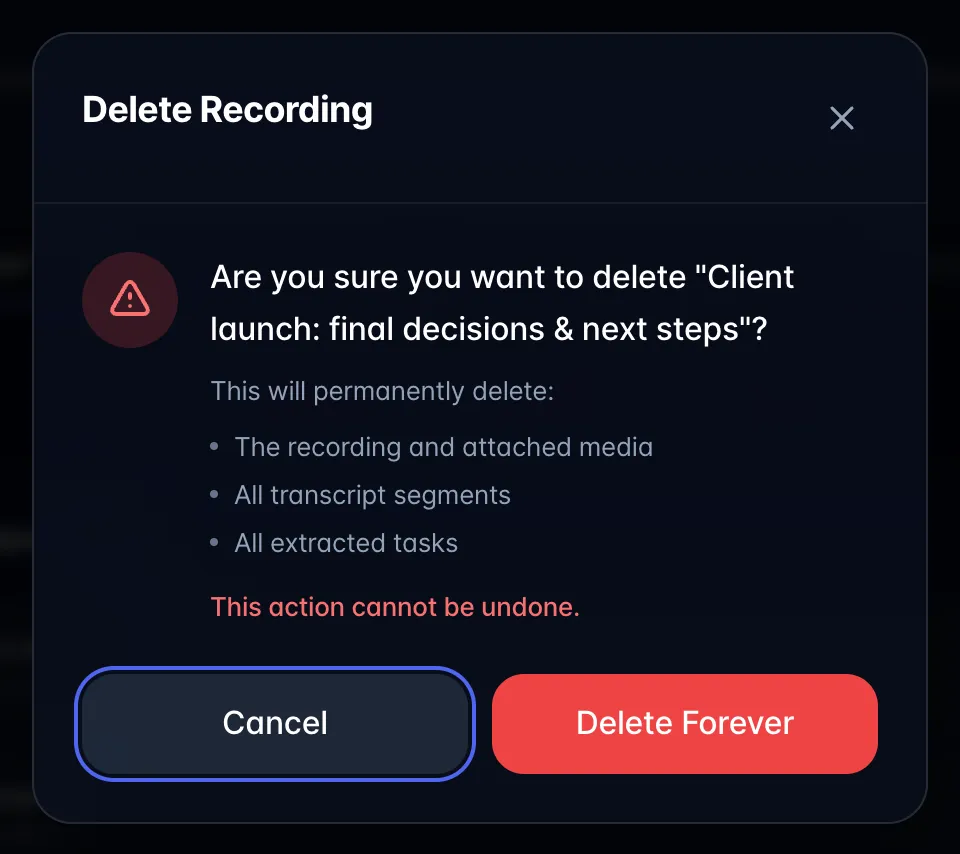
What goes with it. Deleting a recording deletes everything attached to it: the audio or video file, the transcript, the summary, the highlights, and every task that came out of it: along with those tasks' comments, labels, activity and sub-tasks. Any share of it goes too, and if a meeting bot recorded it, the copy held by the meeting provider is deleted as well.
It cannot be undone. There is no trash and no restore. If you only want it out of the way, mark it Personal instead: that keeps it but hides its tasks and turns sharing off.
A recording someone shared with you behaves differently: deleting it only removes it from your library, and the owner's copy is untouched. You will see "Removed from your library" rather than a deletion warning.
Storage. Space is freed immediately, but your storage bill is measured once a month on the 1st. Deleting files before then removes the charge for them entirely; deleting after means that month is already counted.