
Join Meeting: the recording bot (Zoom / Google Meet / Teams)
What it is. You paste a meeting link and myScribe sends a bot participant named "myScribe" into the call to record and transcribe it. You do not have to be in the meeting, and nothing on your machine is captured.
Where.
- Today or Library → Join Meeting (the video-camera circle).
- Mobile capture sheet → Join Meeting.
- A meeting with a Zoom, Google Meet or Microsoft Teams link in Today, or in a day opened on the Calendar → Join now (bot icon). See Join now on a scheduled meeting below.
The modal has two tabs: Join a meeting and Create a meeting (the latter books a new meeting with a Google Meet or Zoom link and emails the invitations: a separate feature).
On mobile, Close meeting (×) stays at the top and Cancel and the submit action stay below the scrolling form, above the keyboard. Pull the top handle down to hide the keyboard; pull again to close. Closing with unfinished details asks whether to discard them. Cancel, the backdrop, and Escape use the same check. While a meeting request is being submitted, wait for it to finish before closing. Switching tabs keeps unfinished details until you close. After creation, Done opens the new meeting.
How to use it.
- Click Join Meeting.
- Paste the meeting URL. The UI states Zoom, Google Meet, or Microsoft Teams.
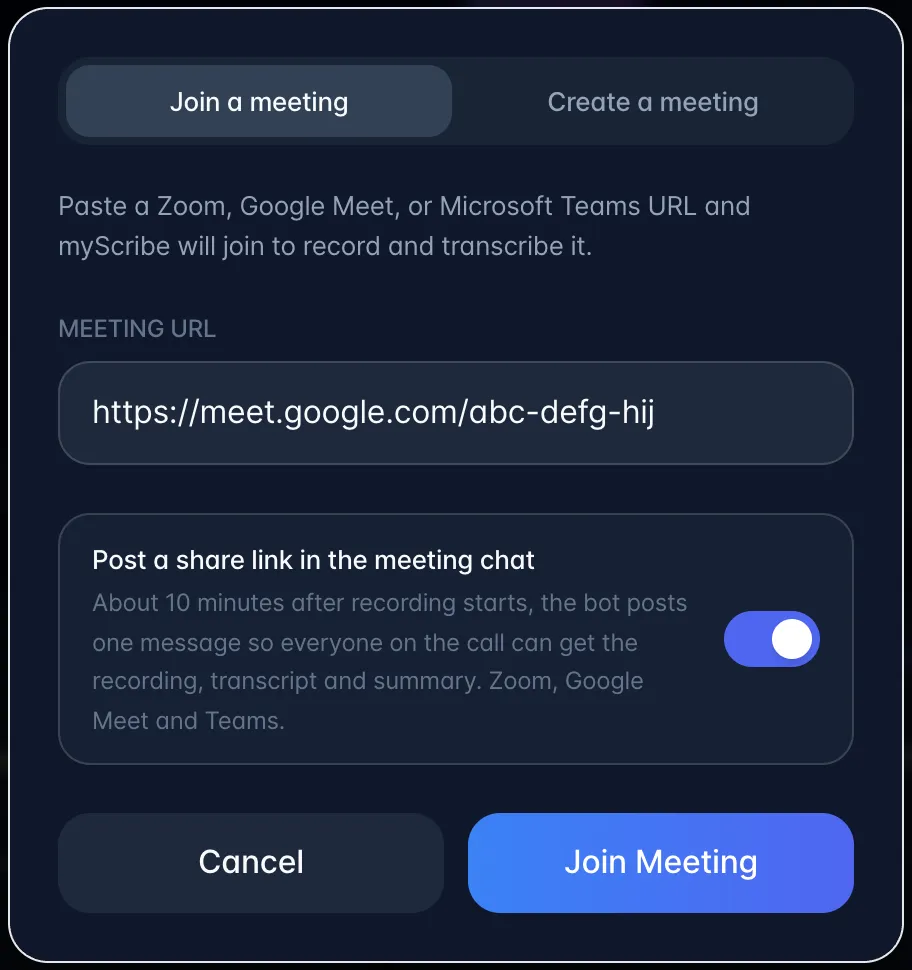
- Check Post a share link in the meeting chat. It starts at your Settings choice; switch it off (or on) for just this meeting.
- Click Join Meeting. You get "Bot scheduled to join the meeting!"
- If the link matches a meeting on your connected calendar that is set to auto-join, a note under the link names that meeting and the button reads Join now. Until 5 minutes before the start, the note says when myScribe will join automatically (about 5 minutes before the meeting starts); you can still click Join now to send the bot right away. From then on, the note says the meeting is about to start or has already started; if myScribe is not in the call, click Join now. myScribe never sends a second bot while one is already active on that meeting.
- If a myScribe bot is already active on that link, the button reads Already joining and no second bot is sent.
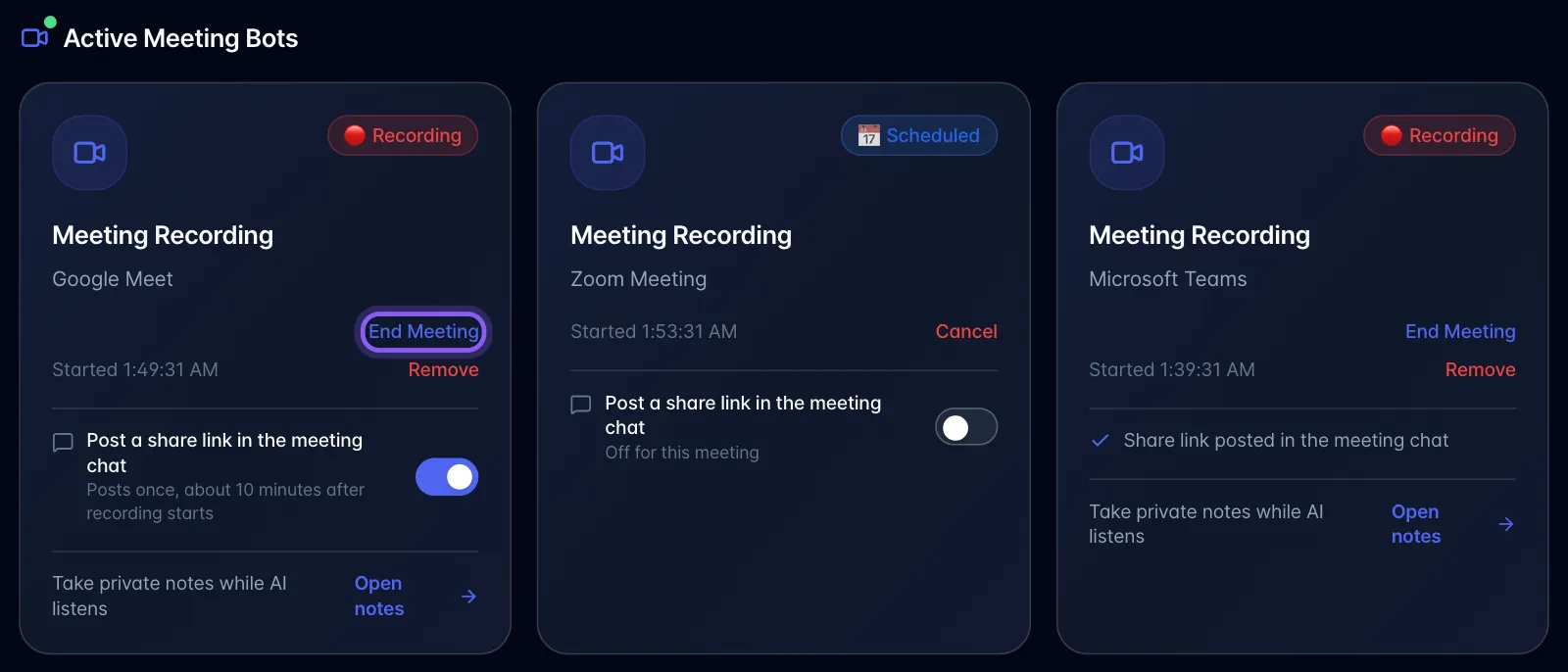
- An Active Meeting Bots card appears in Library with a live status badge: 📅 Scheduled → ⏳ Joining… → 🚪 Waiting Room → 📹 In Call → 🔴 Recording.
- While the bot is in the call there's an End Meeting action on that card, which makes the bot leave gracefully and still keeps the recording.
- When the call ends the recording appears in the library, usually with a transcript already attached. Its date and time are when the bot started recording the call, not when the call ended. The same start time is used in the Library, the recording's header, search results, shared links and task-assignment emails.
Join now on a scheduled meeting. Meetings often start early or run late. Join now sends the bot to a synced meeting's own link straight away, whatever its scheduled time.
- Open Today, or open a day on the Calendar.
- On a meeting with a Zoom, Google Meet or Microsoft Teams link, click Join now (bot icon). On Today it is on the meeting's row. On the Calendar it is next to Join Meeting and Meeting options. Join Meeting opens the call for you; Join now sends the myScribe bot.
- If the meeting is scheduled more than an hour from now, confirm with Join now.
- The button changes to Bot sent, and the bot appears under Active Meeting Bots in Library, where you can change Post a share link in the meeting chat for this meeting.
Join now is offered until an hour after the meeting's scheduled end. It does not need auto-join to be on, and it follows the same rules and recording minutes as a pasted link. If a myScribe bot is already active on that meeting, you see Bot sent instead and no second bot is sent.
What it actually does.
- The bot joins as a normal participant showing a branded still image (the myScribe feather app icon on a night-blue tile) as its "video". In most meetings someone has to admit it from the waiting room, if nobody does, it never records.
- A third-party bot service runs the bot; when the call ends myScribe pulls the transcript and copies the video into myScribe's own storage, so playback keeps working after the provider's links expire.
- If the provider returns no transcript, myScribe automatically re-transcribes the media itself. There are also two automatic recovery sweeps (15 seconds and 5 minutes after the call ends) that catch missed "recording done" events.
- While the bot is recording, an AI Meeting Assistant panel appears in the app for that live meeting.
- About ten minutes into a recorded call, the bot posts one message in the meeting chat with a share link to the recording it is making (Zoom, Google Meet and Teams; Webex has no chat API). Anyone on the call can open it: until the meeting ends it says the recording is still in progress, then that the notes are being written, and it refreshes itself; once the AI summary is ready it shows the recording, transcript and AI summary in the read-only guest view with a sign-up prompt. It is a normal share link: it appears under Share on that recording, where you can change what it exposes or switch it off. The bot posts it at most once per meeting.
- You choose, per meeting, whether the link is posted, with the Post a share link in the meeting chat switch in Join Meeting and on the Active Meeting Bots card. Your default is Settings → General → Meeting bot shares the recording link in chat. See Meeting chat share link: turn it on or off per meeting.
Limits and gotchas.
- Only Zoom, Google Meet and Microsoft Teams links are offered. (Webex is recognised internally for labelling purposes but is not advertised: treat as unsupported.)
- The bot is visible to everyone in the call. This is not silent recording. Whether you need consent is your call, but participants will see "myScribe" in the roster. To record without a bot, use Silent Capture.
- Bot creation is blocked server-side when the workspace has already used its monthly recorded minutes; the error is "You have reached your recording limit for this month."
- Joining is per-workspace: the minutes bill to the workspace, and you must be a member of it.
- Waiting-room rejections, meeting locks, and password-protected links surface as a "fatal" bot status with an error message: from the user's point of view, the recording just never appears. This is worth a troubleshooting section.
- The bot's audio file may still point at the provider's storage even after the video is backed up, so old bot recordings can lose audio-only playback while video keeps working. (Video is what the player uses, so this is rarely visible.)
Plan gating. Manually joining a meeting works on every plan and uses your monthly recording minutes. See The plans that actually exist for what your plan includes and what extra minutes cost.