
Auto-join from your calendar
What it is. Connect Google Calendar or Outlook and approve each meeting occurrence for myScribe to join at its start time. Calendar access and an account-level switch alone do not authorize sending meeting data to a third-party capture service.
How it works.
- In Profile → AI sharing → Review AI sharing, select Meeting capture with Recall and its Allow background processing for this service checkbox. Also select the processing/transcription services you need and their separate background choices, then Allow AI sharing.
- The account-level Auto-join switch sets a default for events as they sync. It does not approve any occurrence by itself.
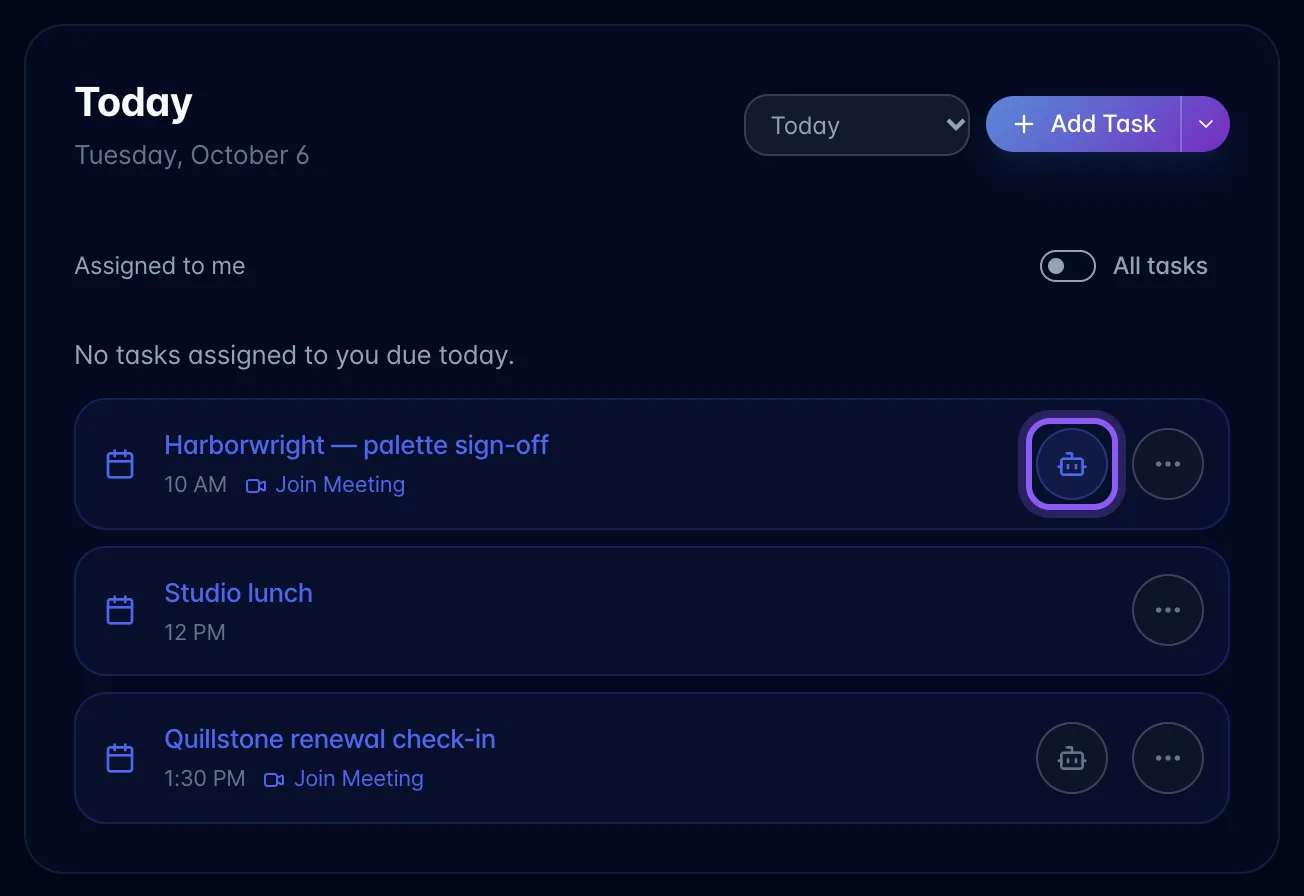
- On Today, tap a meeting's robot icon or Review auto-join, read the confirmation, then Approve auto-join. A filled icon is not proof of approval. Review upcoming meetings within 30 days. This binds your current choice to that occurrence's account, destination, link and start time. Changed meeting details or AI choices need another explicit review; an old approval cannot acquire a later permission automatically.
- About 5 minutes before the meeting's start time, myScribe sends the approved bot from wherever you have it open, so it is waiting when people arrive. If myScribe was not open then, it still sends the bot when you open it, until 10 minutes after the start. It never joins after the meeting's scheduled end. Approval does not guarantee admission or successful capture.
- Turning the robot icon off retires that occurrence's approval. For a pending bot, it also requests cancellation. Ending an already-active call is separate; check its status in Active Meeting Bots. Participant permission is still required.
Where.
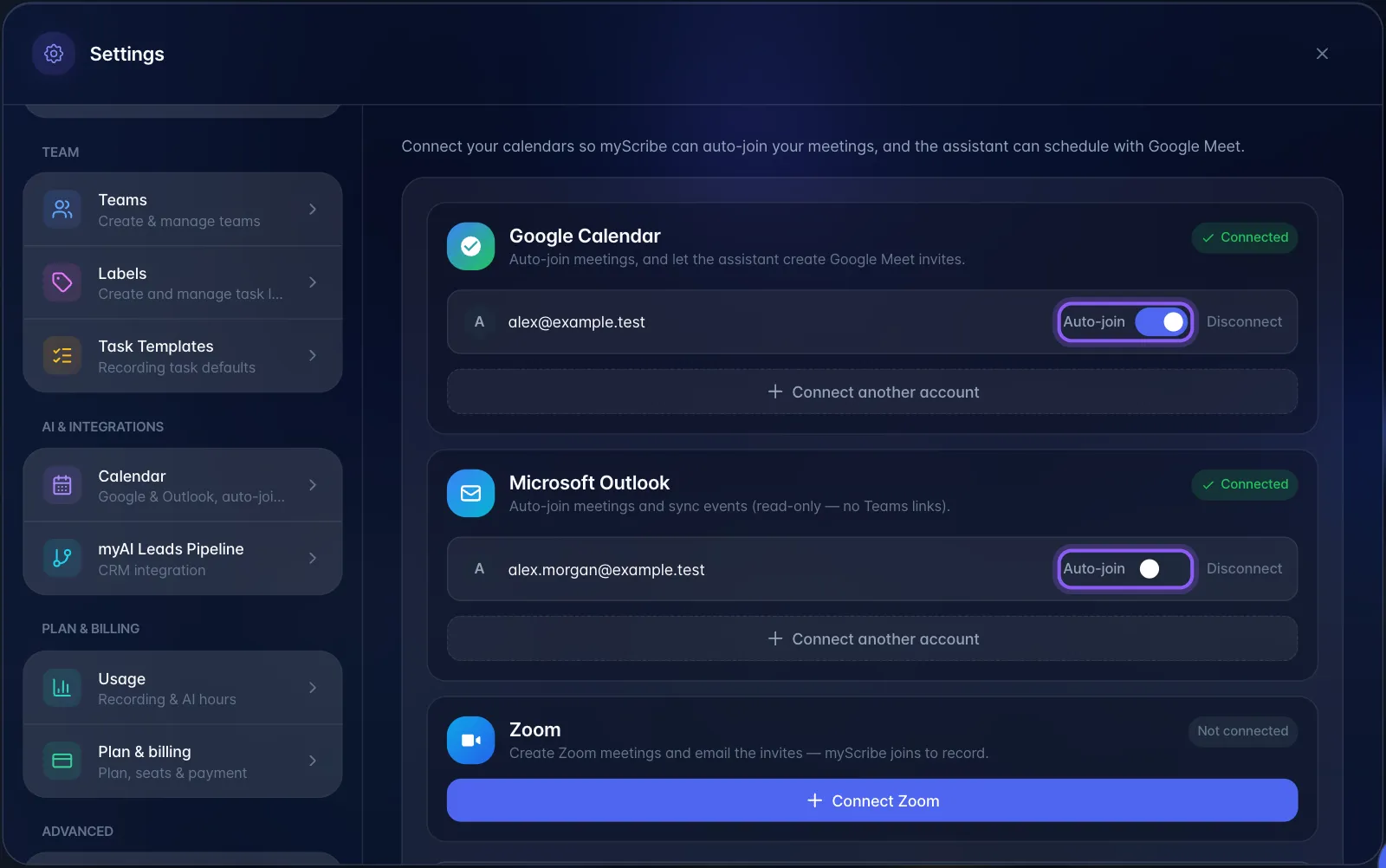
- Turn it on per calendar account: Settings → Calendar → each connected account has an Auto-join toggle.
- Override it per meeting: Today view → any calendar event row with a video link has a small robot icon on the right. Tap it to enable and review an occurrence, or turn it off. For an already-enabled event, choose Review auto-join. A filled icon means its setting is enabled; it is not proof that its permission has been verified.
Connect more than one account. In Settings → Calendar, choose Connect another account under Google Calendar or Microsoft Outlook, select the additional account, and approve calendar access. Each account appears on its own row; existing accounts stay connected and your myScribe sign-in stays the same. Reconnecting the same account refreshes its connection without adding a duplicate. New accounts start with Auto-join off; turn it on separately for each account you want recorded. Disconnect removes only that account's connection and cached calendar events.
New Google meetings use your earliest connected active Google account. Adding another account does not change that default. Changes to an existing synced meeting use the account that meeting belongs to.
Keep myScribe open at meeting time. Auto-join runs inside myScribe itself: while you are signed in with the app or a browser tab open, it checks every 30 seconds for approved meetings that start in the next 5 minutes or started in the last 10. If myScribe was not open 5 minutes before a meeting, opening it before 10 minutes after the start still sends the bot. After that, auto-join does not send it. For meetings you want recorded, leave myScribe open and signed in on a computer. A phone that is locked, or has myScribe in the background, may not send the bot. If a bot did not join, click Join now on that meeting in Today or on the Calendar, or choose Join Meeting, paste the meeting link, and click Join now. Having myScribe open on more than one device does not send two bots to the same meeting.
Limits and gotchas.
- Only events with a recognised meeting URL (Zoom / Meet / Teams link in the event) can auto-join. A room-booking or a phone-dial-in event shows no robot icon.
Outlook stays read-only: myScribe can sync and auto-join Outlook meetings but cannot create or edit Outlook events. Meetings myScribe creates carry a Google Meet link (from a connected Google Calendar) or a Zoom link (from a connected Zoom account): it asks which if you have both.
- Calendar events are a cache, refreshed roughly every 5 minutes while myScribe is open (you can also press Sync events now in Settings → Calendar). A meeting added to your calendar seconds before it starts may not be there in time to auto-join.
- All-day calendar entries are never auto-joined, even when they carry a meeting link.
- The bot arrives about 5 minutes early. In most meetings it waits in the lobby or waiting room until someone admits it or the host starts the meeting. If nobody lets it in, it does not record.
- Turning the account toggle on does not retro-enable meetings that already synced with it off.
Plan gating. Auto-join runs on paid plans only (Pro, Pro (Legacy) and Pro w/ AI Employee) or for any account carrying the auto-join feature flag. On Free you can still paste a link and join a meeting manually.