
Importing: media, text, links, PDFs, photos
Pasted text and AI permission. Paste text saves your transcript before requesting AI analysis. Transcript saved is not proof that summaries or tasks are finished. Only the owner can start analysis with current Summaries and extraction with Google Gemini background permission. If analysis is unconfirmed, review Profile → AI sharing and retry from the saved recording; do not import the same transcript again just to grant permission.
Where. Library toolbar → Import (+) opens the Add content sheet. It offers Upload media at the top, then four tiles: Save a link, Paste text, PDF, and Photos. Use the back arrow to return to these choices. On a phone, you can also tap the centre Record button: From your device contains Upload media, PDF, and Photos, while Text & links contains Paste text and Save a link. These options open their screens directly.
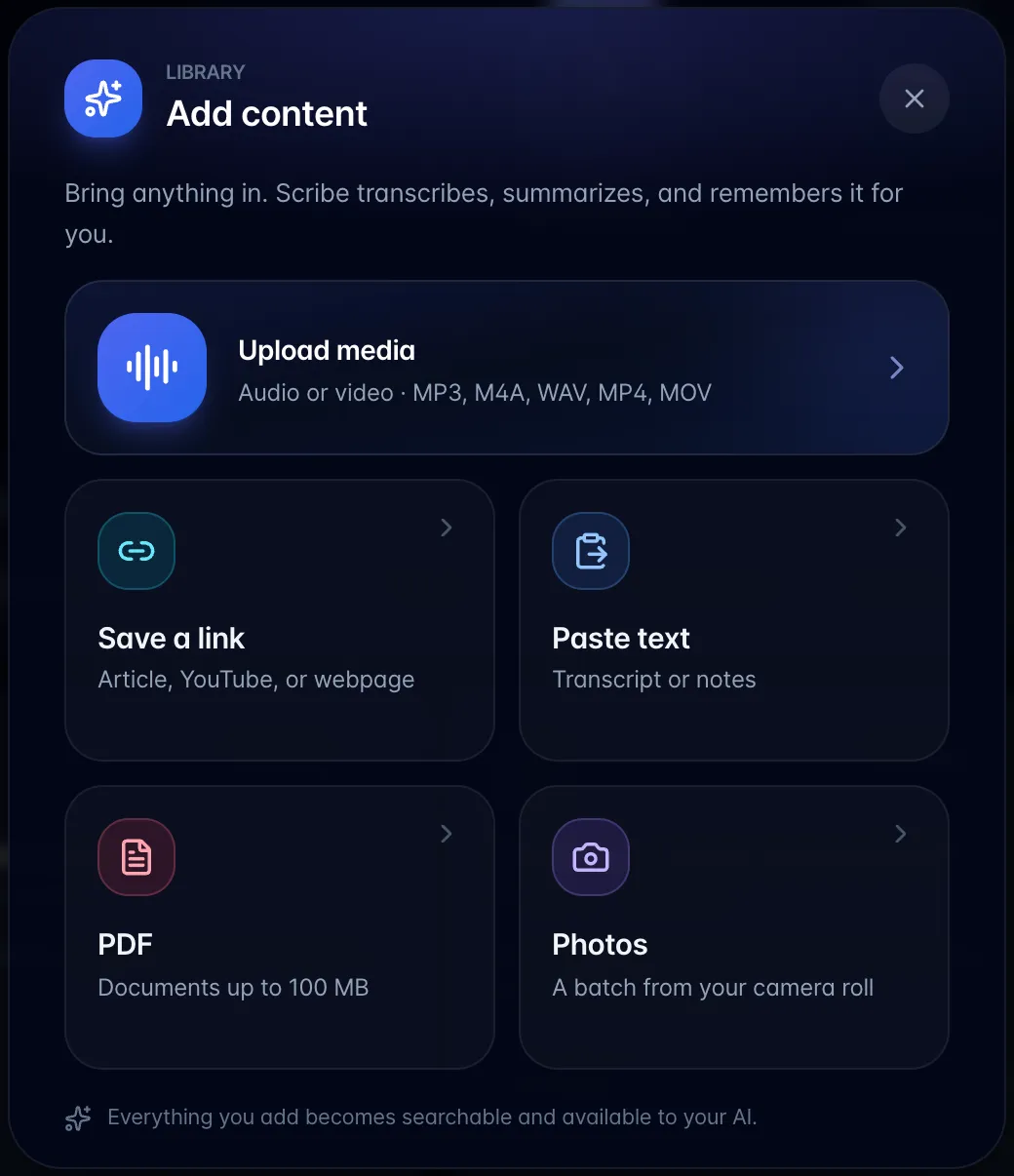
4a. Upload media (audio or video)
- Choose Upload media, then pick Personal Note or Meeting with the toggle at the top.
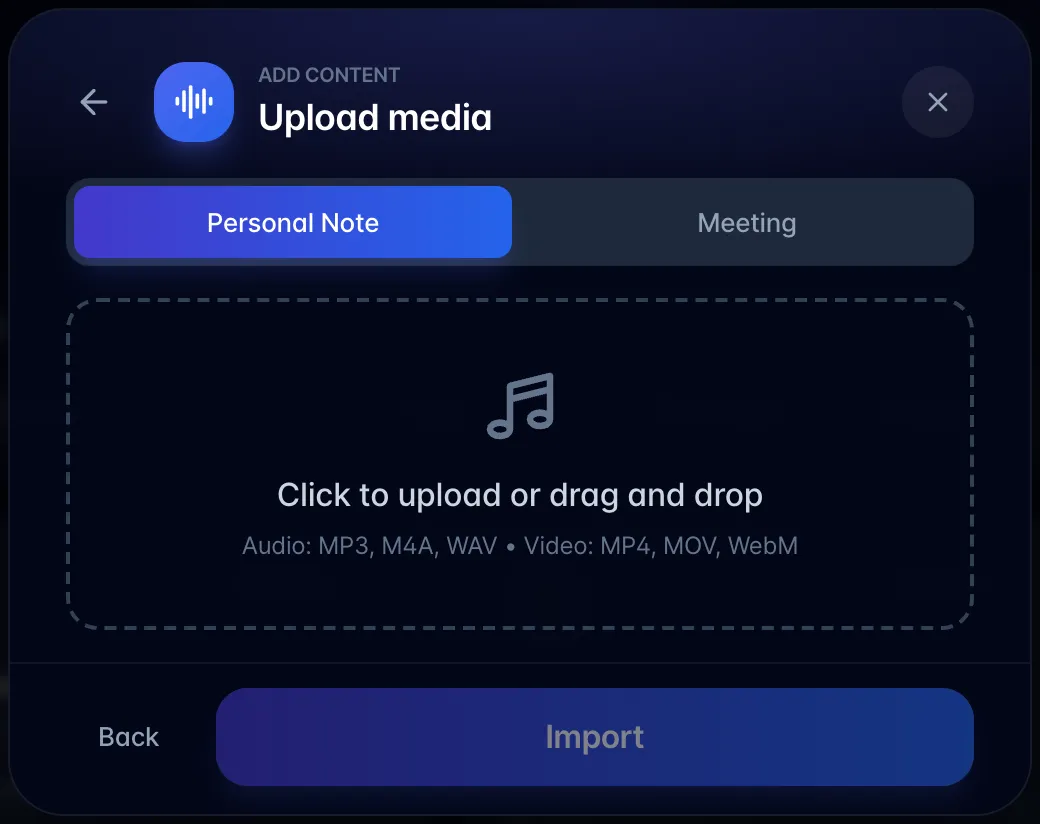
- Choose or drag a file. Accepted: MP3, M4A, WAV and other audio; MP4, MOV, WebM, MKV, M4V, AVI for video. Choose Import.
- Upload shows a percentage and can be cancelled mid-upload.
- Size caps: audio 50 MB, video 500 MB. Over that you get "File too large. Maximum size is 50MB/500MB. Your file is X MB."
- The Personal/Meeting toggle is ignored for video. Every video file is transcribed in meeting mode with speaker detection, whatever you picked.
- Duration is read from the file in the browser; on large files or awkward mobile codecs this times out after 8 seconds and the recording is saved with a duration of 0. That later gets corrected from the transcript's last timestamp.
- An uploaded file is dated and timed from when you upload it. myScribe does not read the original recording time from the file.
4b. Paste text
Choose Paste text, paste a transcript or notes, then choose Import. myScribe parses three shapes: MM:SS text / HH:MM:SS text lines, Speaker Name: text lines, and plain paragraphs. It guesses a title from the first line, then runs the AI summary and task extraction.
On a phone. Scroll within the sheet to reach its content, or within a long transcript to move through the text. The bottom Import action stays separate from that scrolling content. The back arrow returns to Add content; Close dismisses the sheet. Drag down on the small handle to hide the keyboard without discarding the text; with the keyboard hidden, dragging the handle closes the sheet.
- If there are no explicit speaker names, it infers at most two speakers from conversational cues (short reactions vs. substantive statements). This is a heuristic and will be wrong on three-plus-person transcripts.
- There's no audio, so there's nothing to play back and no timestamps to click through to.
4c. Save a link
Choose Save a link, paste the address of an article, a public YouTube video, or any public page, then choose Save link. The summary style defaults to Concise and can be changed to Detailed, Bullets, Executive, or Teaching. For YouTube, myScribe first reads available captions and can use Gemini video understanding to capture the spoken content when YouTube does not return caption text. Other pages are scraped as readable text. The content is summarised, embedded for AI recall, and filed in your library.
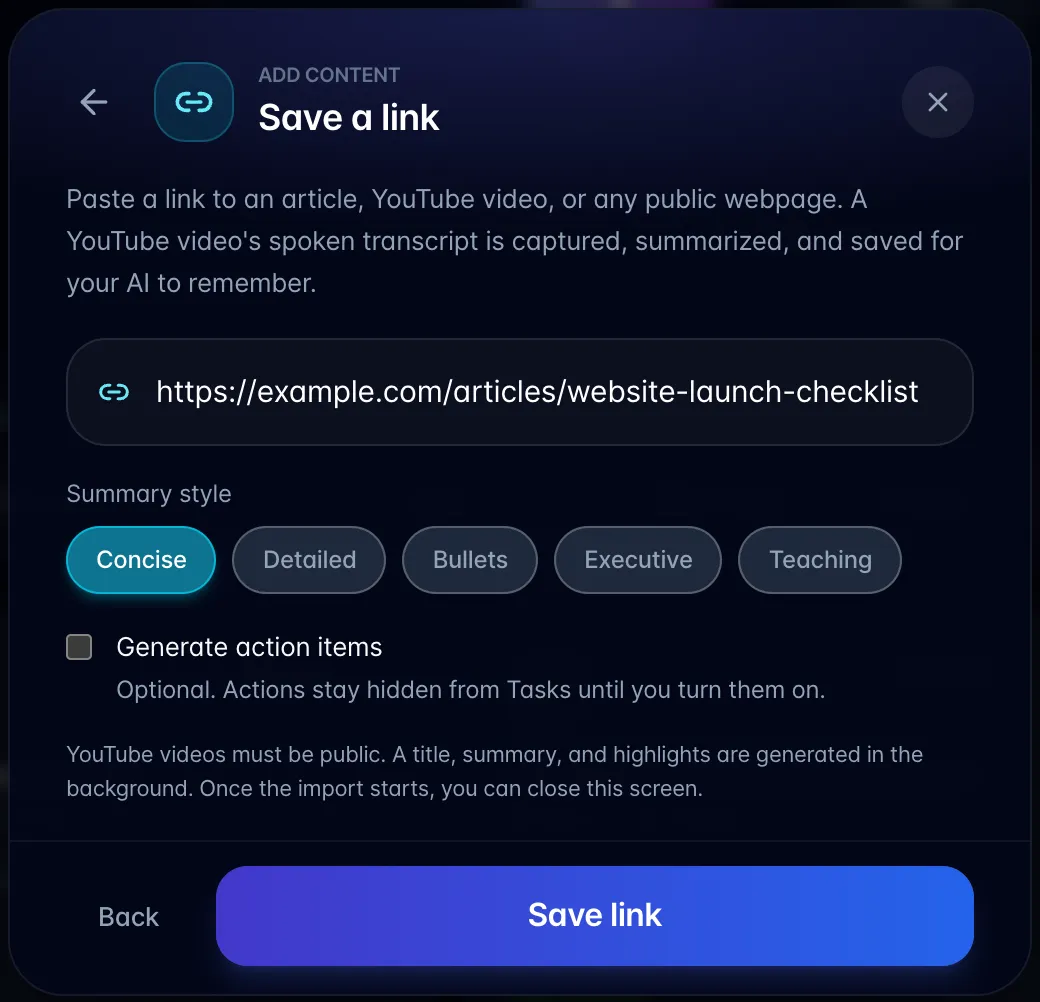
- Generate action items is optional and off by default. If enabled, actions are extracted but remain Hidden from Tasks on the recording until you turn on In Tasks tab. New YouTube actions stay hidden even when added later.
- YouTube imports require a public video. After a short start request, the modal closes and one library card shows Processing import. Processing continues on the server if you close the screen. An unavailable or unreadable video leaves a Needs attention card with Retry import; retries reuse the same card.
- Successful YouTube imports receive a transcript-based title, summary, and timestamped AI highlights. Watch on YouTube opens the original video, and transcript/highlight timestamps open the corresponding point on YouTube.
- Paywalled or login-walled pages are still saved, but only the preview is captured, and the recording shows a notice that only its available preview was captured. No summary is generated for those.
- Page text is clipped at ~120,000 characters.
- Auto-tags appear a few seconds after the item is saved, not immediately.
4d. PDF
Choose PDF, pick a PDF file and a summary style, then choose Save PDF.
- Hard cap 100 MB. Above 40 MB you get a warning that ingest will be slow and to consider compressing first (the error text even points at macOS Preview → Export → Quartz Filter → Reduce File Size, and ilovepdf.com).
- Text-based PDFs only. A scanned PDF with no text layer fails with "Could not extract text from the PDF: likely a scanned image without OCR." Use Photos for image-based text capture; PDF upload requires an extractable text layer.
- Encrypted or corrupted PDFs fail with "PDF parse failed… The file may be encrypted or corrupted."
- Text is clipped at ~140,000 characters: a very long book will be summarised from the first chunk only.
- No tasks are auto-extracted from PDFs.
- If the ingest fails, the uploaded file is cleaned out of storage automatically.
4e. Photos
Pick Photos to save one camera-roll batch as a single searchable photo session.
- Choose up to 60 photos at once, optionally name the session, then choose Save photos.
- Keep myScribe open while it resizes and uploads the files. The Library item appears as Processing while captions, visible text, a summary, and place information are generated.
- Open the completed item to use Photos, Actions, and Chat. Inside Photos, switch between Tiles and Map.
- myScribe keeps resized display images and thumbnails. The original files are not stored. The saved JPEGs have photo metadata removed.
- Capture time and GPS are copied into the private session record before resizing. On iPhone, open Options in the photo picker and include Location if you want individual photos placed on the map. Photos without GPS still appear in a strip below the map.
- A caption you edit replaces the AI caption in search and chat after the text is rebuilt. This rebuild does not send the image to the model again.
- The Actions tab can create a task manually or suggest tasks from the stored captions and OCR. Suggestions do not require another image-analysis pass.
- Chat normally answers from the stored text. Use the paperclip to explicitly attach up to four photo thumbnails when you want the assistant to inspect the images again.
- Photo analysis is metered separately from included chat tokens and billed monthly at cost plus the account's markup. The import screen shows an estimate before upload and routes accounts without a payment method to billing setup.
- Team and Person sharing are supported. Public Guest Links are not available for photo sessions in this version.
Plan gating (all five). Available on every plan. All five are subject to their applicable storage or billing gate. Uploaded media does not check or consume the free live-recording counter. It still appears in the billing usage total.