
The Transcript tab
Where. Open any recording → Transcript (the default tab).
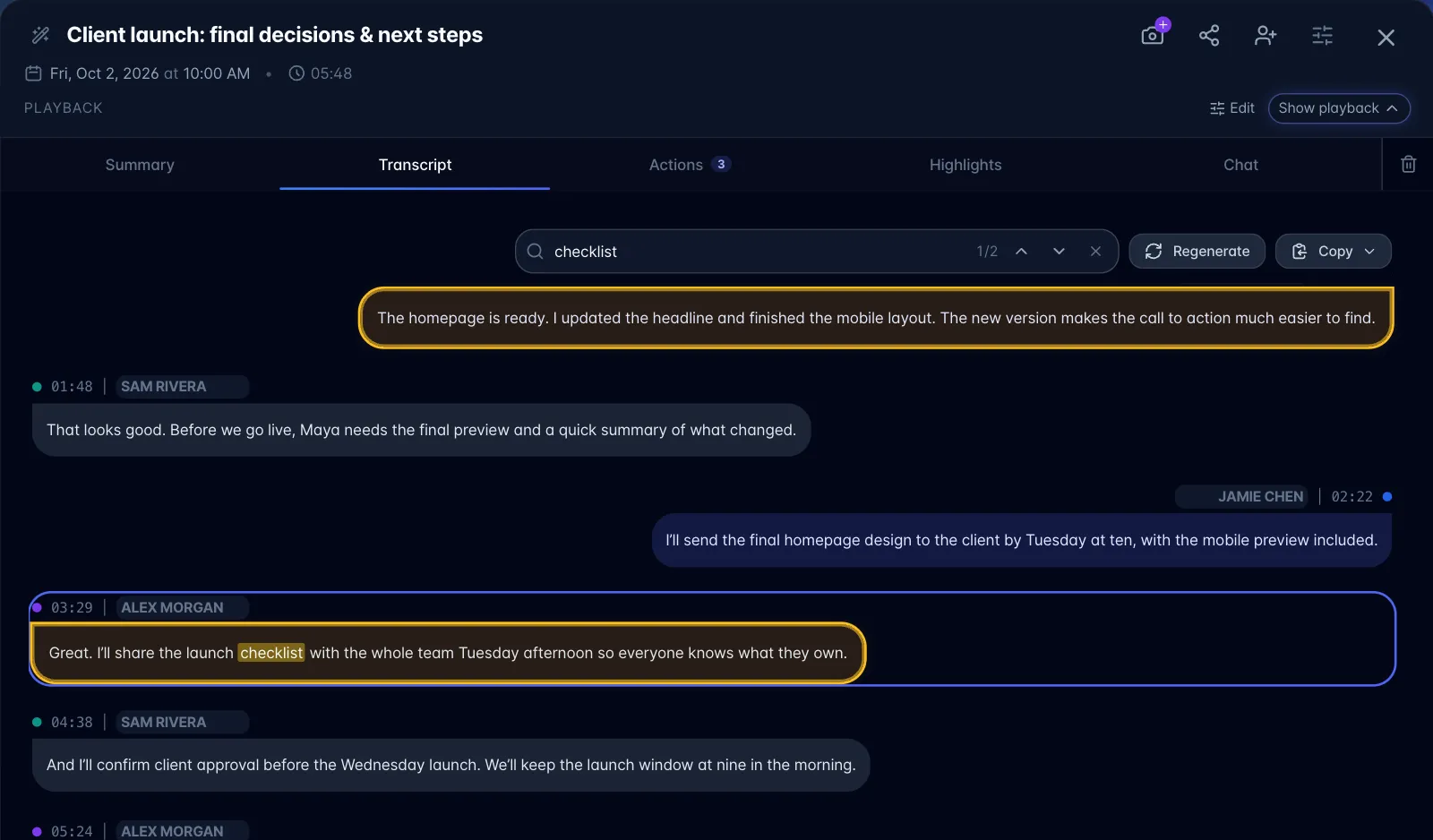
On phones, swipe left across the recording to move to the next tab, or right to return to the previous tab. For example, swipe left from Summary to Transcript. The content follows your finger and slides into place; reduced-motion settings simplify the animation. Tabs remain tappable. Swipes starting on task cards reveal task controls instead; playback controls, text fields, and other interactive controls keep their own gestures.
Hide playback has an up arrow; Show playback has a down arrow.
Video playback. Use Play, the speaker control, and the seek bar beside the transcript. If a video in your Library stops loading, choose Retry to request a fresh playback link. If your browser requires it, tap Play again. For silent playback, check the speaker control, its volume slider, and your device or browser-tab sound setting. Shared recordings use the same playback controls as your own recordings.
What's on it.
- Search expands in place in the transcript toolbar. On mobile it replaces Regenerate and Copy until you choose Close search (X); on desktop those controls stay beside it. Matches are highlighted in yellow; use the previous/next arrows or Enter / Shift+Enter to move between them. The search toolbar stays at the top of the transcript as you scroll.
- After Manage Speakers scrolls out of view, a floating Search transcript magnifying glass appears at the top right. It returns to the top of the Transcript tab, reveals search, and focuses the input.
- For audio recordings, scrolling down past the toolbar collapses playback controls and adds a subtle glow to Show playback. Playback continues. Scrolling back to the top or using the search shortcut keeps playback in its current collapsed or expanded state. You can reopen it manually; video playback does not auto-collapse from this transcript scrolling behavior.
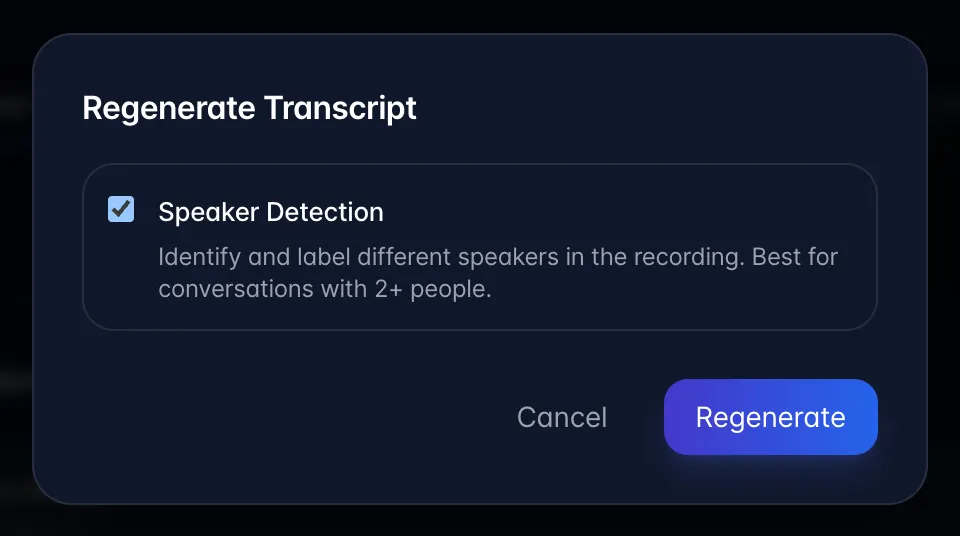
- Regenerate: only the recording owner can start it, with current background choices saved in Profile → AI sharing. It opens a small dialog with one option, a Speaker Detection checkbox ("Identify and label different speakers… Best for conversations with 2+ people"). This is how you rescue a conversation you accidentally recorded as a Personal Note.
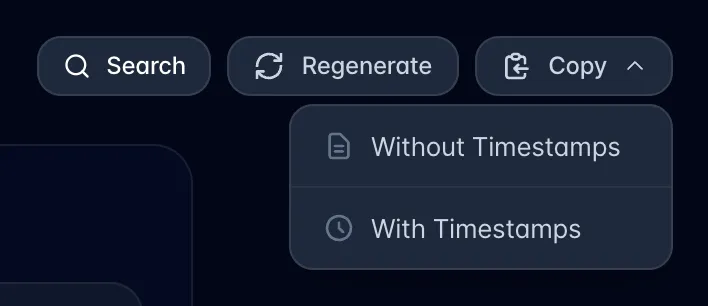
- Copy: a dropdown with Without Timestamps and With Timestamps. Copied text uses your named speakers, not the raw labels.
- Manage Speakers panel (see Speaker naming: Manage Speakers).
- The transcript itself: one bubble per turn, alternating sides, with the timestamp and a speaker dropdown on each line.
Per-line actions.
- Click any line to jump the player to that moment. The line currently being spoken glows as playback moves.
- Star icon (appears on hover) = Highlight. Highlighted lines turn amber and also show up on the Highlights tab.
- Speaker dropdown on each line reassigns just that line to a different speaker. The last option, "+ New speaker…", prompts for a name and moves only that one line to a brand-new speaker: the fix for when diarization lumped a one-word interjection into the wrong person.
Limits and gotchas.
- Copy is the quickest way to reuse a transcript. Plan & billing → Change Plan → Save my library also exports your own library data as JSON, with media downloaded separately. - Regenerating a transcript deletes and rebuilds every line, which wipes your starred highlights. Speaker names survive (see Speaker naming: Manage Speakers), highlights do not.
- Editing the words of a line is not supported. You can move a line to a different speaker; you cannot correct a mis-transcribed word.
- The bot's live "waiting for transcript" state has its own panel with a real status, not a fake progress bar.