
Speaker naming: Manage Speakers
What it is. Transcription gives you anonymous labels: "Speaker A", "Speaker B", "SPEAKER_00". Manage Speakers is where you turn those into real names. The name is then used everywhere the app shows or reasons about that recording.
Where. Open a recording → Transcript tab → the Manage Speakers card sits above the transcript.
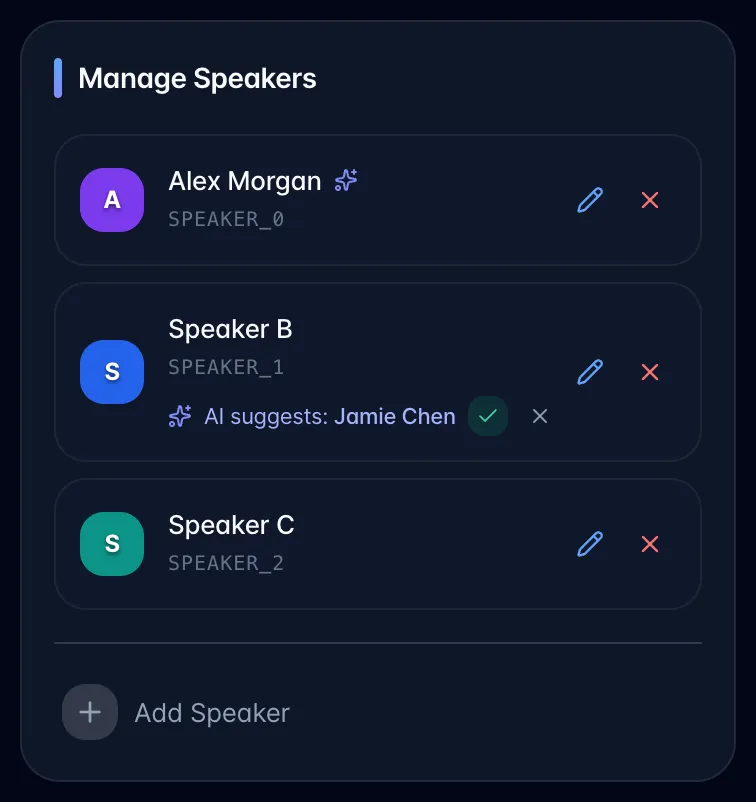
How to use it.
- Select the pencil icon (Edit) on a speaker row to rename. On phones and other touch screens, and on a computer in dark mode, both buttons are always shown on each speaker row. On a computer in light mode, hover the row to reveal the pencil and ✕ buttons.
- Type the real name and hit Enter (or the green tick).
- If your workspace has teammates, a "Link to team member…" dropdown appears under the name box. Picking a member auto-fills their name if the current one is still a generic label, and links the speaker to that person's account.
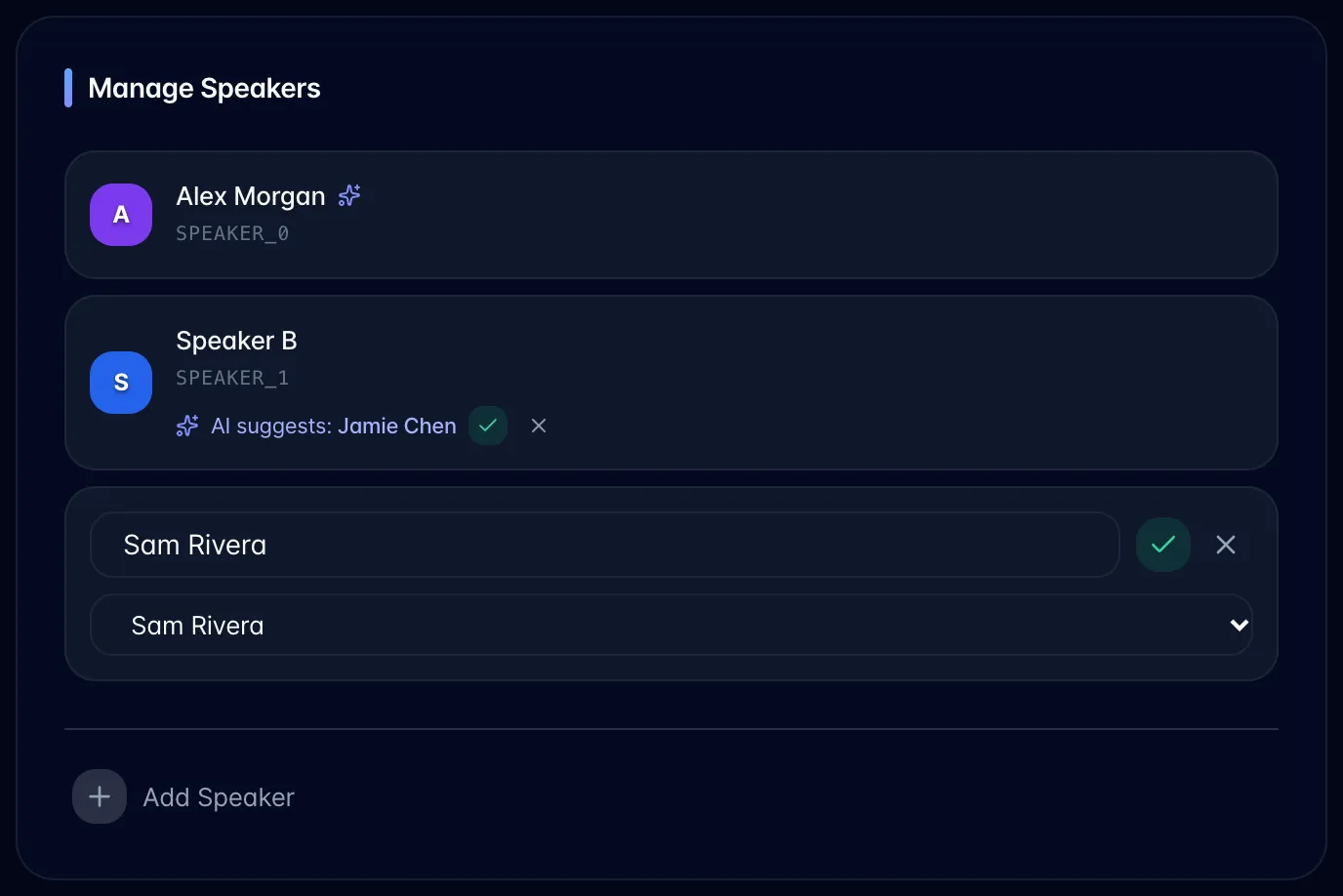
- Add Speaker adds someone diarization missed (useful with the per-line "+ New speaker…" flow).
- The ✕ on a row removes a speaker. It is a soft delete: a Restore Speaker(s) link appears at the bottom of the card and brings them back with the name intact.
AI speaker suggestions. After every fresh transcript, myScribe asks the AI who each generic speaker is, using three sources of candidate names: your workspace members (with the recording's owner flagged as "almost certainly one of the speakers"), names you've already used on past recordings in the workspace, and calendar attendees for that meeting.
Silent Capture recordings name speakers from the meeting itself first. The extension records whose tile the call highlighted as speaking, and myScribe matches each voice to those highlights before asking the AI. The AI only works on voices the highlights did not settle. See Silent Capture.
- High-confidence identifications are applied for you. The name shows a small ✨ sparkle; hover it to see the evidence ("Named by AI: …").
- Medium-confidence ones appear as a suggestion: "AI suggests: Sarah" with a ✓ to accept and an ✕ to dismiss.
- It will never overwrite a name you typed yourself. If the AI disagrees with your name it can only offer a suggestion.
- Low-confidence guesses are discarded entirely rather than shown.
Where the names then appear. Renaming a speaker is not cosmetic: one rename cascades:
- The transcript display and both Copy formats.
- The Summary tab (decisions, next steps, owners, key quotes all get the name substituted in).
- Task titles and descriptions for that recording are rewritten: "Speaker B to send the SPCC draft" becomes "Sarah to send the SPCC draft", including stale names from an earlier rename.
- Task assignees are re-linked. If the speaker is linked to a team member, tasks assigned to that speaker's old name are re-pointed at that person's account.
- The recording is re-embedded for AI search, so asking the assistant "what did Sarah say about the budget?" actually works. Before naming, the assistant only sees "Speaker B".
- Guest share links show the named speakers too.
Limits and gotchas.
- Speaker names are per recording. Naming "Speaker A" as Sarah in Monday's meeting does not name her in Tuesday's. What carries over is that the AI now knows "Sarah" is a frequent speaker in this workspace and is much more likely to suggest her next time, so the first few manual namings pay off across the library.
- The name is an overlay, not an edit. The underlying transcript lines retain speaker labels. Check the saved speaker names when reusing raw exported data.
- AI naming is skipped entirely on single-speaker recordings: there's no conversation to read evidence from, so a lone "Speaker 1" on a personal note is never auto-named. (A Silent Capture recording can still be named from the meeting's speaker highlight.)
- Personal Note uses one speaker. Renaming its single speaker entry changes the displayed name throughout the transcript; it does not separate multiple voices.
- After a regenerate, myScribe tries to match new speaker labels back to your named ones: first by exact label match, then positionally. If the speaking order changed between runs, positional matching can attach the wrong name to the wrong person. Check the names after regenerating a multi-speaker recording.
- The old "Speaker ID" plan feature flag exists in the code but is not enforced anywhere: Manage Speakers works on every plan today.