
Highlights (the tab that used to be called Clips)
Where. Open a recording and choose Highlights.
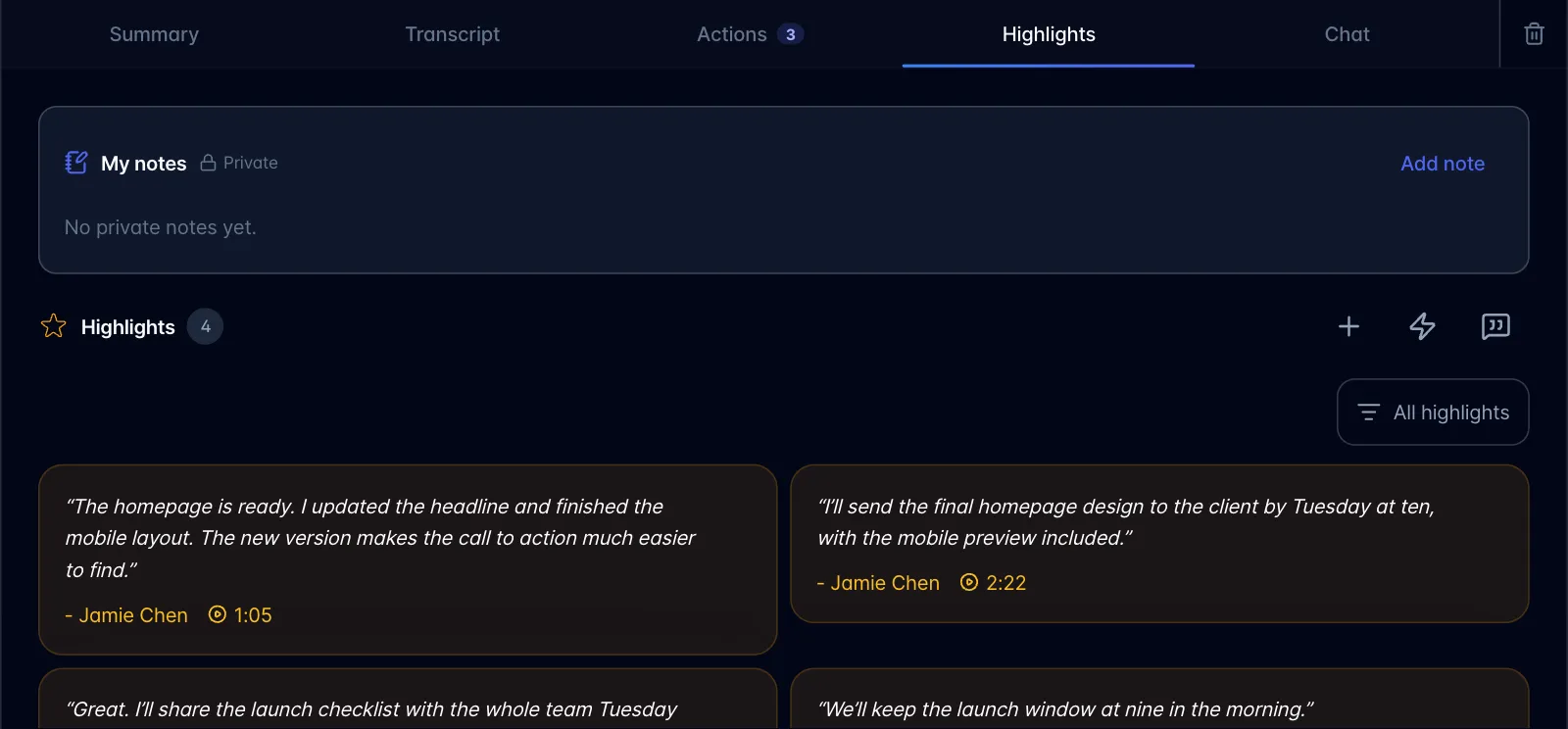
- Review the AI Highlight moments from the recording summary and any Your Highlight moments you starred yourself.
- To mark a moment, use the star on a transcript line or Highlight during playback. It remains linked to that point in the recording.
- Select a highlight to jump to its moment. For imported YouTube videos, timestamps open the original video at that point.
- For an AI pass, choose the lightning-bolt button (Find key moments; Find key moments again after the first pass). To enter a custom time range, choose the + button (Add custom highlight). If an AI pass finds nothing, Add highlight in the empty message opens the same custom form.
- To share a moment with someone who already has access, hover over its card (on desktop) and choose the link icon (Copy share link). For a guest without access, create a Guest Link through the recording's Share dialog.
Highlights are timestamp references, not exported audio or video files. AI results can be incomplete; check the quote and surrounding transcript before relying on one.
Private manual notes
The My notes area appears for recordings you own. On desktop, open a recording and choose Highlights. On mobile, open the recording and tap Notes. My notes is at the top of this view, before the highlight controls.
- Choose Add note to write a note, or Edit to change an existing one.
- Enter your text in the editor. Use the formatting controls if useful.
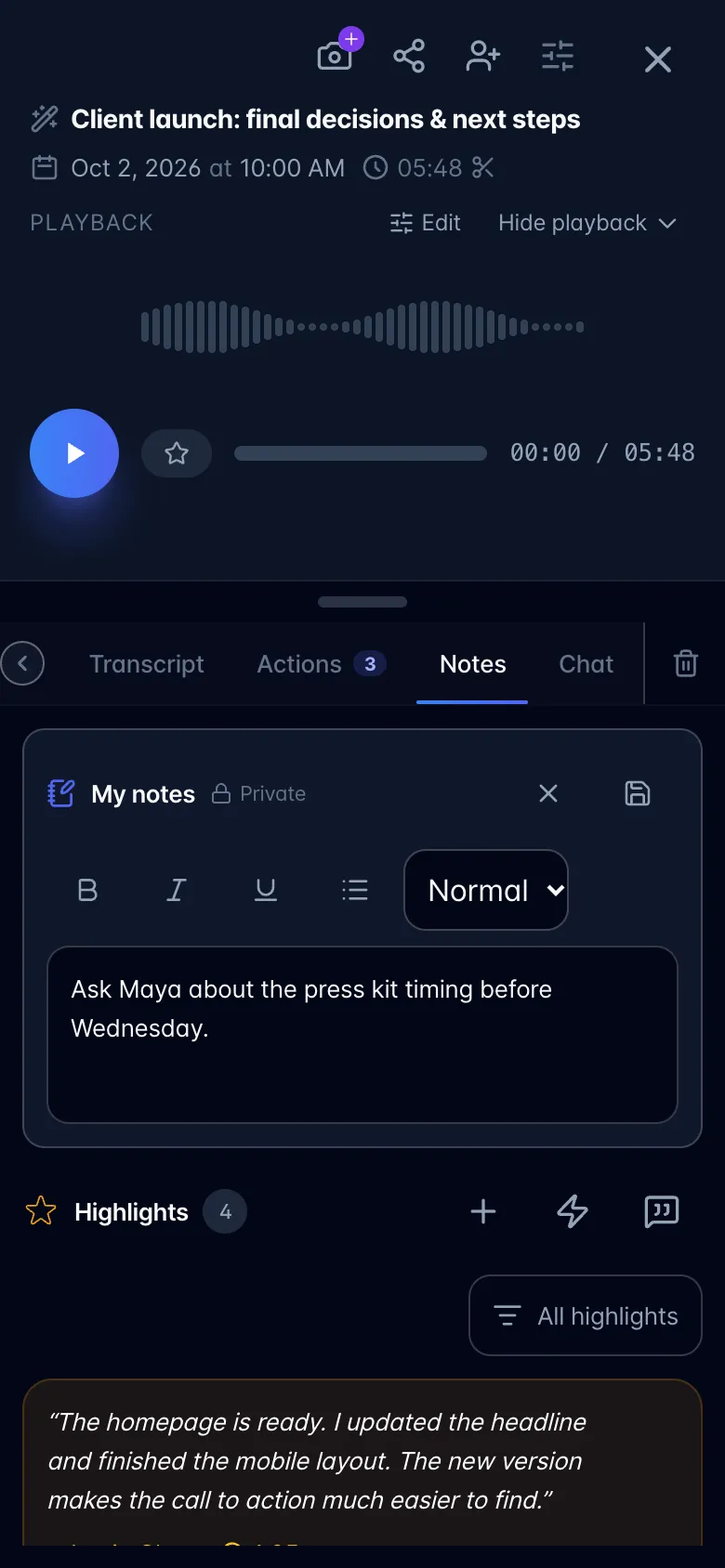
- Choose the save icon (Save) at the top right of My notes to save, or the X (Cancel) to discard the current edits.
- Check the status: Saved on this device means it is only on that device for now; Saved and synced means it is available to your account on other devices and to your AI assistant.
Notes saved on an older device remain there until you open My notes on that device while signed in and let them sync. The assistant can use synced notes when answering you in recording chat or the workspace assistant, including typed and voice requests. Notes are private to your account; teammates and guests do not see them. The assistant keeps them out of shared summaries, highlights, emails, and other shared material unless you explicitly ask it to include them.
Selected-account early access: enabled accounts can also ask the assistant to add a note to this recording. It appends the requested text to My notes, preserving your existing writing and marked moments. Ask to set this recording’s status to In progress, use a custom label, or clear it. Recording chat targets the open recording; from the workspace assistant, identify the recording in its current workspace first. For a recording marked Personal, use its own Chat.
If the assistant appends a note while you are editing, that addition is retained when you save. If another device replaces the same notes, myScribe keeps your unsynced copy and shows a conflict instead of silently replacing the cloud version. Copy any text you want to keep, cancel the editor, and use Review cloud notes. Use cloud notes and discard this device’s unsynced copy is an explicit choice to keep the cloud version.