
Guest links: change permissions and disable access
- Choose Guest Link. Before generating, tick or untick Show Transcript, Show Summary, and Show Actions (Tasks). Playback is not offered yet; Allow audio and video playback appears once the link exists.
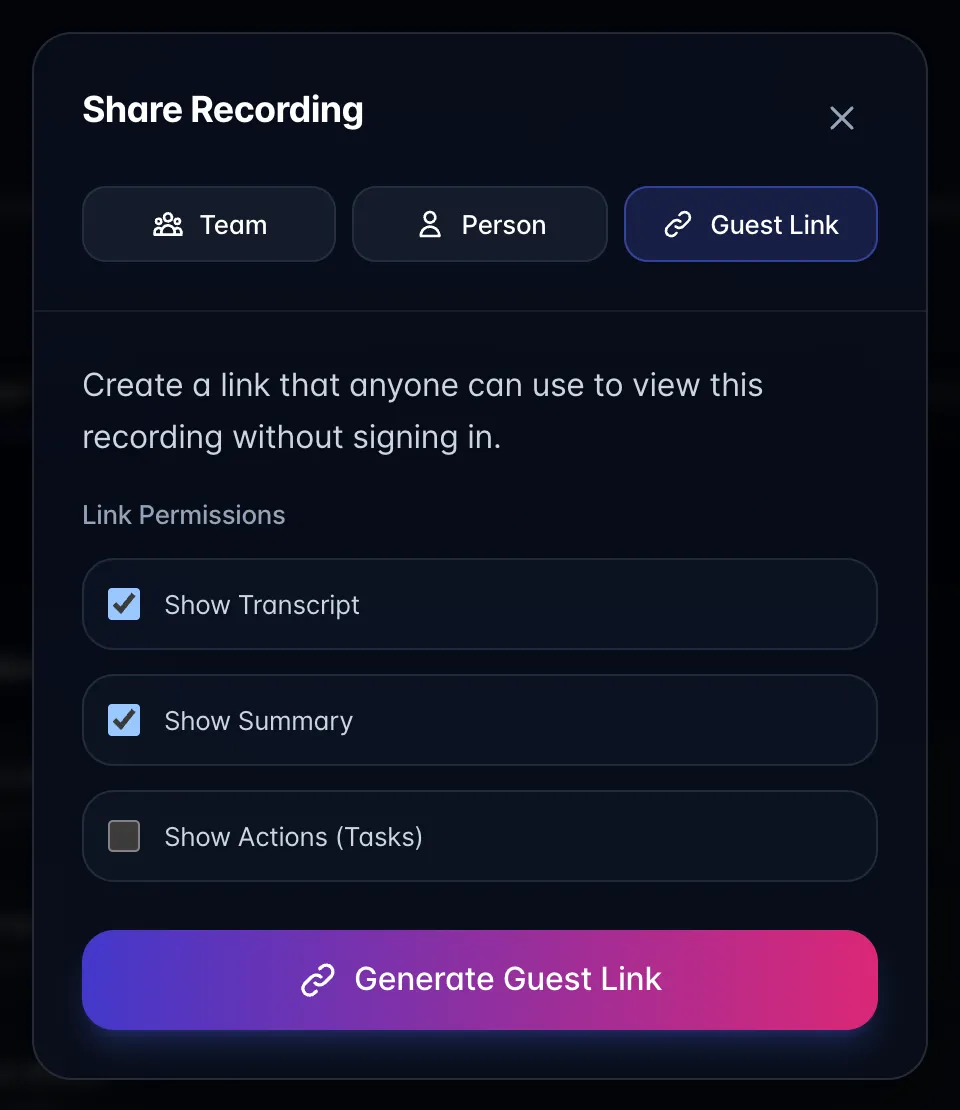
- Choose Generate Guest Link, or Generate Bundle Link for multiple recordings, then Copy.
- On an active link, adjust Show transcript, Show summary, Allow viewing and editing tasks, and Allow audio and video playback. Wait for changes to finish saving before sending the link.
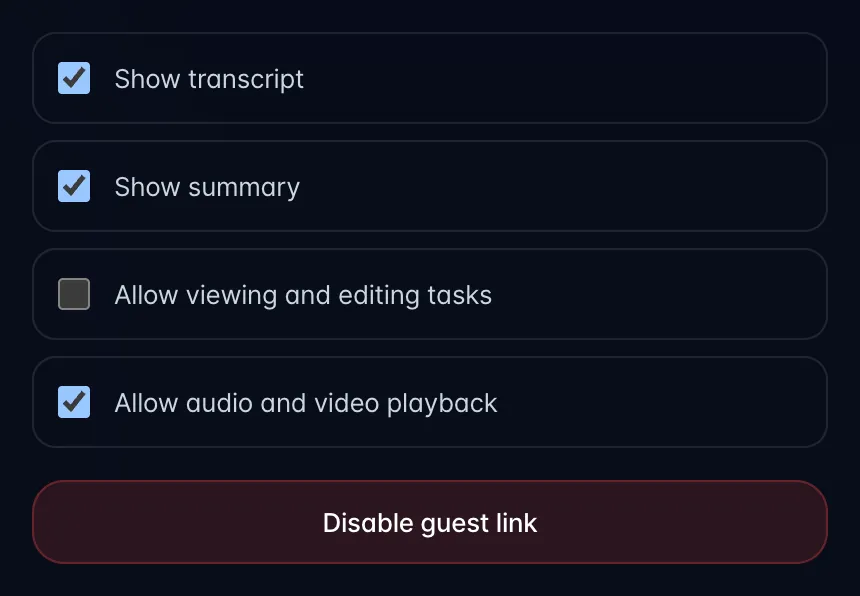
- Choose Disable guest link when it should no longer open. People who already saved the recording in their Library keep their existing access, including the audio/video, transcript, summary and task permissions saved at that time. Changing or disabling the link does not change that saved permission set.
If an older saved recording shows Shared recording needs confirmation, reopen its original active shared link while signed in, or ask the owner to share it through Person. The old permission set is not guessed. Removing a saved recording from your Library ends that saved access; reopening its old link does not silently restore it. Ask the owner to share it with you again through Person. Access you independently have through a team still applies. Marking the recording Personal blocks all non-owner access, but cannot recall downloads or immediately invalidate playback links already issued.
A new guest link includes playback by default. To share without playback, turn off Allow audio and video playback on the active link before sending it. For a single recording, reopening Share loads its active link and controls. Keep collection links when you create them; reopening a fresh bulk selection does not reload an earlier collection link.
Personal recordings cannot be shared. Guest Links are unavailable for photo sessions. Copy-only guest links can be opened by anyone with the link; viewers may be asked for their name and email. Do not forward them to unintended recipients. Invitations emailed from AI chat require the invited email to be verified. A link is not an invitation to join your team. Do not include private chat history in a share: each signed-in person's recording conversation stays separate.