
Meeting chat share link: turn it on or off per meeting
About ten minutes after the myScribe bot starts recording a Zoom, Google Meet or Microsoft Teams call, it can post one message in the meeting chat with a share link. Everyone on the call can open it to get the recording, transcript and AI summary once the meeting ends. It posts at most once per meeting, and a posted message cannot be taken back. Webex has no chat the bot can post in.
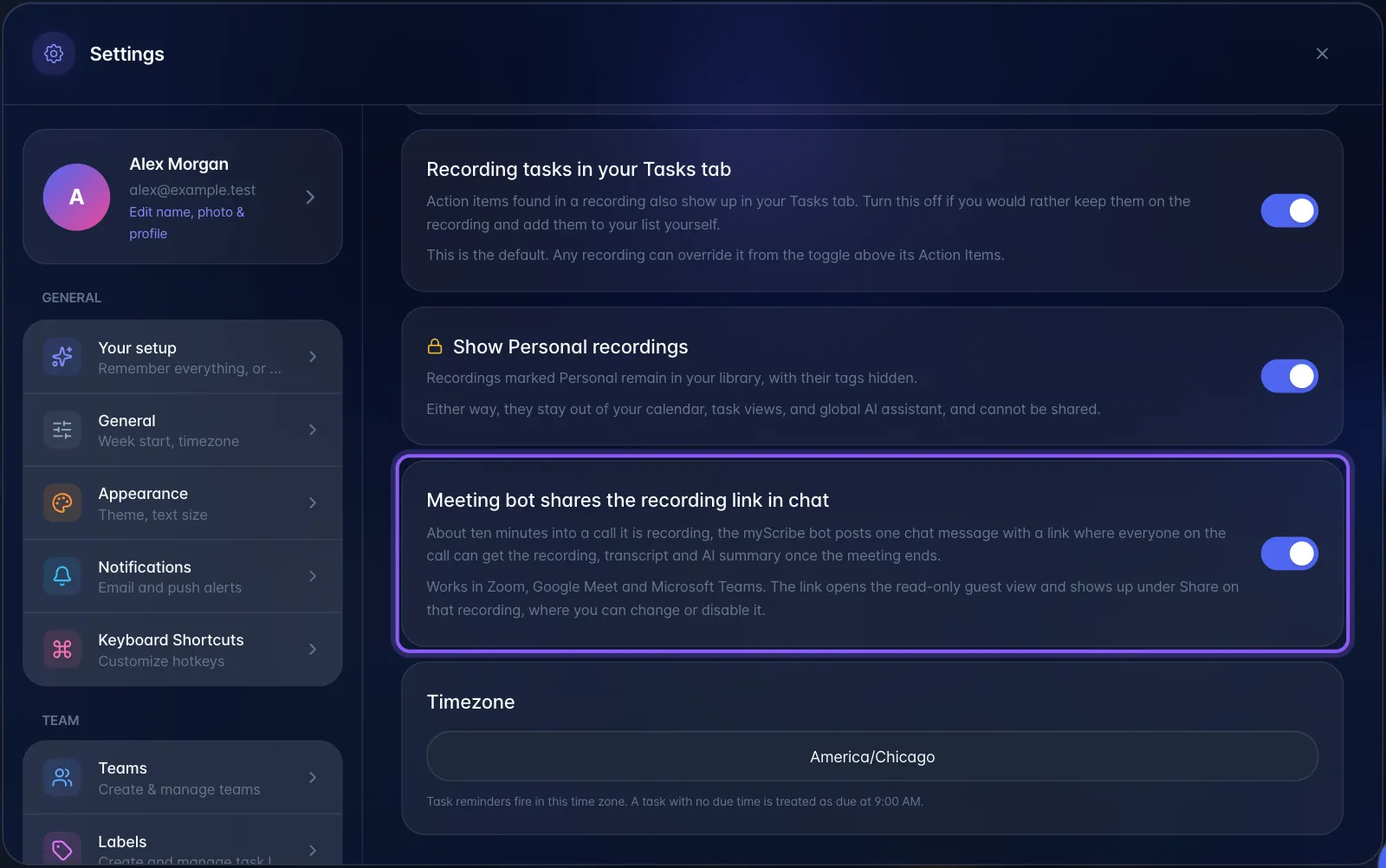
Set your default. Open Settings → General and use Meeting bot shares the recording link in chat. Every meeting without its own choice follows it.
Choose before the meeting.
- Open Join Meeting.
- On Join a meeting, paste the meeting link. On Create a meeting, fill in the meeting details.
- Use Post a share link in the meeting chat to turn the link on or off for this meeting only. It starts at your default.
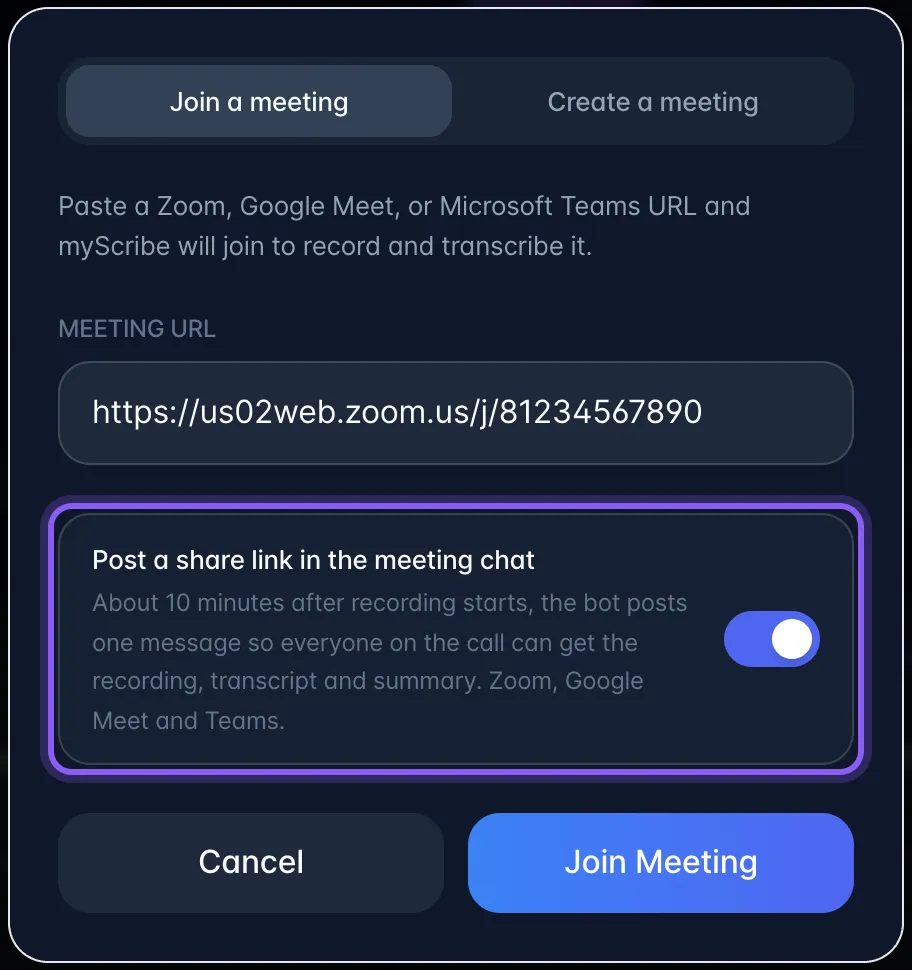
- Click Join Meeting or Create Meeting. A created meeting keeps your choice until myScribe auto-joins it.
Turn it off or on while a meeting is running.
- Open Library. Your meeting is under Active Meeting Bots, including meetings the bot joined automatically from your calendar.
- Use Post a share link in the meeting chat on that meeting's card. It works while the bot is scheduled, waiting or in the call.
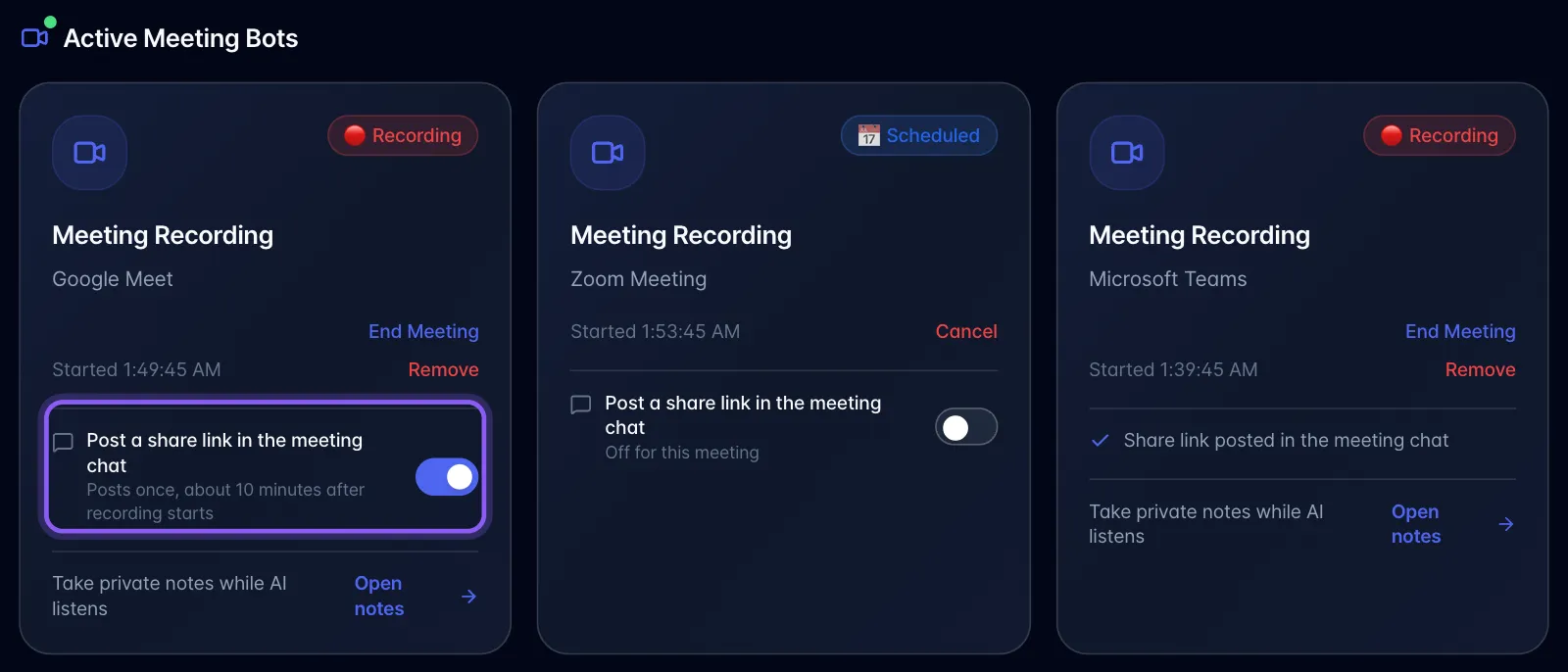
- Once the link has posted, the card shows Share link posted in the meeting chat and the switch goes away.
Only the person who sent the bot sees this switch; teammates in the same workspace do not. The posted link is a normal guest link: open the recording's Share to change what it shows or turn it off.