
My status: organize your recording workflow
Availability: My status is in selected-account early access. If your account is not enabled, the status controls and Library status filter are not shown. Existing manual notes remain available as before.
My status is an optional, private label for a recording you own. It starts as No status; nothing is assigned automatically. This label tracks your work and does not change processing, transcription, or task completion. Only you can see or edit it, even when the recording is shared with teammates or guests.
- Open a recording you own from Library. Find My status beneath its title and date.
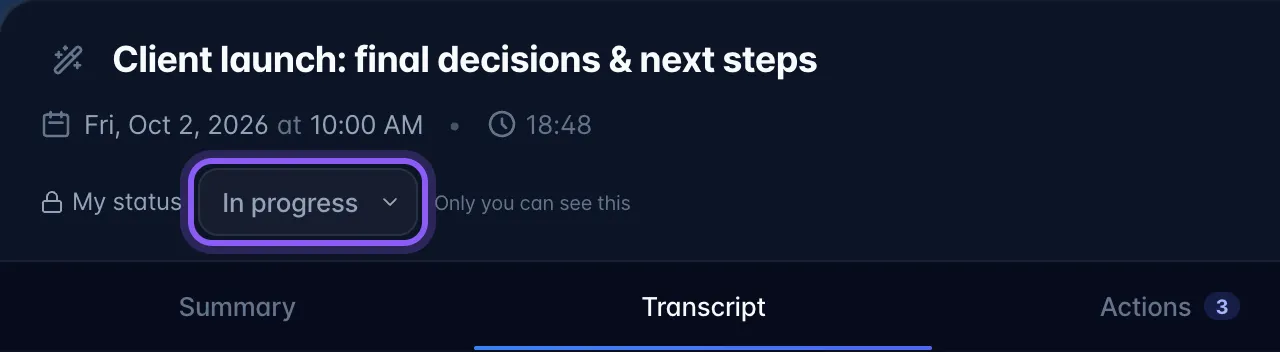
- Choose To review, In progress, or Complete. The choice saves immediately.
- For your own label, choose Custom…, enter a single-line label of up to 60 characters, then select Save status. Cancel leaves the saved status unchanged.
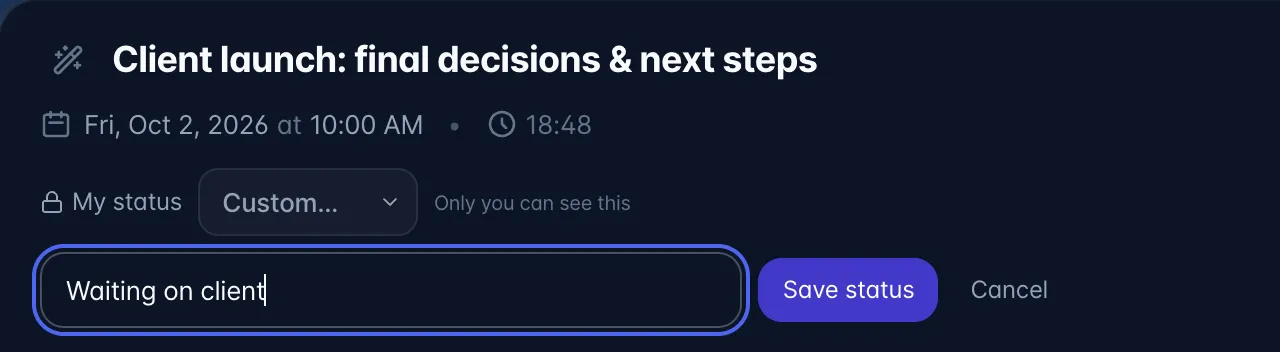
- To clear a status, choose No status. Your label appears on the recording's Library card and compact row when one is set. In phone List view, it is a small badge beside the title. Long labels are shortened there; open the recording to read or change the full label under My status. The Library badge opens the recording along with the rest of the row.
- In Library, select All statuses to choose No status, a preset, or one of your existing custom labels. On phones, first expand Filters. Status filters combine with search, type, project, and people filters. The count reflects matching recordings; selections hidden by filters are cleared. Clear filters restores the filter defaults.
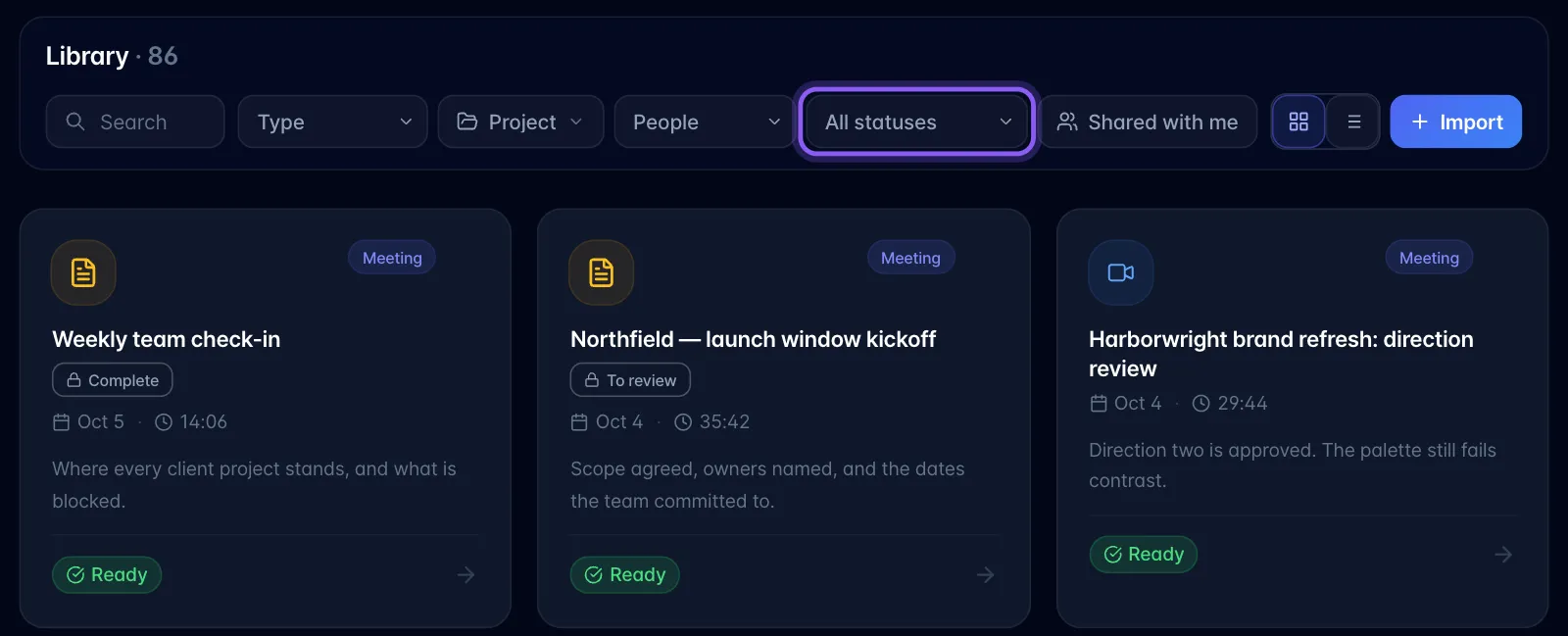
Status filters apply only to recordings you own. Shared-with-you recordings stay visible under All statuses, but do not match private status filters. If a save fails, the previous status stays saved; retry when your connection returns. If the status cannot load, use Retry status in the open recording.