
Send a recording guest link from AI chat
- Open workspace chat (Ask on mobile), or open a recording and choose Chat.
- In a recording's Chat tab, simply ask "Share this recording with alex@example.com." Chat already knows the open recording, so you do not need to identify or verify it. In workspace chat, name the recording and recipient, for example: "Prepare a guest link for Project review for alex@example.com." If several recordings match, identify the correct one first.
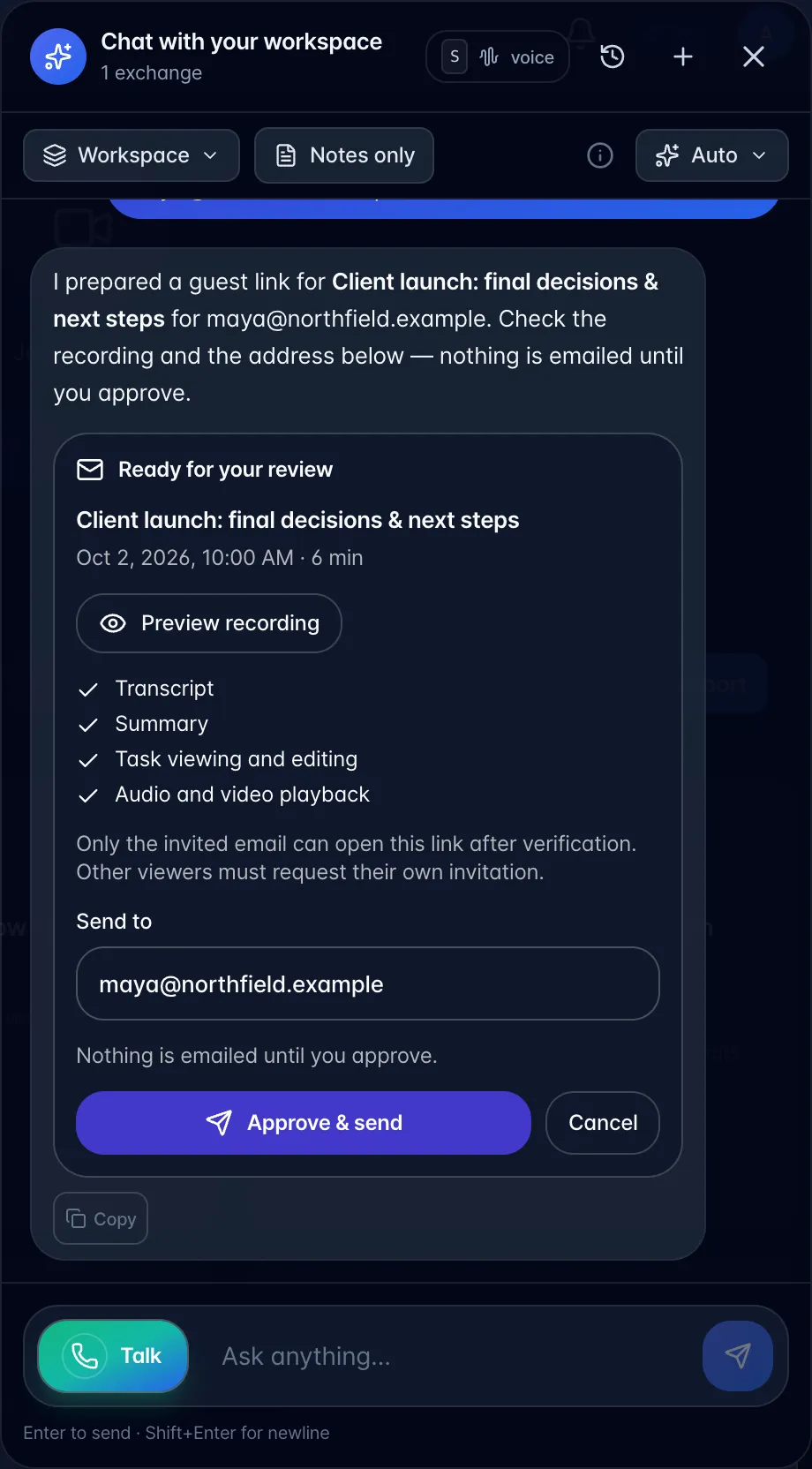
- In workspace chat, check the card's recording title and date. Choose Preview recording to open a popup with its saved summary and a transcript excerpt, then Back to share review. Choose Open full recording to inspect playback in another tab. Skip this step inside a recording's Chat tab; it always uses that open recording.
- For email, enter or correct Send to, then choose Approve & send. The address can belong to anyone; they do not need to be a teammate. For a link without email, choose Approve & create link, then Copy guest link. Cancel creates no link and sends no email.
- Check the result. Guest link emailed means the email service accepted the message. If delivery cannot be confirmed, check with the recipient before asking for another email. Refresh status checks the existing request without sending again.
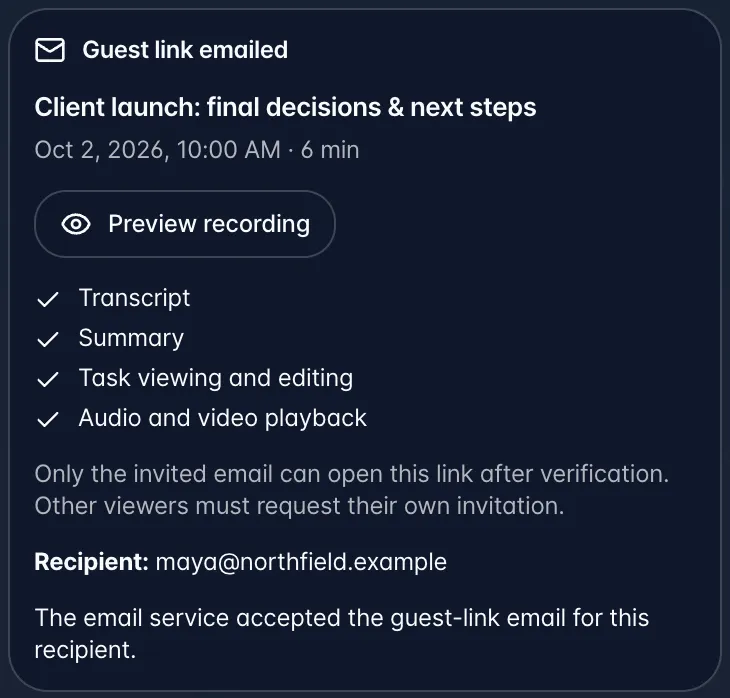
All four options are enabled automatically: transcript, summary, task viewing and editing, and audio/video playback. Chat does not ask you to choose permissions. Emailed invitations are limited to the invited email address. Signed-out recipients choose Send verification code, enter the eight-digit code from their email, and choose Verify & view recording. Codes expire after 10 minutes; verified guest access lasts up to 12 hours in that browser tab. A signed-in account with the verified invited email can save the recording directly. A different account cannot claim it.
If a link is forwarded, a different email is blocked and can choose Request access. After verifying its own email with Verify & request access, the requester remains blocked and the owner receives a Recording access requested notification in the myScribe bell. To approve, the owner opens the recording's Chat and sends a new guest-link invitation to that address. No response grants no access. Do not forward invitations or verification codes to unintended recipients.
Copy-only links from Approve & create link or Generate Guest Link can still be opened by anyone who has them. Each approved request creates a separate link. Existing invitations emailed from AI chat also require verification; previously saved Library permissions remain separate from the invitation. Older saved recordings whose permissions cannot be confirmed require reopening the original active link or a new owner-authorized Person share.
To send directly, give a clear current instruction with the exact recording title and recipient, such as "Email Project review to alex@example.com now." Inside that recording's Chat, "Email this recording to alex@example.com now" also works. These explicit send-now requests skip the approval step and show the sent card afterward. Other requests show the review card first. Approval cards expire after 30 minutes.
Only the recording owner can create or email its guest link. Personal recordings and photo sessions cannot be shared this way. Private chat history is never included. AI email allowances still apply. These cards are available in typed workspace and recording chat. You can manage an active link through the recording's Share → Guest Link controls.