
Silent Capture: record an online call with no bot
What it is. Record a Google Meet, Zoom, or Microsoft Teams call from your own computer, without sending a bot into the meeting. Nobody sees a "myScribe" participant. The transcript still separates the voices, and myScribe labels them with the names shown in the call.
There are two ways to do it.
The Silent Capture extension for Chrome (recommended)
Install it once.
- In myScribe, choose Record Audio → Meeting → Online call, then select Get the extension. (Capture a call without a bot is shown in the capture sheet only on supported devices.)
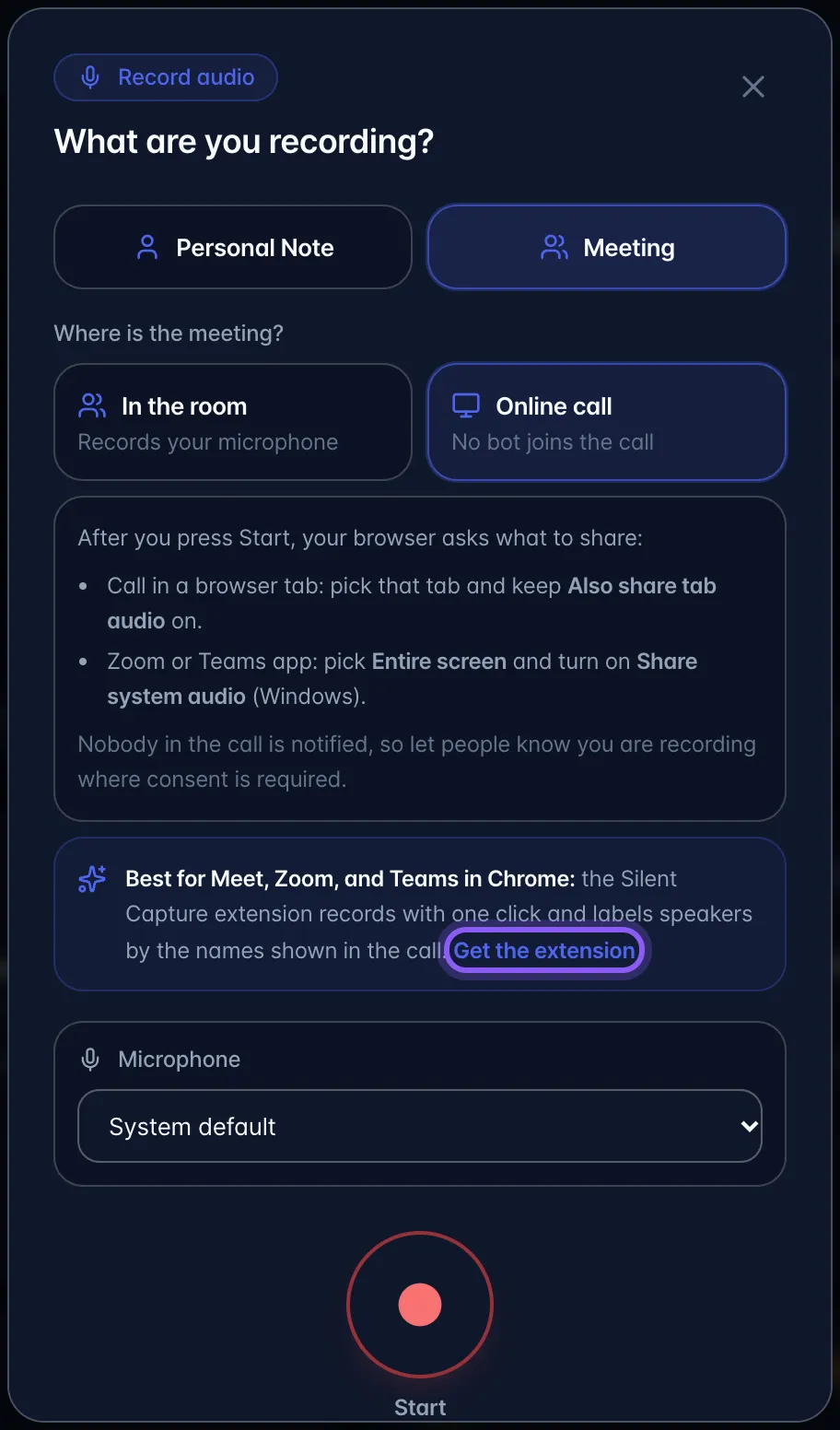
- Unzip the download. Open
chrome://extensions, turn on Developer mode, select Load unpacked, and choose the myscribe-silent-capture folder. - The setup page opens. Select Allow microphone so your own voice is recorded, then Connect myScribe. Being signed in to myScribe in the same Chrome links the extension to your account automatically.
- Pin the extension: select the puzzle-piece icon in Chrome's toolbar, then the pin next to myScribe Silent Capture.
Capture a call.
- Join the call in Chrome (Google Meet, Zoom on the web at app.zoom.us, or Teams on the web).
- Select the myScribe icon in the toolbar and choose Capture silently, or press Alt+Shift+S. A Capture silently button also appears on the call page; if you start from there, Chrome may ask once to share the tab: keep Also share tab audio on.
- While it records, a small panel on the call shows the timer and who is speaking. Only you can see it.
- Select Stop & save, or just leave the call or close the tab. The recording is saved to your Library and transcribed like any meeting. It is dated and timed from when the capture started.
No one in the call is notified, so tell people you are recording wherever consent is required.
How speakers get their names. While recording, the extension notes whose tile the meeting highlights as speaking. After transcription, myScribe lines each voice up with those highlights. A voice that clearly matches one person is named for you, with the evidence shown on its sparkle ("Highlighted as the active speaker in Google Meet for 84% of this voice's talk time"). A weaker match appears as a suggestion you can accept in Manage Speakers. "You" in the meeting becomes your own name. Names it can't settle this way go through the usual AI naming.
On the Free plan. Silent Capture uses the same 60 free minutes a month. About 2 minutes before they run out, you get a notice; then the capture stops and saves everything recorded so far.
If a save fails. The capture is kept on your computer. Open the extension; it is listed under Waiting to upload with an Upload button. A capture started from the call-page button that can't upload downloads a copy instead; add it with Upload media.
Online call (built into myScribe)
Works in Chrome or Edge on a computer, with no install.
- Choose Record Audio → Meeting. Under Where is the meeting? pick Online call, then press Start.
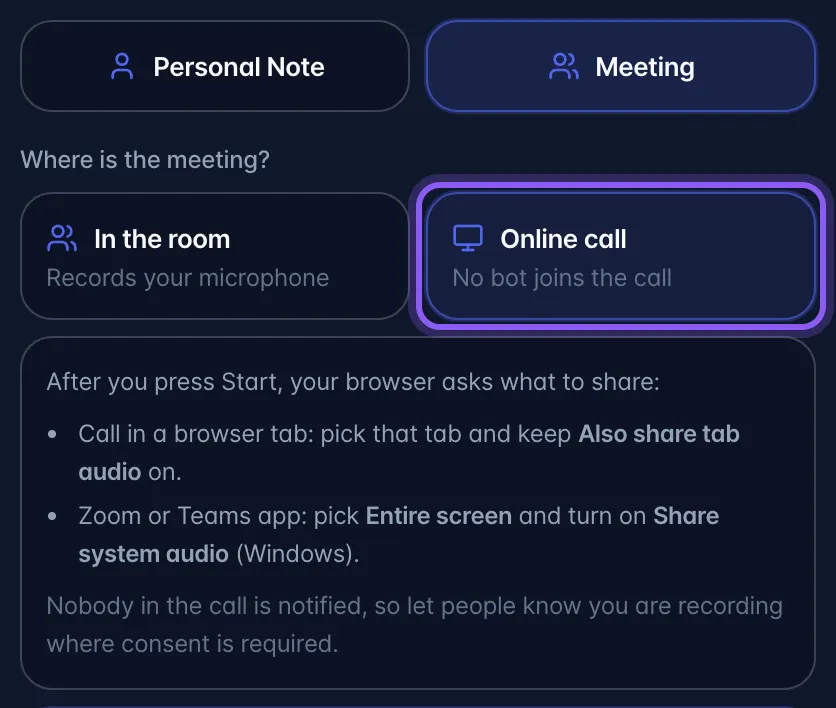
- The browser asks what to share:
- Call in a browser tab: pick that tab and keep Also share tab audio on.
- Zoom or Teams desktop app: pick Entire screen and turn on Share system audio (Windows only).
- myScribe records the call's sound plus your microphone. Only audio is kept.
- Press stop, or end sharing from the browser's Stop sharing bar. The recording saves as usual.
Speakers are separated by voice. Names may be identified from self-introductions, being addressed by name and other clear conversational evidence. Calendar attendees, when available, are candidate names, not proof of who spoke. A name mentioned in a conversation is not enough to assign it to a voice. Review suggestions in Transcript → Manage Speakers. The extension can also use names and speaking indicators shown in a supported call.
On a phone
myScribe's microphone cannot capture a call running on the same iPhone. To capture a conversation on another device, put that device on speaker and choose Record Audio → Meeting. No bot joins. Speaker naming uses conversational evidence; a calendar connection is not required.
Limits and gotchas.
- Tell people you are recording. No one is notified automatically, because nothing joins the call. Recording laws differ by place; some require everyone's consent.
- The extension works in Chrome (and Chromium browsers that load Chrome extensions) on a computer. It reads only the call tab you capture: names on screen and the speaking highlight. It never reads chat, email, or other tabs.
- Without microphone access the extension still records the call, but your own voice is missing. The panel on the call shows Your mic is not included: fix when that happens.
- Speaker matching relies on the meeting highlighting the speaker. In a screen-share or spotlight layout where tiles are hidden, fewer voices may be matched, and those fall back to AI naming.
- Silent captures count toward your monthly recording minutes, like any recording you make.
- macOS can't share system audio from the share prompt, so desktop Zoom or Teams apps on a Mac can't be captured with Online call. Join that call in the browser instead.
Plan gating. Available on every plan, including Pro. Uses your recording minutes.