
Quick orientation: where any of this lives in the app
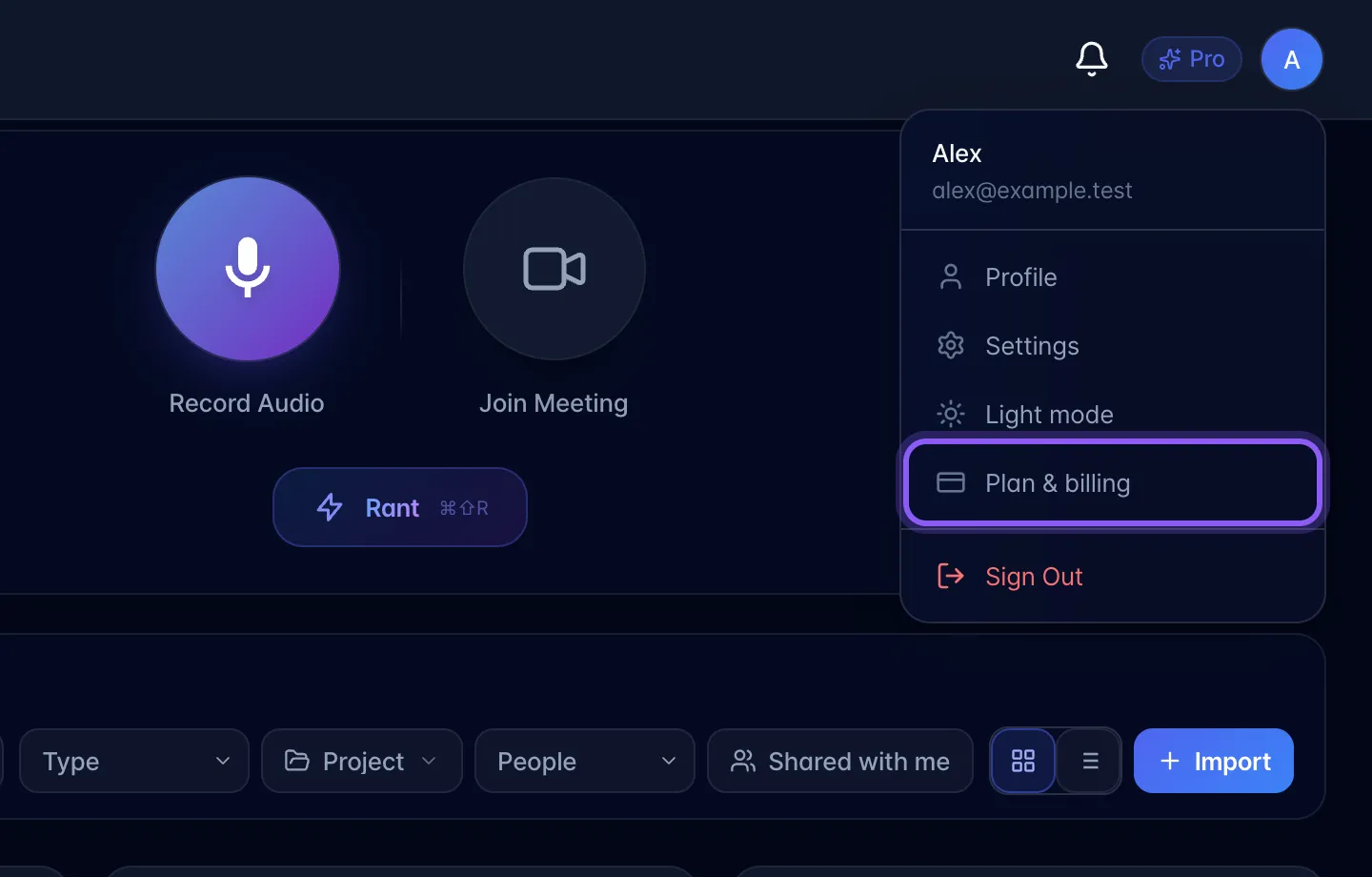
There is no dedicated "Billing" page URL. Everything is a modal layered over the app. Desktop and mobile show the same screens; the plan badge is the one desktop-only entry point.
| What the user wants | Click path |
|---|---|
| See current plan, seats, trial days left, team members | Avatar menu (top right) → Plan & billing. Also: the plan badge in the header (desktop only: hidden below the sm breakpoint). |
| Change / upgrade / downgrade / cancel plan | Plan & billing → Change Plan → Plan & billing modal |
| Update card, see invoices, cancel | Plan & billing → Payment, or Plan & billing → Change Plan → Payment (both open the Stripe billing portal) |
| See this month's included-vs-used bars (AI tokens, recording minutes, Pro chat turns, storage, photos) | Plan & billing modal → the "Usage & cost this month" block |
| See a personal recording/AI-chat usage view | Settings → Plan & billing → Usage → press Load Usage Data (it does not load automatically) |
| Buy / drop extra seats | Plan & billing → Add Seat / Remove (only appears on Pro w/ AI Employee), or Plan & billing → "Paid add-on seats" number box → Update seats |
| Enter a coupon | Plan & billing modal → "Have a coupon?" box (see gotcha: only applies at first checkout) |
Deep links: ?billing=1 opens the Plan & billing modal; ?billing=1&coupon=CODE pre-fills the coupon box (this is what win-back emails use).
Installed iPhone app. Checkout and Payment open a Stripe browser sheet. Finish or cancel, then choose Open myScribe on the return page or tap Done. Check Plan & billing after returning; Stripe status can take a few moments to update. The browser does not sign in to the app.