
Seats and team coverage
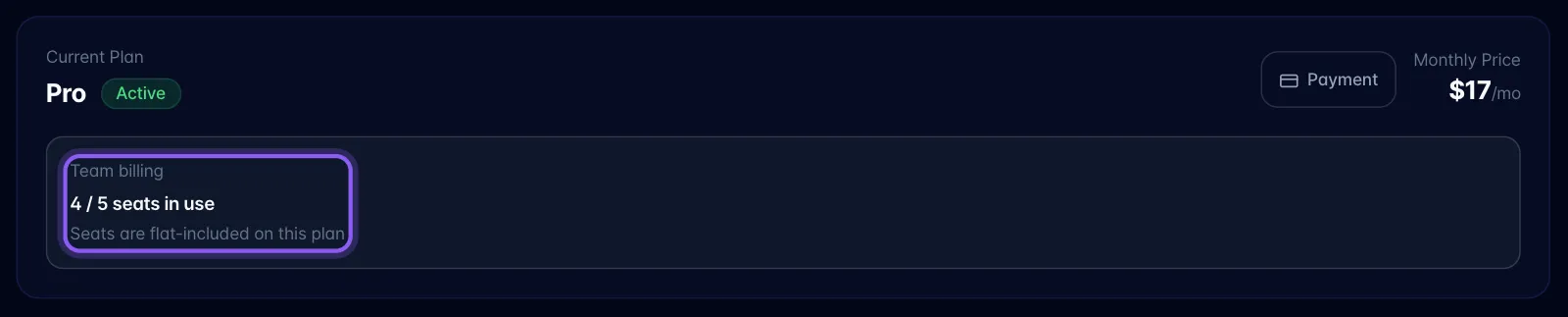
Seat capacity vs seats in use. Two different numbers:
- Capacity = plan's included users + any paid add-on seats. This is what the invite gate checks.
In use = how many members actually occupy a seat. This is what the recording-minute pool is multiplied by. The AI token pool and the storage allowance are flat per billing account: they do not grow when you add people.
If you change to a plan with fewer included seats than your current team uses, review Keep your team covered. It shows the additional monthly seat cost. Choose Confirm plan and seats to accept, or cancel to keep your current plan.
Buying seats
- Only Pro w/ AI Employee has a paid seat add-on ($20/month each, beyond the one included). Pro covers 1 user and has no additional users, so the Add Seat / Remove buttons and the "Paid add-on seats" box do not appear on Pro.
- Add/Remove is one seat per press in the Plan & billing; the Plan & billing modal lets you type a target number instead.
- You cannot remove a seat that is currently occupied ("You cannot remove seats that are currently in use"). Remove the member first.
- Seat changes are prorated immediately, and the on-screen numbers only update after Stripe's webhook returns: the toast says as much.
Inviting
- Invites are blocked once members + pending invites reach capacity: "No open seats. Add a seat before inviting more members."
- Only the billing account owner can invite.
Being covered by someone else's team
- If another person's billing account covers your plan, Plan & billing shows a blue "Covered by team billing" panel and every plan button is disabled with "Covered by Team" / "Team Covered". The Payment button is hidden and billing changes are managed by the billing account owner.
- The panel offers "Get your own plan".