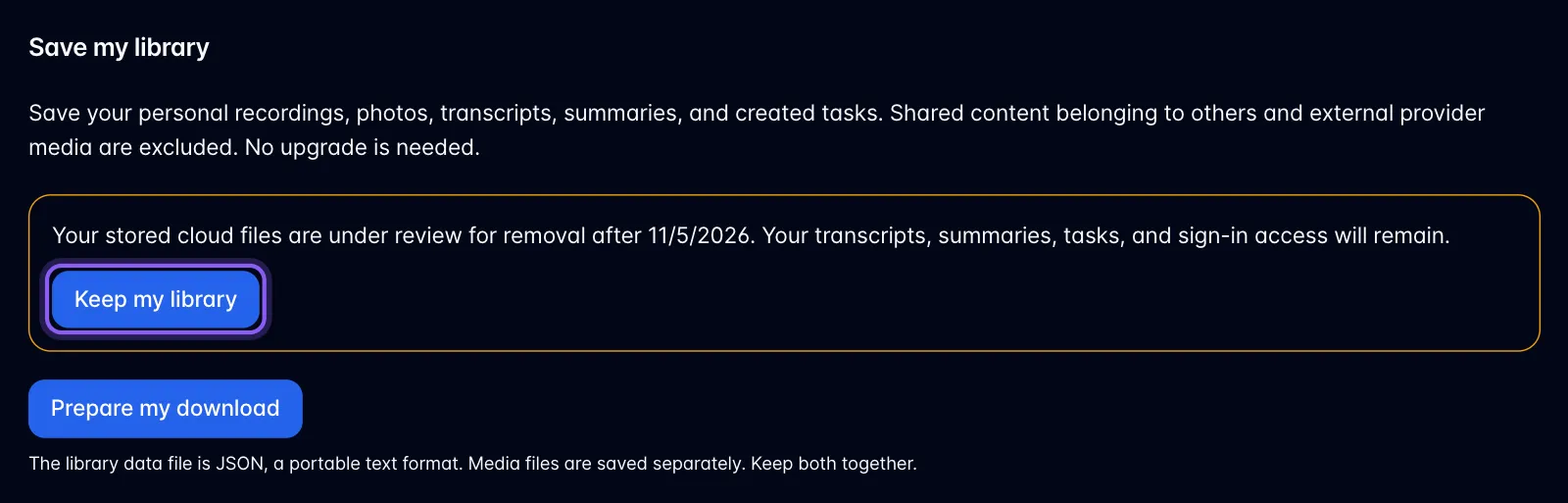
Save my library and respond to a cleanup notice
Where. Open Plan & billing, choose Change Plan, then choose the Save my library tab (next to the Plan & billing tab). Complete the email-verification prompt if shown; no paid upgrade is required.
- Choose Prepare my download to build a file checklist.
- Choose Download library data to save your personal library information as JSON. Save the listed media files with their Download buttons, or use Save everything to a folder when your desktop browser offers it.
- Keep the page open during transfer. Media and the JSON data file are separate; keep both together. Individual downloads are limited to 500 MB, so use folder export for larger files.
- Open your local files and check that they work. A download click or a transferred counter alone is not proof of a saved backup.
- Only after checking all copies, tick the confirmation and choose Confirm my copies are saved. If a cleanup notice is active, read the checkbox carefully: it also consents to removal of the cloud files after the notice period.
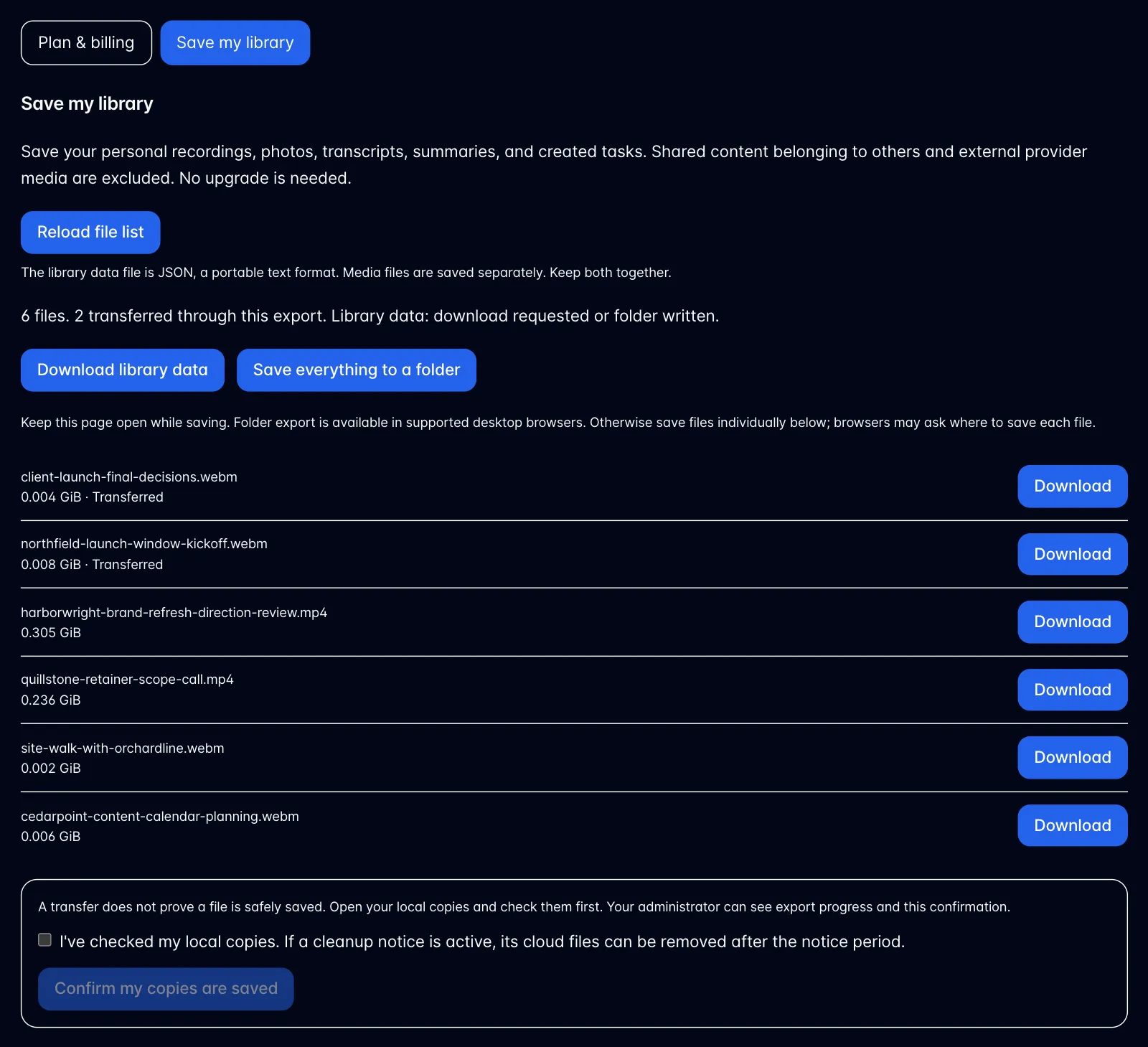
This export includes your own stored media and library data. Shared content belonging to other people and externally hosted media are excluded. Source media URLs may be listed for reference; they are not downloaded media copies.
If you receive an inactive-library cleanup notice and want the files kept, open this page and choose Keep my library. That cancels this review. In this notice-based workflow, an administrator must explicitly carry out cleanup after the notice period; it removes cloud media files while retaining transcripts, summaries, tasks, and sign-in access. It is separate from deleting a recording yourself and from subscription-lapse storage policies.