
The Tasks page
What it is: one screen with two interchangeable layouts for every task in the workspace: a kanban (cards in columns you drag between) Board and a flat List.
Where: Tasks (sidebar or bottom tab).
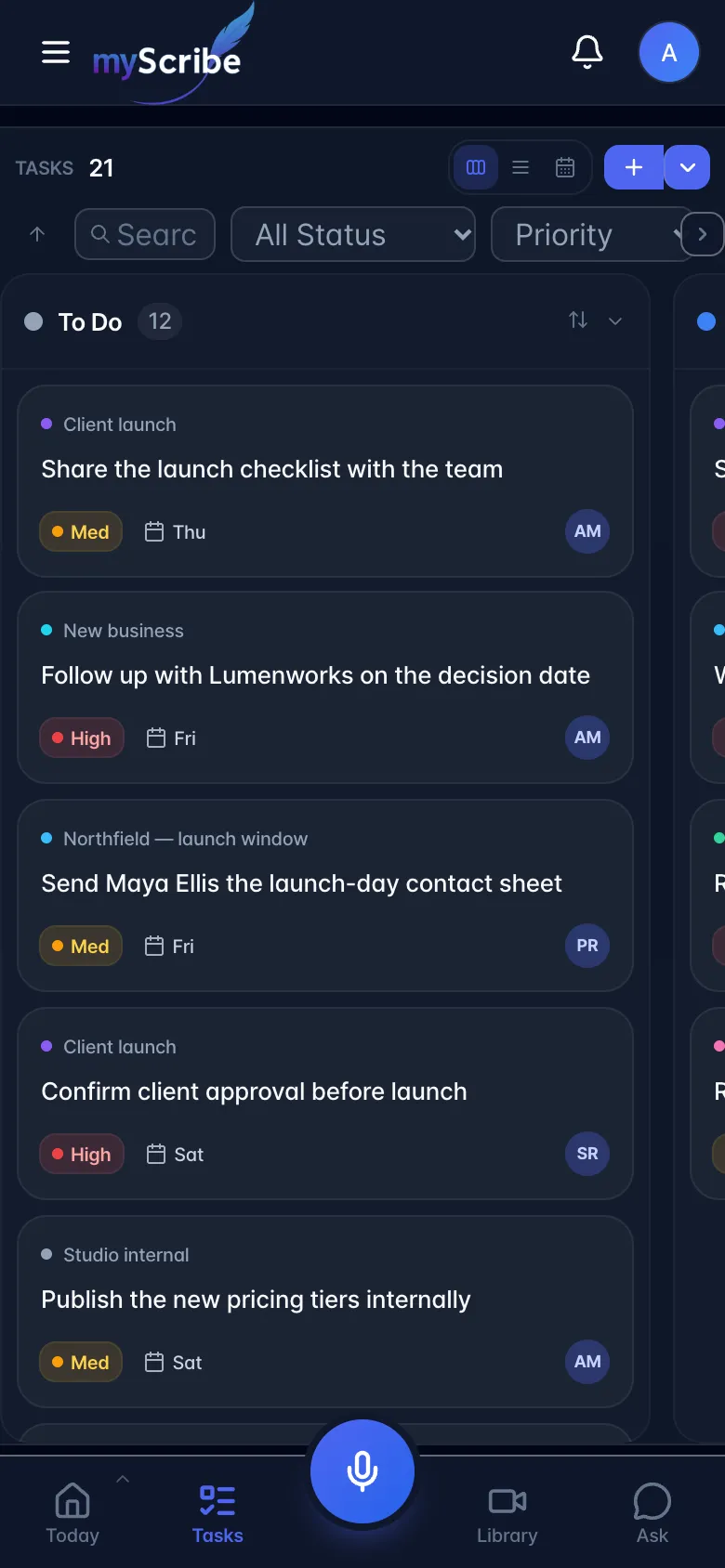
How to switch: the two small icons in the toolbar (columns icon = Board, lines icon = List). The choice is remembered in the browser (local storage), per device, and Board is the default for a new user. On phones, if you last used the Calendar, the Tasks tab opens the Calendar instead.
1.1 Board view
Four fixed columns: To Do · In Progress · In Review · Done. Columns cannot be renamed, added or removed.
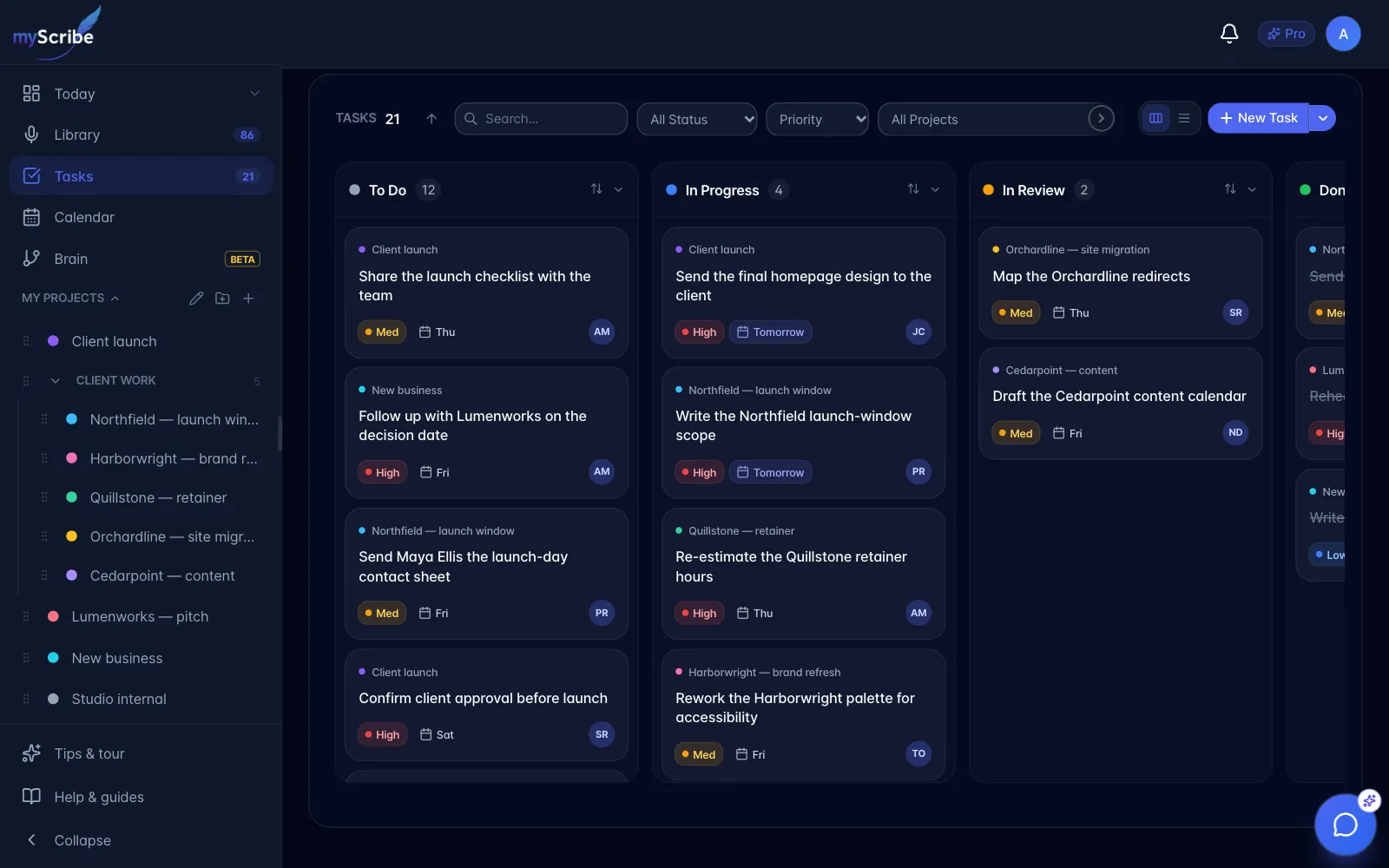
- Drag a card between columns to change its state. Dropping into Done also ticks the task complete; dropping into any other column un-ticks it.
- Click a column header to collapse it to a thin vertical strip; click again (or drop a card on it) to reopen.
- Each column header has a small sort control (↑↓ icon): Name · Due Date · Priority · Created. Default is Due Date. The sort is per column and is not remembered after a page reload.
- Column headers show a task count and, when relevant, a red "N overdue" pill.
Multi-select: Cmd/Ctrl-click cards on a desktop. On a phone, press and hold a card: it lifts under your thumb, and if you let go without moving it, it gets selected instead. A bar appears along the bottom: on a desktop a row of Move to <column> buttons, on a phone a sheet headed N selected · move to with one tappable chip per column.
- Right-click a card (desktop) or long-press (mobile) opens the same move bar for that one card.
- On mobile the board scrolls sideways with snap-to-column.
Gotchas
- The board hides sub-tasks entirely in normal mode: it only renders tasks that have no parent. If you are looking for a sub-task, use List view or open the parent.
- A task's column comes from its saved status, but "completed" wins. If you drag a task to Done and later un-tick it from the List view or the Today page, the task is no longer complete but still sits in the Done column, because un-ticking does not reset the saved status. Dragging it out of Done fixes it.
- There is no "add card" affordance inside a column. New tasks always come from the New Task button.
1.2 List view
A flat, indented list. Sub-tasks appear indented under their parent.
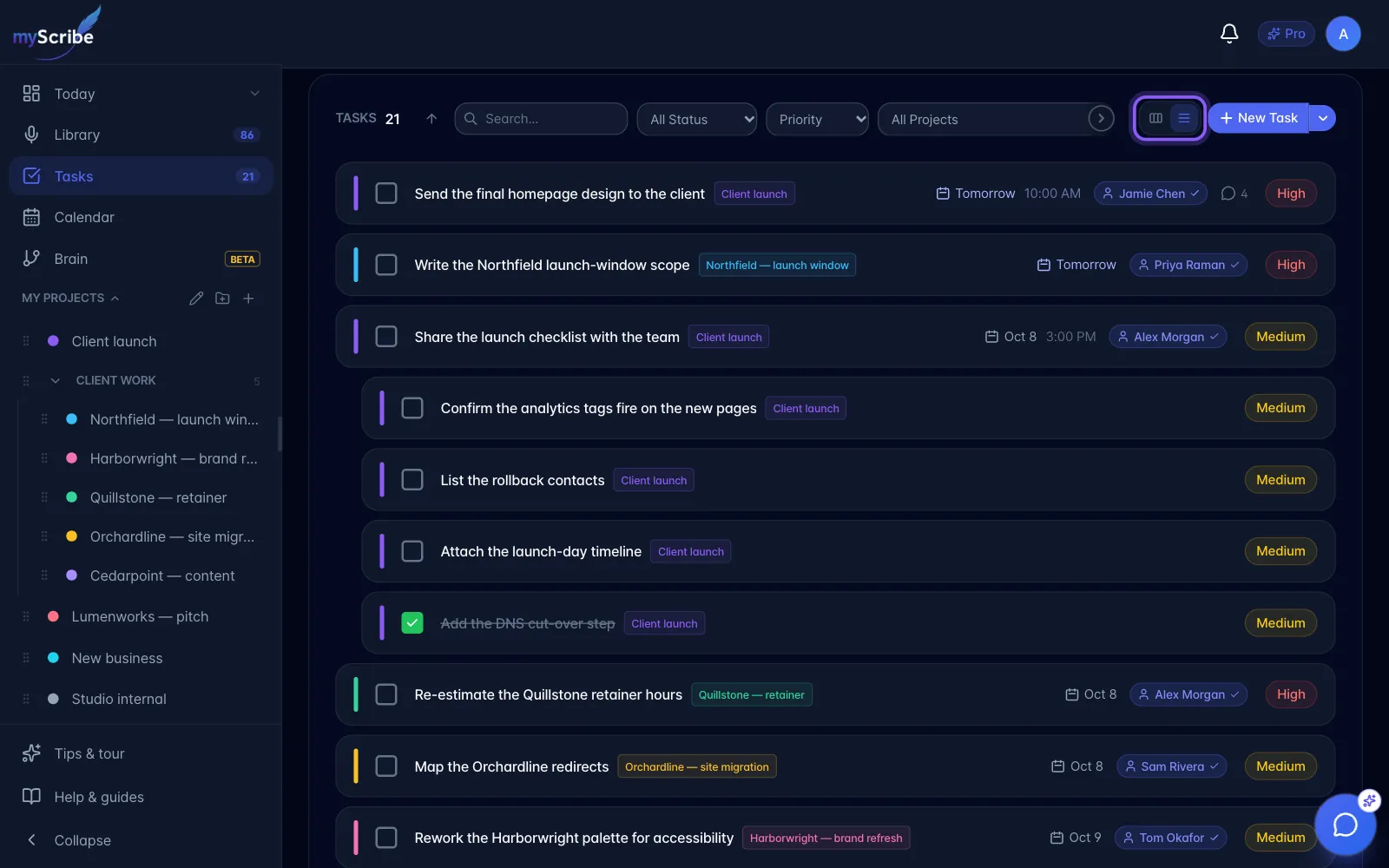
- Tap the round checkbox to complete. On a touch device you can also swipe a row to the right past about 90 px to complete (or re-open) it; a green tick (amber undo arrow if already complete) is revealed behind the row.
- A coloured bar and a chip on each row show the project. On phones the project chip drops to the second line.
- The due-date chip is colour-coded: red "Nd overdue", amber "Today", indigo "Tomorrow", plain text further out.
- A speech-bubble icon with a number appears when a task has comments; clicking it opens the task straight on the Comments tab.
- Cmd/Ctrl-click rows to multi-select, then use the floating Delete bar. (Delete is the only bulk action in List view.)
1.3 The filter bar: every control
Shared by both Board and List. Left to right:
- Sort direction arrow: flips between earliest-due-first and latest-due-first.
- Search: matches the task title and description only. It does not search comments, assignee names, project names or labels.
- All Status: All / Pending / Completed.
- Priority: All / High / Medium / Low.
- All Projects: every project, plus a No Project option.
- Assignees: appears only when at least one loaded task has an assignee. Contains Unassigned plus the people who are actually on the currently loaded tasks (not the full team roster). Named people who have no myScribe account appear here too.
On narrower windows the filter row scrolls sideways. Use the › arrow at its right end (Scroll filters right) to reach the controls past the edge, such as Assignees.
Any active filter turns indigo and grows a small ✕ to clear it. When a filter hides everything you get an empty state with a Clear filters button.
Gotchas
- There is no sort-by picker. The arrow only reverses order; the list is always ordered by due date (tasks with no due date always sink to the bottom). The code contains priority and title sorting, but nothing in the interface can select them.
- There is no label filter and no category filter on the Tasks page. Labels can be added to a task but cannot be used to find one.
- The task counter at the top counts incomplete tasks after filtering, not all tasks.
- Tasks belonging to a completed project or a completed folder are hidden here entirely: see Projects, folders and companies. They are still visible inside the project itself. A task included in multiple projects stays in the general task views while at least one of those projects is active.
- Tasks whose source recording has been locked (storage lapsed) are also hidden.
1.4 AI Mode
What it is: a toggle that swaps the Tasks page between "tasks for humans" and "tasks the AI agent owns".
Where: the AI pill at the far left of the Tasks toolbar.
Plan: the toggle is only rendered for pro_ai_employee. On every other plan the button does not exist.
When on, the board switches to five different columns (In Progress · Review · Sub-Agents · Backlog · Completed), and two extra buttons appear: Chat (a small AI terminal with /status, /tasks, /schedule, /help shortcuts) and Skills.
Gotchas
- Standard mode hides all AI-created tasks and AI mode hides all human tasks. If a task "disappears", check the toggle. The exception: when you are viewing one specific project, both kinds show.