
Comments and the in-task AI chat
Comments
Where: task detail sheet → Comments, or click the speech-bubble count on a task row in List view.
It reads like a messaging thread: your messages on the right, everyone else's on the left, avatars, relative timestamps, "(edited)" markers. New comments from teammates appear live without a refresh.
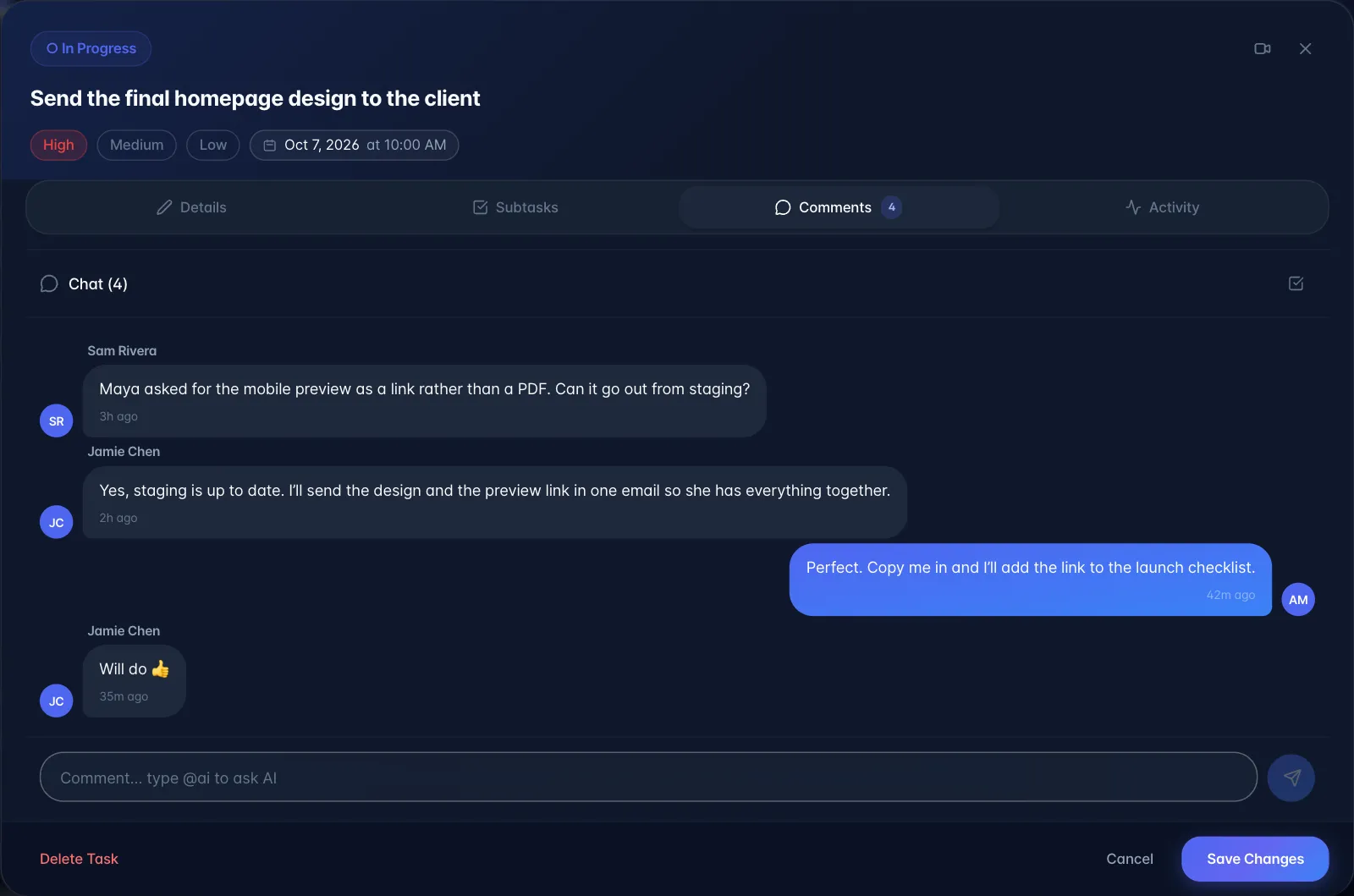
- @mentions: type
@to open a picker of workspace members (plus the AI, when available). Picking one inserts a mention chip and sends that person an in-app notification linking straight to the task. - Edit / delete / copy: right-click a bubble (desktop) or long-press it (mobile). You can only edit your own; anyone can delete. Deleting offers an Undo.
- Multi-select: the tick icon in the header turns on selection mode for bulk delete (also undoable).
The in-task AI chat
What it is: a toggle that turns the comment box into a conversation with your AI assistant about this task.
Where: the "<AI name> Chat" toggle just above the message box on the Comments tab.
Plan: the toggle only appears on pro_ai_employee. It is not shown on any other plan.
How to use: flip the toggle on. Up to four suggested opening questions appear as chips (generated from the task). Type or tap one; the AI replies in the thread, prefixed with a 🤖 marker and its name.
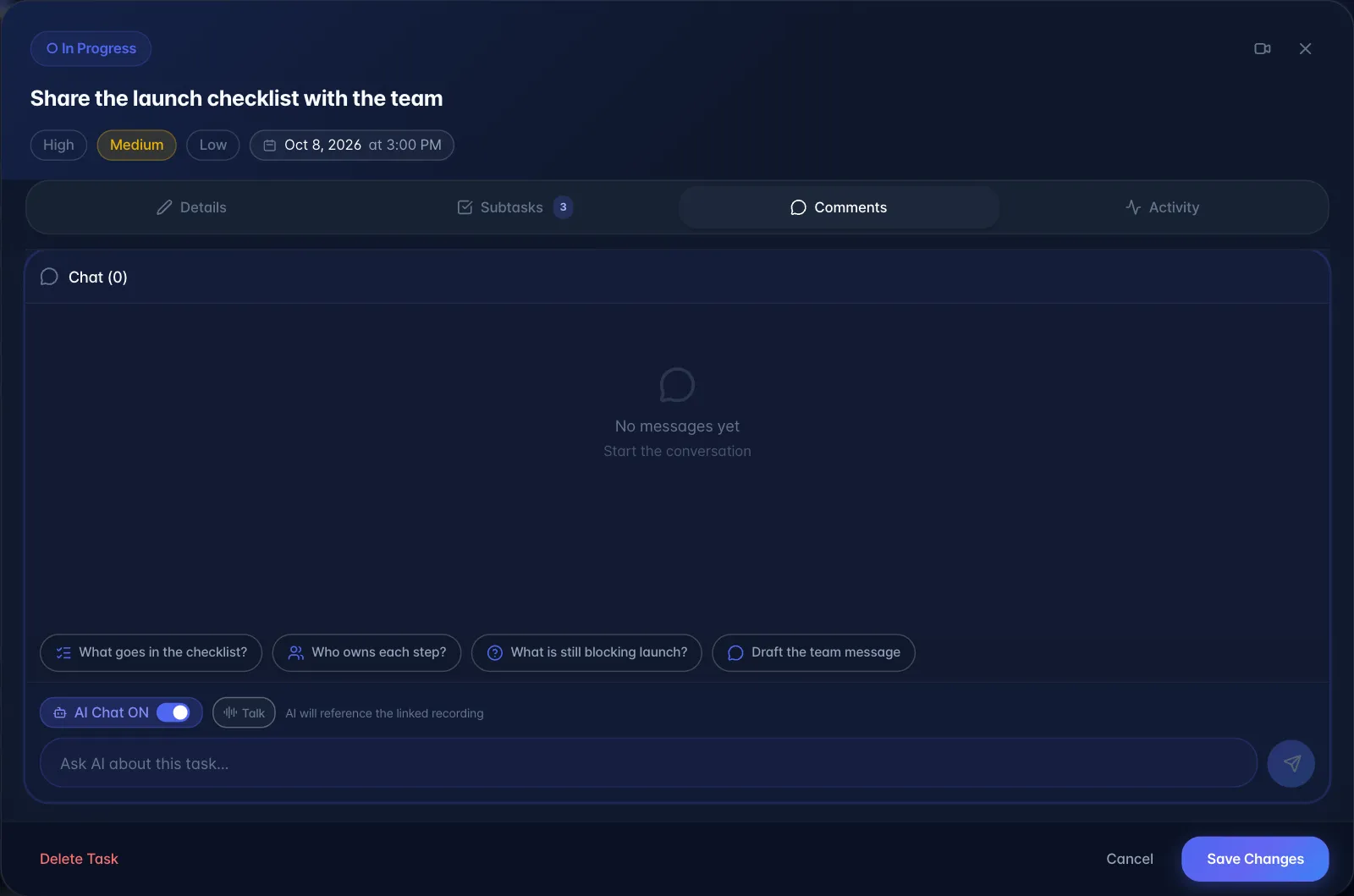
What it actually does: the AI is given the task's title, description, status and age; the full transcript of the linked recording (first ~8,000 characters) if there is one; the last 10 comments for continuity; myScribe product knowledge and your calendar/schedule context; and a set of action tools that let it schedule a Google Meet and email invitations on your behalf. Both your message and the AI's reply are saved permanently as comments on the task.
There is also a Talk button next to the toggle for a live spoken conversation about the task. Spoken turns appear in the thread but are not saved: they disappear when you close the task.
- Whether the AI can see the recording is stated on-screen: "AI will reference the linked recording" vs "AI will answer based on task context".
- The chat mode stays on per task, remembered in your browser.
Project-linked AI
Some projects are linked to an external AI agent. On those, the comment thread shows a green "<name> connected" badge and comments are forwarded to that agent, which can reply in the thread.
Type @ followed by the AI agent's current name to summon it from a project that is not already linked. The mention picker and the comment-box placeholder both use that account-specific name.