
From meeting to task list: the Actions tab
Where. Open a recording and choose Actions.
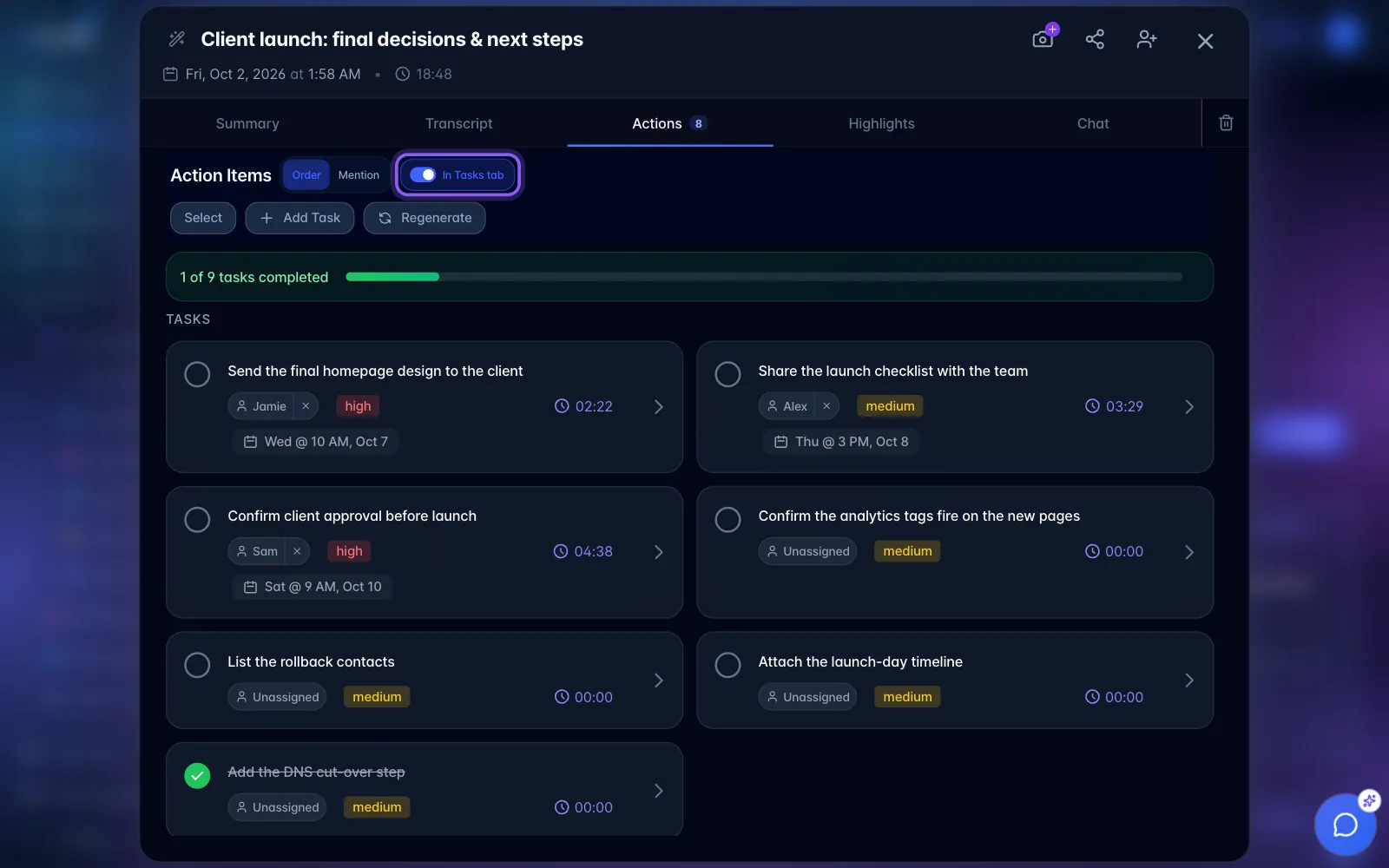
- Wait for transcription and processing to finish, then review the suggested tasks.
- Check each title, assignee, priority, and due date. Use its timestamp to hear the commitment in context.
- Keep the useful tasks, edit unclear ones, and delete suggestions you do not need. Named people can be assignees without having a myScribe account; link a person to a teammate when that teammate should own the work.
- Use In Tasks tab when you want the recording's actions included in the main task views. Hidden from Tasks means they remain on the recording instead.
- Add the recording to a project in Library. With In Tasks tab enabled, its existing and future tasks also appear in every linked project, even if a task has a different direct project assignment. Add dates to tasks you want on Calendar.
Delete an individual action. On a recording you own, swipe left on a task card to replace its open arrow with a red Delete task button. Tap it, review the task, then choose Delete task or Cancel. Swiping alone never deletes anything. Swipe right or tap the card to hide the delete control. Keyboard users can focus the card and press Left Arrow to reveal it, Right Arrow or Escape to hide it, and Enter to open the task. Shared recordings do not offer this owner-only swipe control.
The confirmation offers Don't ask again for individual recording tasks on this browser/device and signed-in account. That choice is saved only after a successful deletion. Cancel, Escape, or tapping outside the confirmation keeps the task and saves no preference. Bulk deletion still asks separately. The recording and transcript remain saved when you delete an individual task.
Meeting recordings normally generate actions after transcription. URL imports offer Generate action items, off by default, and YouTube actions start hidden from Tasks. Photo sessions offer task suggestions on demand. An empty Actions tab can mean processing is still running, action generation was not requested, or no commitments were found.
Use the available generate or regenerate controls when you need another pass; review the results rather than assuming every suggestion belongs on your task board.