
Creating a task: five different routes
2.1 The New Task modal
Where: the purple New Task button on the Tasks page or the Calendar page; Add Task buttons on the Today page and on a project dashboard.
Fields it offers: Title · Due Date · Priority · Project (with an inline "+ Create New Project" that asks for a name and colour) · Company · Assignee.
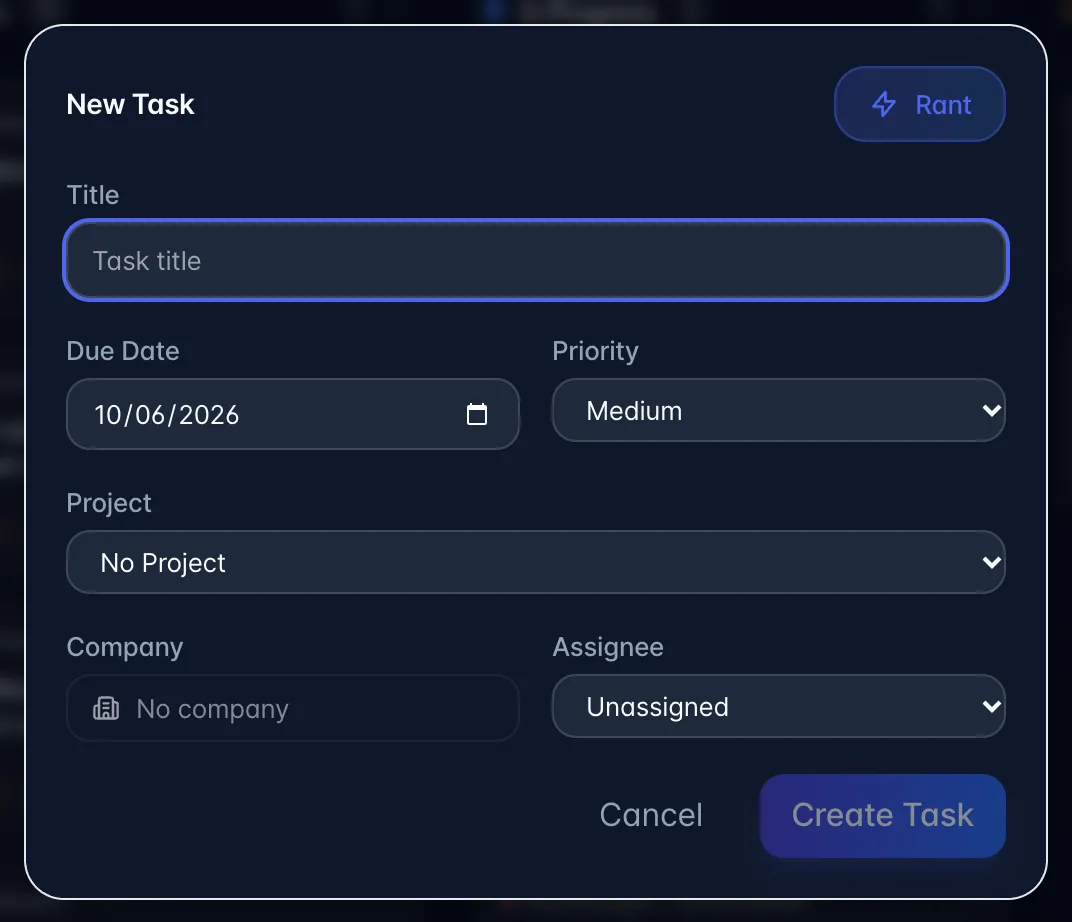
Fields it does NOT offer: you must create the task first and then open it to set these: description/notes, due time, sub-tasks, labels, repeat, reminders, and status.
Behaviour worth knowing
- On phones, scroll the fields inside the sheet. Cancel and Create Task stay in the bottom action bar while you edit.
- Due Date is pre-filled with today. Anything created here gets today's date unless you change or clear it, which is why so many tasks land on the Today page.
- Picking a Project auto-fills the Company from that project, but only if you have not already chosen a company yourself.
- The Assignee dropdown lists workspace members only. Named non-members (speakers from a meeting) cannot be picked here: you can only assign them from the task detail sheet or by clicking a name chip.
- There is a Rant button in the header of this modal (it closes the modal and starts Rant Mode (Creating a task) five different routes).
2.2 Task templates
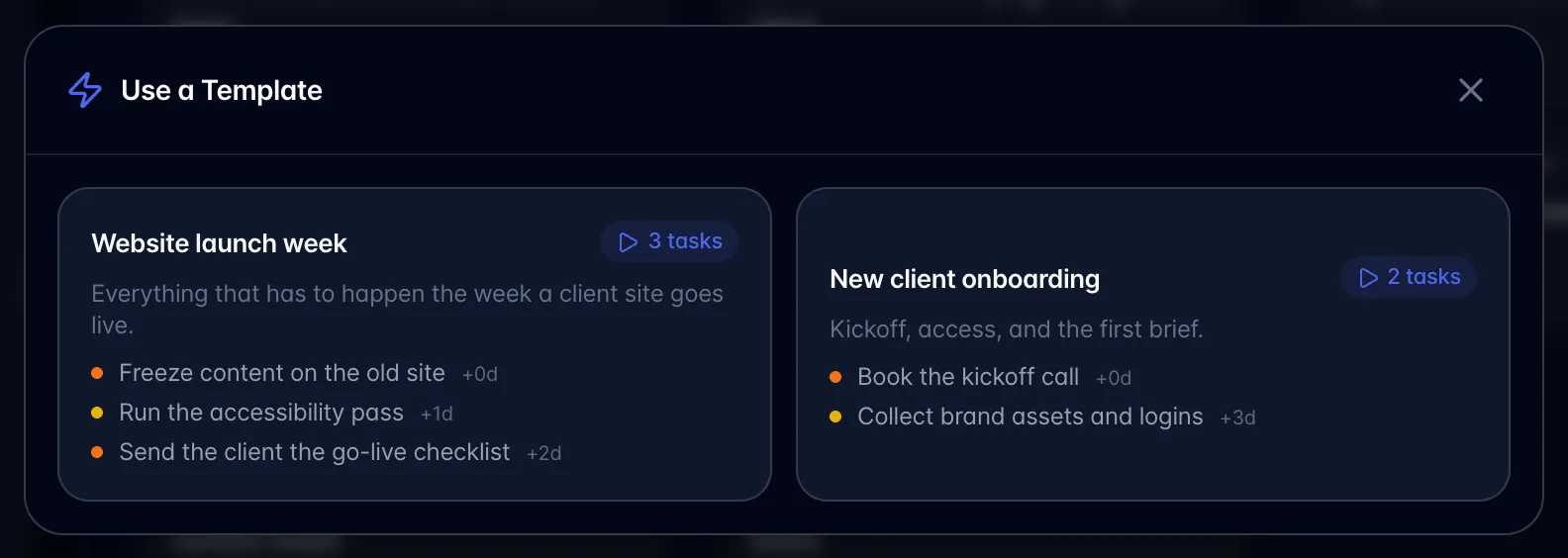
What it is: a saved checklist of tasks you create in one click.
Where to build one: Settings → Task Templates (under the Team heading). Where to use one: the small ▾ attached to the right of the New Task button, on both the Tasks page and the Calendar page.
How to build:
- Settings → Task Templates → New Template.
- Give it a name and optional description.
- Add rows. Each row has Title, Priority, Assignee, Project and "Due in (days)", which is an offset from the day you use the template: 0 = today, 7 = a week out. Leave it blank for no due date.
- Save.
How to use: Tasks → ▾ next to New Task → pick a template. Every task in it is created immediately, with due dates calculated from today. You can also press Create Tasks on a template's card in Settings → Task Templates; it does the same thing.
Gotchas
- Templates are per user, not per workspace. Your teammates cannot see or run yours.
- Templates carry only title, priority, assignee, project and due-date offset. No description, no sub-tasks, no labels, no company, no time of day.
- Deploying a template gives no preview or confirm step: one click creates every task.
2.3 Quick Add (keyboard)
What it is: a one-line task composer with shorthand parsing.
Where: press Q anywhere in the app (as long as you are not typing in a field). Desktop-oriented; there is no button for it.
Shorthand it understands: p1–p4 for priority (p1/p2 = high, p3 = medium, p4 = low), #project-name, +person-name, and dates in words: "today", "tomorrow", "friday", "next week", "next monday", "in 3 days". Times of day are read too: "tomorrow at 3pm", "at 10:30am" or just "3pm" sets the due time. Numeric dates like "3/14" are not read; set those by opening the task afterwards. The matched words are stripped out of the title.
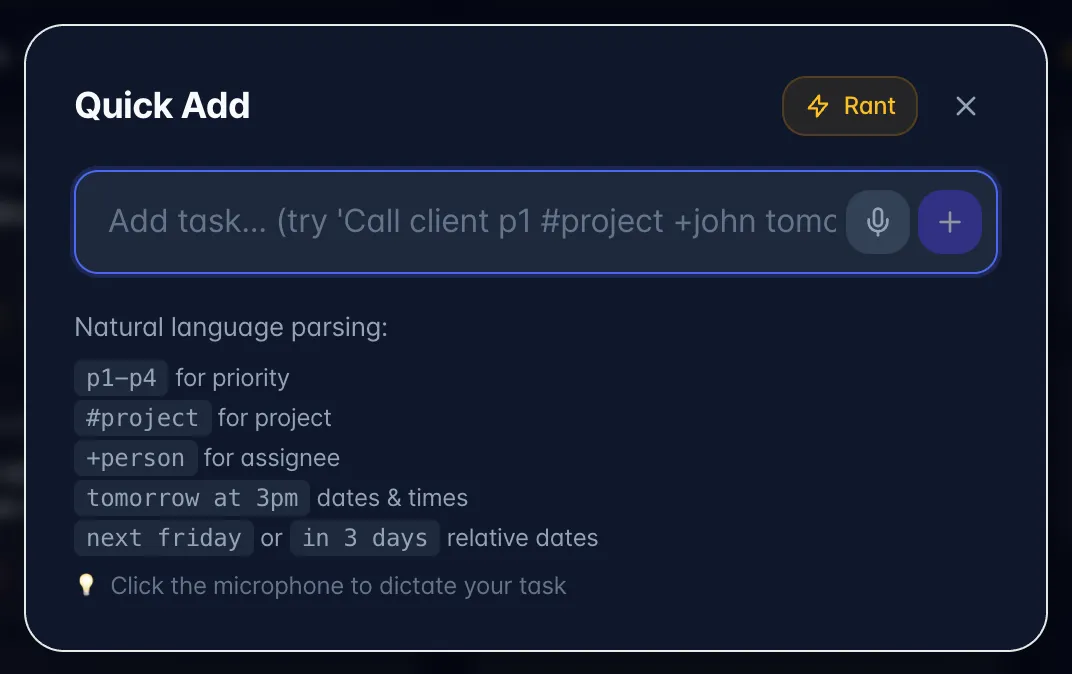
It also has a microphone button that uses the browser's built-in speech recognition (Chrome/Safari desktop) to dictate the line.
Gotchas: #project and +person only work if the text matches an existing project or workspace member; otherwise the text is stripped from the title and nothing is set.
2.4 From a recording's Actions tab
Where: Recordings → open a recording → Actions tab → Add Task. The task form opens with the source recording already linked.