
Projects, folders and companies
Projects
What: a named, coloured bucket for tasks and recordings. Where: the sidebar list; + Create New Project inside the New Task modal and the task detail sheet; the sidebar's new-project control.
Add a recording and its tasks. Select recordings in Library, choose the project action, then use Add Recordings to Project to pick or create a project. Recordings can be linked before they have tasks. Open a recording's Actions tab and enable In Tasks tab to include its actions in each linked project. Existing and newly generated tasks appear automatically in the project dashboard and the project filters in Tasks and Calendar. Existing direct task assignments are kept, and each task appears once per view. Hidden from Tasks keeps actions on the recording, including when it is linked to a project.
Clicking a project in the sidebar opens its dashboard: its tasks, its recordings, buttons to record / join a meeting / rant / add a task straight into that project, inline rename (click the title), a select-mode for removing tasks, and Subscribe in Calendar.
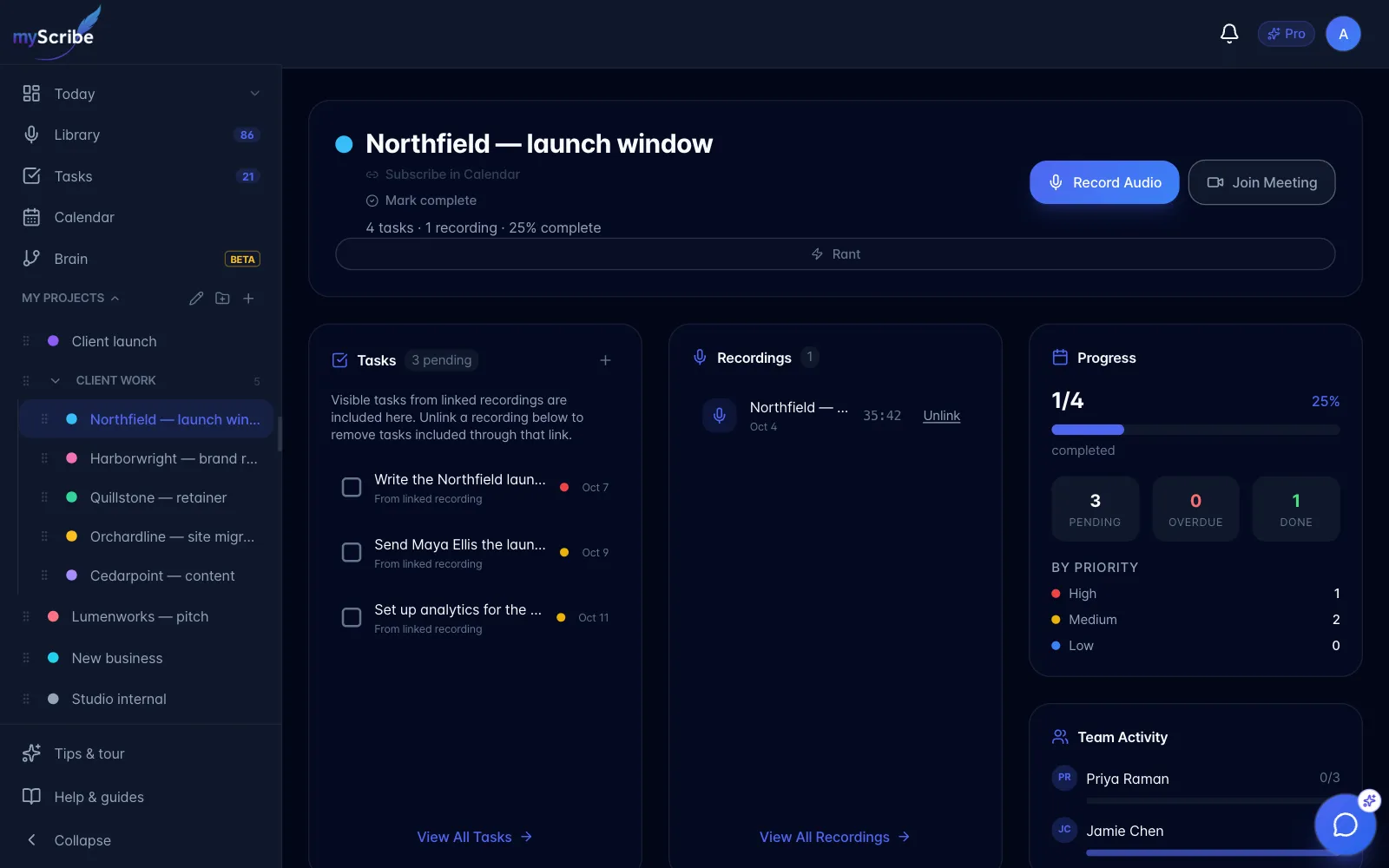
- Mark a project complete (from the dashboard or the sidebar context menu). Tasks included only in completed projects leave the general Today and Tasks lists. They remain available inside a project, when filtering Tasks to that project, and in Calendar. A task also included in an active project stays in the general lists. Reopening a project restores its tasks there.
Remove tasks from project unfiles directly assigned tasks that are not also included through a linked recording. Nothing is deleted. Tasks marked From linked recording follow that recording link. Use Unlink beside the recording on the project dashboard to remove the link; tasks assigned directly to the project stay there. The recording and its tasks remain saved.
- Subscribe in Calendar opens a popup. Choose Copy calendar link to copy a private, unguessable link to a live
.icsfeed of that project's directly assigned dated tasks, as all-day events, with a coloured dot for priority and a tick for done ones. Keep the link private because possession grants access to the feed. In the same popup, Reset link asks for confirmation before replacing the URL. Confirming immediately stops the old URL from updating; a calendar app may retain events it downloaded earlier until that subscription is removed.
Folders
What: a group of projects in the sidebar. A folder can hold projects and one level of sub-folders: you cannot nest deeper than that.
Where: sidebar → new-folder control; drag a project onto a folder header to file it; right-click / long-press a folder for rename, delete and complete.
- Completing a folder completes the whole group: every project inside it (and inside its sub-folders) drops out of the task surfaces at once.
- Deleting a folder does not delete its projects. They are moved back to ungrouped first.
Companies
What: a client or company attached to a task, project or folder. Companies are shared records, not free text, so "Camino" and "Camino LLC" are the same company.
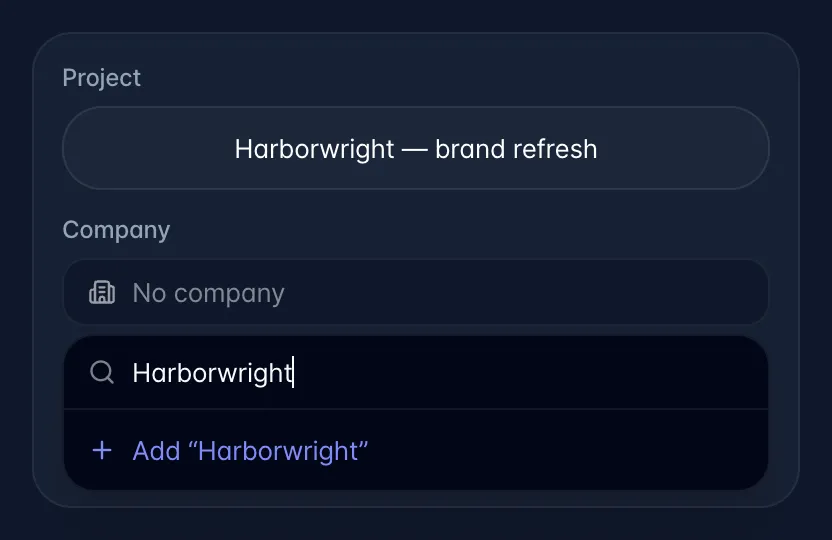
Where: the Company field in the New Task modal and in a task's Details tab. Type to search; if nothing matches, an Add "<name>" row appears and creates the company.
What it actually does: the inheritance chain
task → project → its folder → the highest parent folder → companyWhen myScribe extracts tasks from a meeting, it walks that chain: the task takes the project's company; if the project has none, it takes the company linked to the project's top-level folder; if that folder has no company yet, the folder's name becomes a company. So if you name your top folders after clients ("IACX", "Camino"), meeting tasks get filed to the right client automatically. The resolution is saved the first time it happens, so it stays consistent afterwards.
Gotchas
- Generic folder names are deliberately never turned into companies: personal, archive, archived, old projects, internal, misc, miscellaneous, general, admin, inbox, other, shared, templates, clients, projects, work, completed, done, home.
- Corporate suffixes (LLC, Inc, Corp, Ltd, Co, GmbH, Holdings…) are stripped when matching, so you cannot accidentally create a duplicate company that differs only by suffix.
- A project named
Client: Engagementwill match an existing company from the "Client:" prefix, but that prefix alone is never used to create a new company. - The search box also matches a company's saved aliases and short forms, so typing an acronym usually finds the right record.
- There is no company filter on the Tasks page and no company column anywhere. Today, company is stored and inherited but barely surfaced. Set expectations accordingly.