
Where the assistant lives
| Surface | Where | Scope |
|---|---|---|
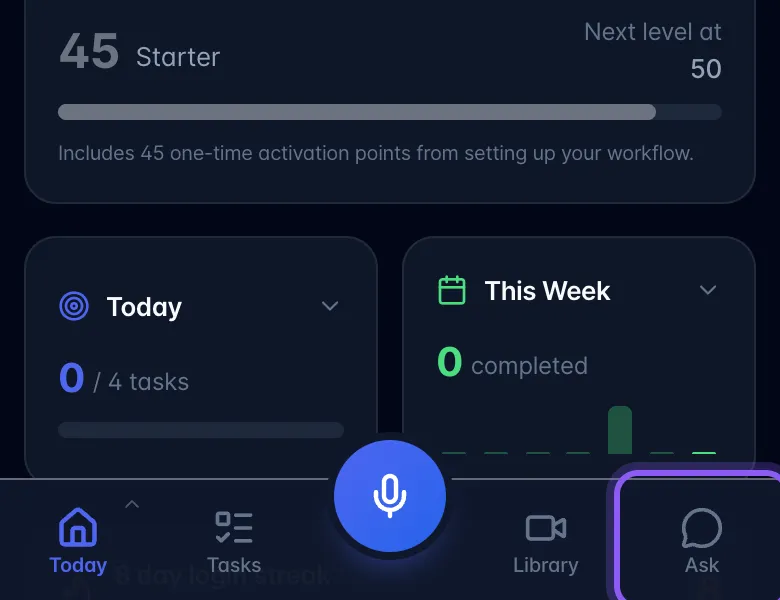
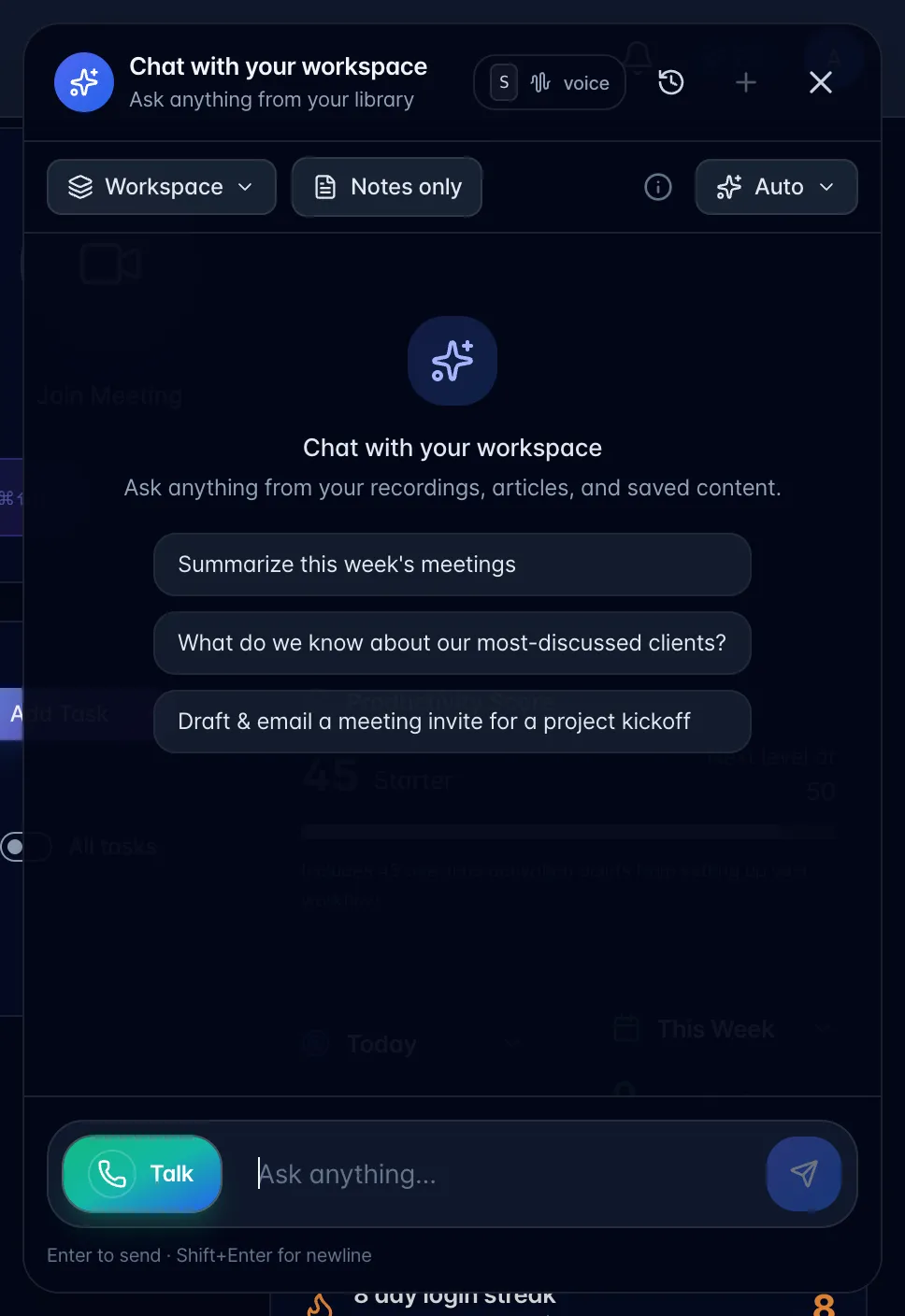
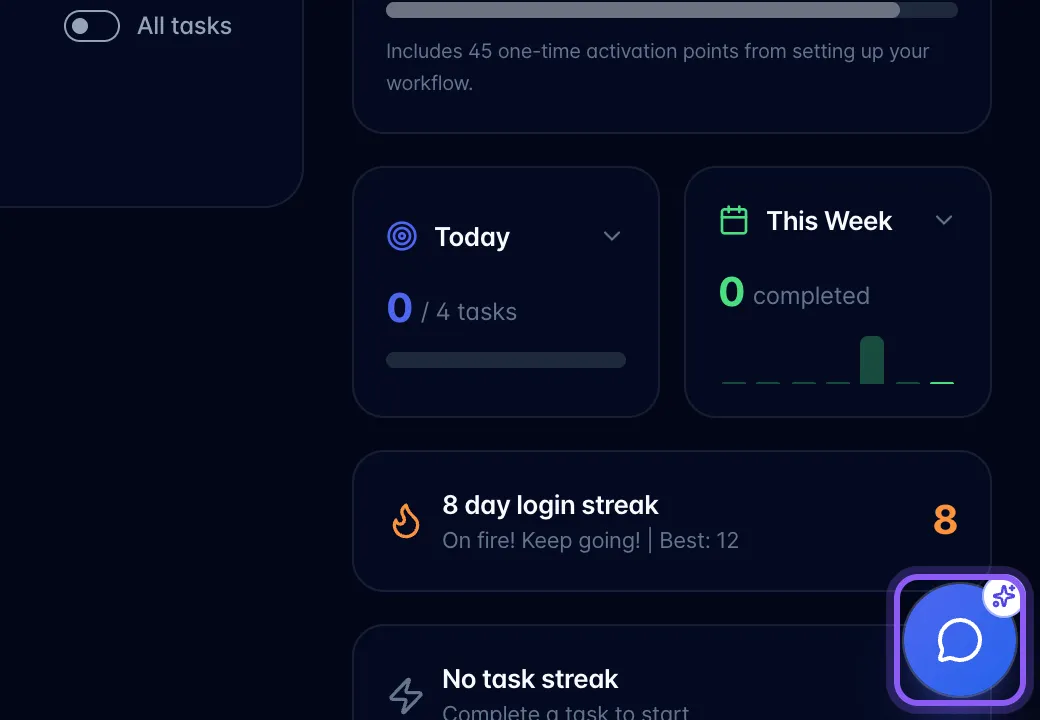
| Workspace chat | Floating assistant button on desktop or Ask on mobile | Accessible recordings and work, excluding recordings marked Personal and their linked content. |
| Scribe | Today briefing card, shown once Scribe AI Assistant is on in Settings → Experimental Features | Project and task help, with proposed actions to review. |
| Recording chat | Open a recording → Chat | That recording; conversation history is private to each signed-in user. |
| Task chat | Open a task → its AI chat controls | The selected task and available context. |
| Voice | Talk phone button in workspace chat; phone button inside the recording Chat message box | Opens the global voice assistant. It keeps running when you close the recording. |
On mobile, recording details and the live personal-notes screen also close with a rightward swipe starting at the left edge. Closing live notes returns to the recording controls without stopping the recording.
On mobile, close workspace chat with the X in its header or swipe right starting at the left edge of the screen. Swipes that start within the conversation scroll normally.
The recording's phone button opens global voice rather than reading out your private recording-chat conversation. Personal recordings stay excluded from global voice even when you have one open.
The S shortcut: text or voice
Press S outside a text field to open the assistant. Until your signed-in account’s preference is known, it opens text chat rather than starting a call. Choose Voice explicitly in Settings → Keyboard Shortcuts or the assistant panel to make S start voice. That choice follows your account; another account’s saved choice is not used. Loading or syncing preferences by itself never starts a call. Call now still starts a call when you choose it directly.
Voice-setting saves stay in order. If a save times out, a retry waits for that original save before applying your newer choices. Call now does not begin a call until its own settings save is confirmed; closing the settings dialog prevents a late save from starting a call.
Shortcut and settings safety reviewed October 6, 2026.
Ask the assistant to show you something
The workspace assistant can open a task, a recording tab, a calendar day, or Today, Tasks, Library, Calendar and Memory (when enabled). This works in typed workspace chat and Talk, using the same app navigation on the web and mobile apps.
- Open Ask or the workspace chat, or start Talk.
- Ask for a destination, for example “Show me the task about reviewing the report”, “Open that meeting's Actions tab”, or “Take me to the calendar for October 2, 2026.” If the item is unclear, the assistant needs to find the exact task or recording first.
- On a phone, text chat fades into a small conversation orb so you can see the destination. A brief message above it lets you continue the same conversation. Tap the message or orb to reopen your chat. Desktop chat stays open, and a voice call keeps running while you move around.
- Continue asking about the newly opened task, recording or calendar day. Opening a destination does not change the task or recording.
The assistant can only open items you can access. If you have an active recording, a creation form or unsaved detail edits open, it asks you to finish or close that work first. A missing item or failed navigation is reported rather than silently opening a different item.
For a how-to question in typed workspace chat, the assistant may offer Do it for me when it has an exact supported destination. The card names the action as Open [destination]. This button only opens that destination; it does not perform the rest of the instructions, edit records, share or send anything. Choose Not now to dismiss it. Offers expire after five minutes and are checked again against your current account, workspace and access. A changed conversation or screen requires a fresh offer. Opening… is still in progress; Opened [destination] appears only after the app confirms the screen change.
For accounts with recording-workflow early access, a typed how-to reply may also offer an exact private recording status change. Check the recording title and the From / To labels, then choose Do it for me to save just that label. Not now cancels the offer. The recording must still be yours, in the same accessible workspace, and its status must match the reviewed version. Saved. You’re all set. appears only after a verified save receipt. If the outcome is unclear, Check saved result checks the original request without repeating the write; open the recording to verify it before preparing another change. This does not mark tasks or transcription complete.
Assistant action guidance reviewed October 5, 2026.
Assistant web search and Notes only
Web search is available by default in typed workspace chat, project chat, and new Talk calls. The assistant can look up current public information when useful; it does not search the web for every question. Web sources appear as linked citations in a typed answer when used.
- Open the workspace assistant with the floating button on desktop or Ask on mobile, then type your question.
- To answer without searching the internet, turn on Notes only before sending. The button fills to show it is on. Typed workspace and project chats then use your accessible myScribe context without web search. This does not change which recordings you can access or the rules for recordings marked Personal.
- Select Notes only again to allow web search. Your choice is remembered for your signed-in account on this device, including when you open project chat or start a new Talk call.
- Check the cited workspace items or web pages when accuracy matters, especially for current facts.
Notes only also applies when you start your next Talk call. End the current call before changing Notes only; the call keeps the choice it started with. Other chat surfaces have their own behavior.