
Talking to it out loud
What it is. A live spoken conversation with the same assistant. You talk, it answers, and you can interrupt it mid-sentence like a phone call.
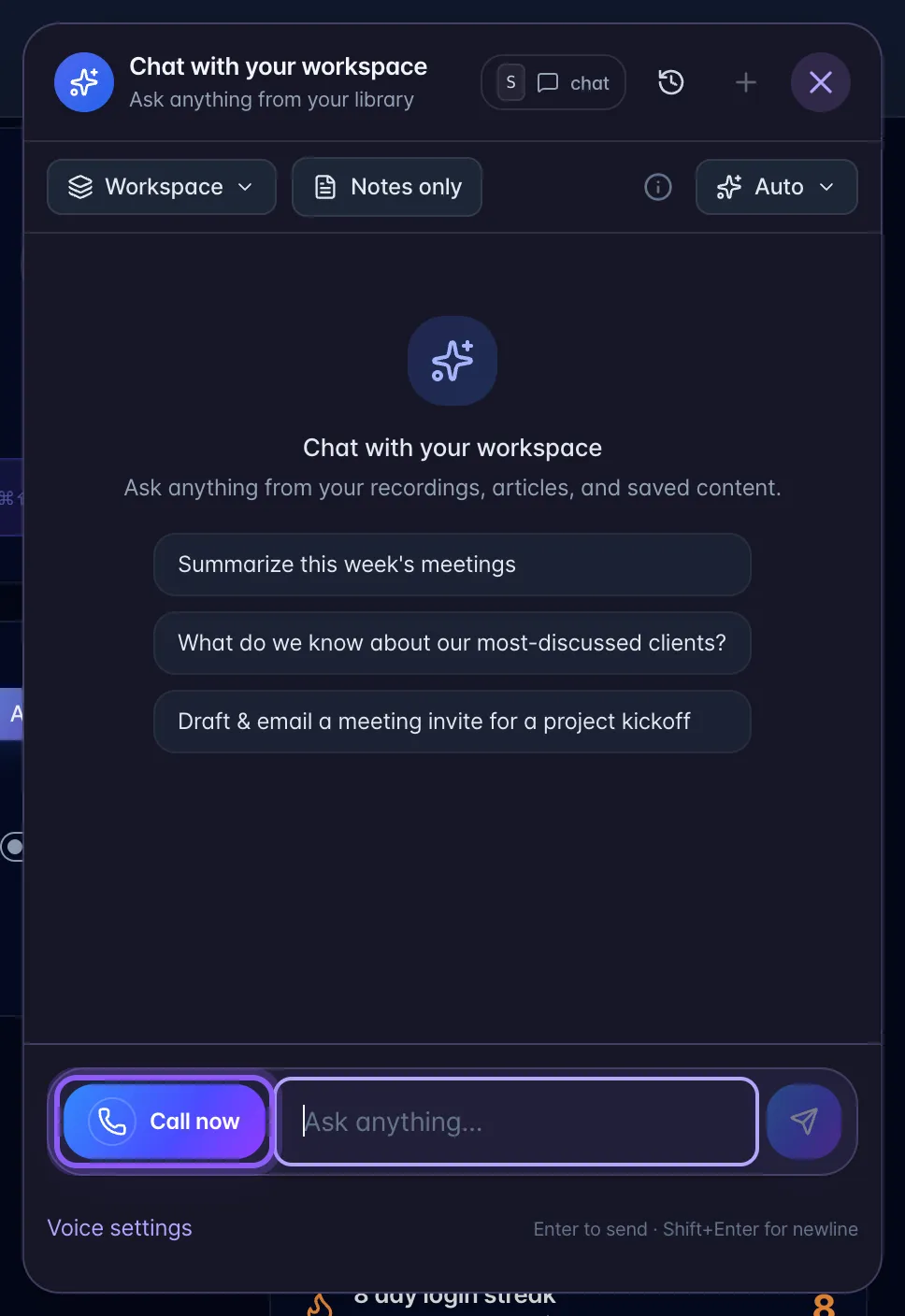
Where. Choose Call your AI in the mobile capture sheet or Call now beside the workspace chat message box, or the green-to-blue phone button in a recording's Chat message box. Other AI views may show a voice waveform control.
How to use it.
- Tap Call your AI in Capture, Call now, the phone, or Talk to call your AI assistant with your saved settings. Calling… is shown during setup. A quiet ring may play if your browser permits audio and device volume/silent mode allow it; Silence ring stops it. No second call is started by repeated taps. Wait for the live state before speaking; if speaker playback is blocked, tap the screen to enable it. You can cancel during setup.
- If Before your voice call opens, review the named processor, purpose and data that may be sent over an encrypted connection, then choose Agree and continue to permit this call. This confirmation adds no optional service or background permission. Not now, closing the sheet or cancelling setup leaves the call unstarted; account, settings and deletion controls remain available. It happens before a voice credential is created, because creating it already sends assistant context to the provider. If your saved choices changed elsewhere, review them again rather than repeatedly pressing Agree and continue.
- Allow microphone access when asked. This device/browser prompt is separate from AI sharing and billing consent.
- Talk normally. Interrupt whenever you like: it stops and listens.
- The chat collapses to a compact call control. Listening shows a waveform derived from your device microphone, not proof the service received your words. Thinking, Working (while a tool is running), and Speaking have distinct icons. Muting clears the waveform. Reduce Motion keeps it still. The arrow expands the live transcript, call timer, tuning, and End controls.
- Press End (or say goodbye and let it go quiet) to hang up. The conversation is saved to your recent chats, so you can pick it back up in text later.
Before calling. Choose Voice settings in workspace chat or the mobile capture sheet. It opens without starting a call, requesting microphone access, or minting a voice credential. The provider and currently configured voice model are shown separately from the voice names. They are read-only because the app currently supports one configured call engine; voice access and allowance are checked when you call. Choose a supported voice and tuning, then Save or Call now (which saves first). The settings list scrolls while Save and Call now stay visible. About voice calls has more details. Closing without saving discards changes. Changes belong to your account. Voice/model choices apply to the next call, with no automatic provider switch. The connected-call panel shows provider/model information returned for that session.
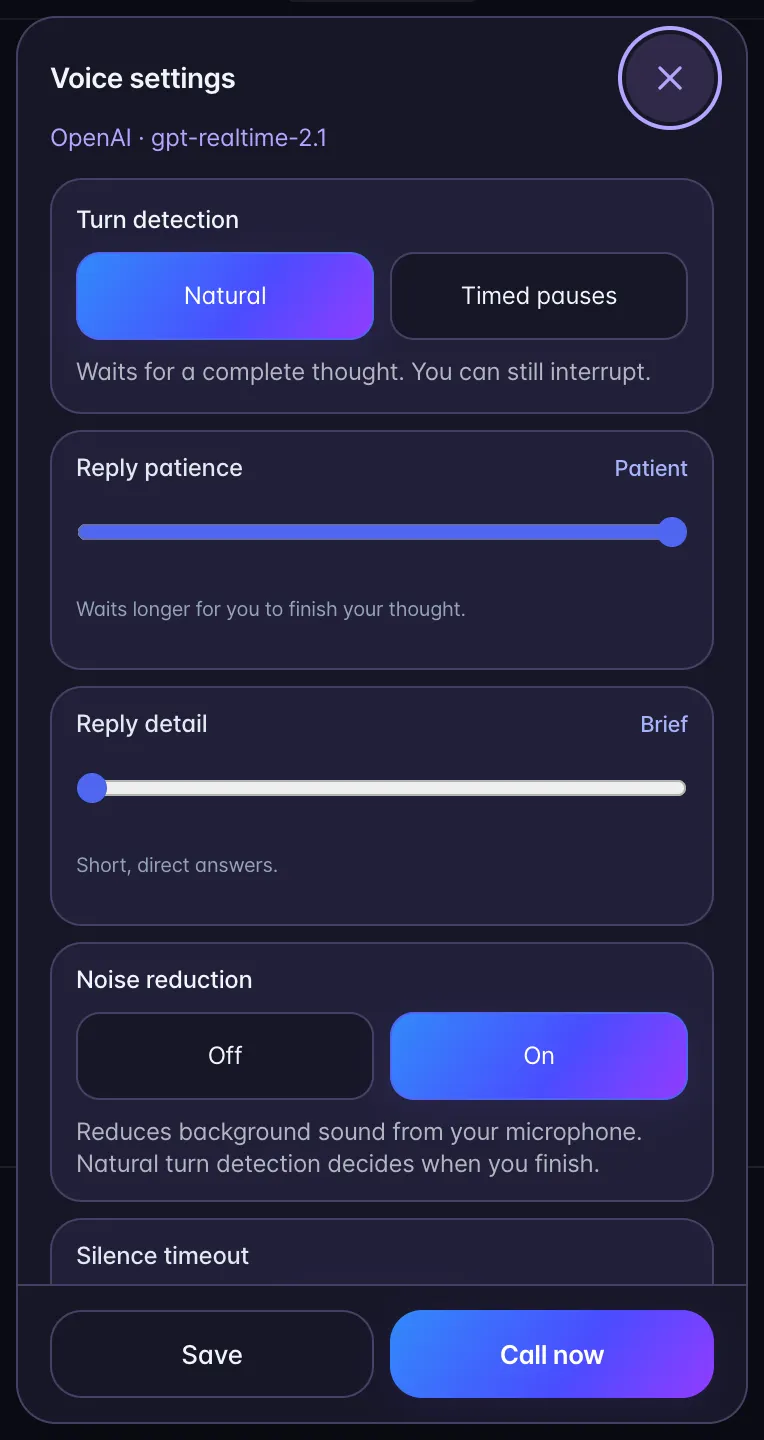
The controls, also available behind the sliders icon during a call:
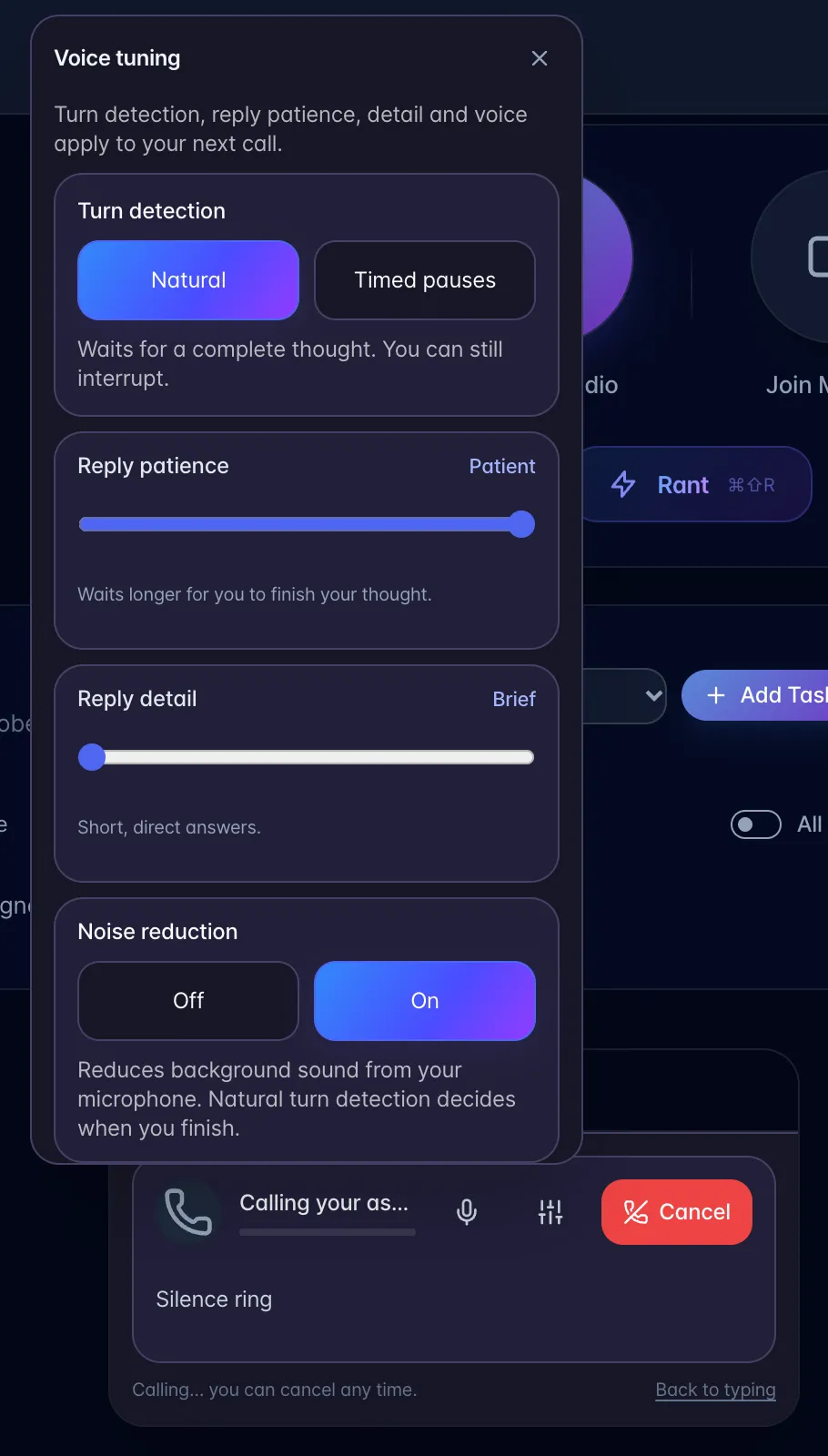
- Reply patience - how long it waits before deciding you have finished speaking. New preferences use Natural turn detection and Patient replies. Existing settings retain Timed pauses, because older saves do not record whether values were chosen or filled automatically. Choose Natural to wait for a completed thought, then adjust Quick, Balanced or Patient. You can still interrupt the assistant. With Timed pauses, move it toward Patient or Very patient if it cuts you off while you think. This controls pauses, not how fast the assistant speaks. Turn detection and reply patience changes apply to your next call.
- Reply detail - how much explanation you hear. Brief gives short, direct answers; Thorough gives more context. Changes apply to the next call.
- Noise reduction in Natural mode switches microphone noise reduction On or Off. Background noise in Timed pauses also adjusts how sensitive speech detection is. Turn it up in an open office or with a TV on. Filtering stays active while the assistant speaks; speak clearly to interrupt. If the speaker is picked up by the microphone, lower the playback volume or use headphones.
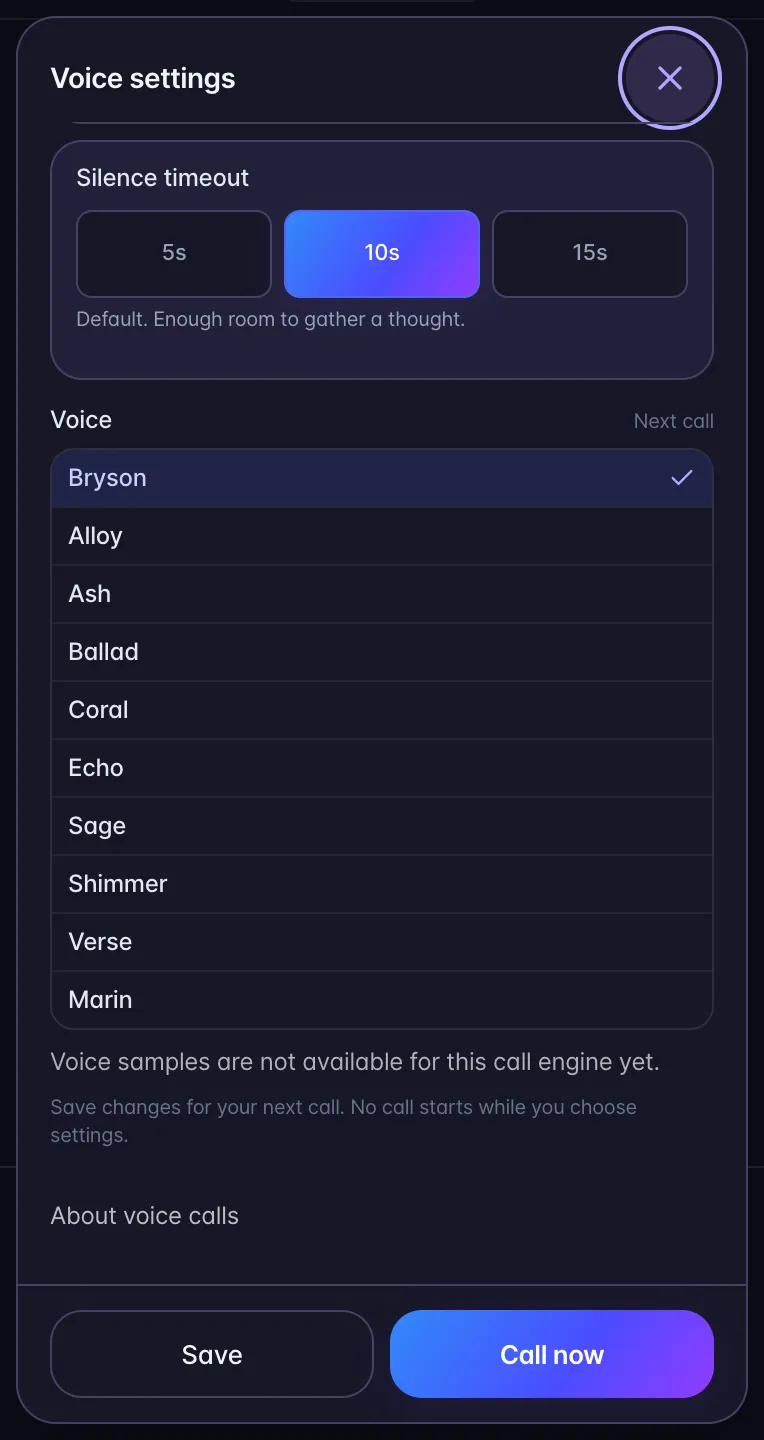
- Silence timeout - how long the line can go quiet before it checks whether you are still there.
- Voice - Bryson is first in the list and the default for new preferences. Bryson is myScribe’s name for OpenAI’s Cedar voice. Existing saved voices are kept. Choose from ten OpenAI voices; your selection applies to the next call. Matching OpenAI samples are not available yet; the settings screen says so. All plans with voice access use the same voice model, including Pro and higher plans.
Mute. While a call is up there is a mute button. It mutes your microphone and nothing else: turn aside to say something to someone in the room and the assistant carries on finishing whatever it was saying. Muting also suspends the silence timeout, so it will not nag or hang up while you are muted. To stop the assistant talking, just start talking over it: it stops and listens.
Limits worth stating.
- Speak in your preferred language. The assistant follows your language and can stay quiet when conversation is not directed at it.
- End a call when finished. An open call continues using voice time, including while you are muted. Review your allowance in Plan & billing.
- Voice needs a working microphone and a modern browser. If the mic is blocked the assistant tells you exactly how to unblock it.
- A call ends after 20 minutes, or sooner if your available voice allowance runs out. Tap Talk to start another call.
- Check the reported result and the updated task or meeting. If an action fails, follow the error message instead of assuming it completed.