
Personal focus on Today
Mobile Today quick controls
On phones, the large Record Audio, Join Meeting, and Rant controls remain at the top. In the Today section, the date and title collapse as you scroll, leaving a compact toolbar below the app header. Scroll back up to expand it. The date range, Add Task (shown as + when compact) and template arrow remain in the toolbar. Below the date, choose Today, This Week, or This Month, then use Add Task or its template arrow. On mobile, scroll to the expanded Today heading and choose More Today options (⋯) → Archived meetings. The count appears inside that menu instead of beside Add Task. On desktop, Archived remains in the toolbar. These controls appear when archived meetings exist. The All tasks switch changes between tasks assigned to you and all tasks you can access.
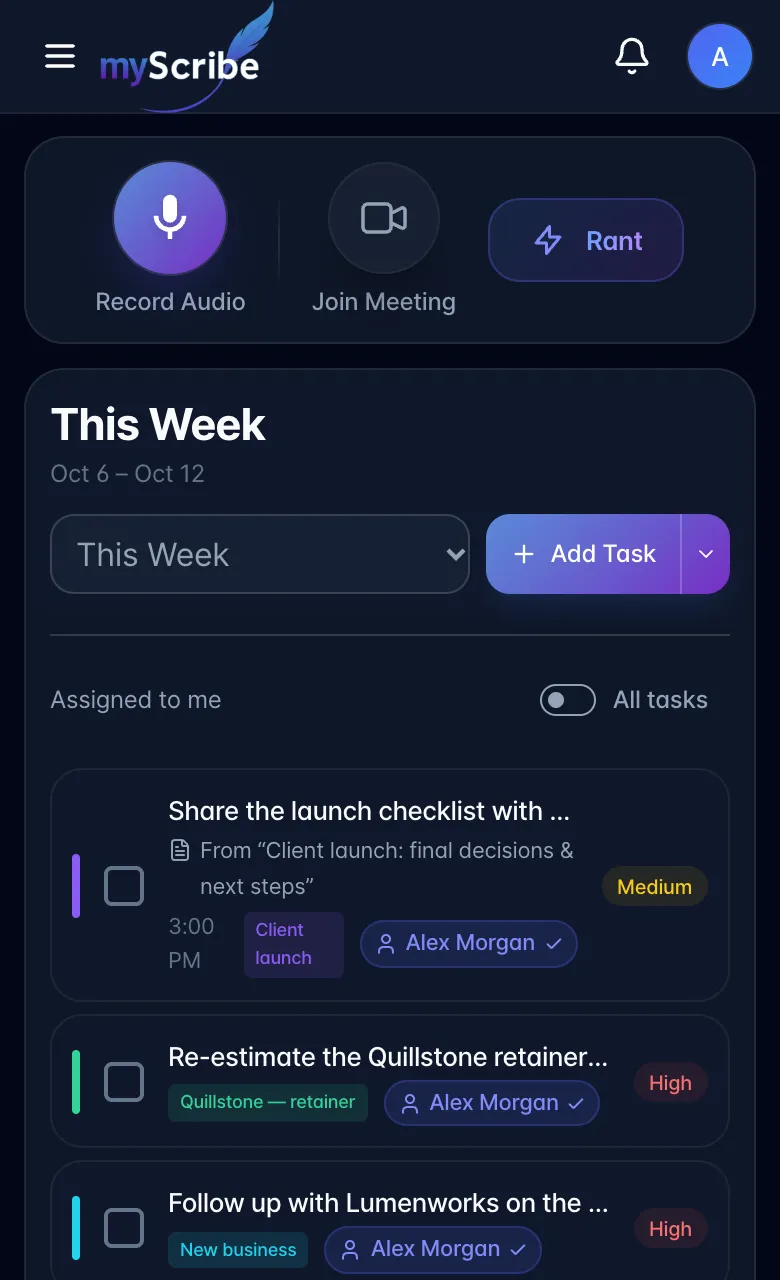
- Open Today. Choose Today, This Week (the next 7 days), or This Month (the next 30 days) for the dated task list and calendar.
- Leave All tasks off to focus on tasks assigned to your linked user account. Turn it on to include other people and unassigned tasks you can access. All tasks starts off when you open a new app session or change accounts. Turn it on when needed; your choice stays in place while switching tabs during that session. The compact switch moves right and lights up when enabled. When off, it has no outer outline. Tasks with only an unlinked speaker or name appear under All tasks until assigned to your account.
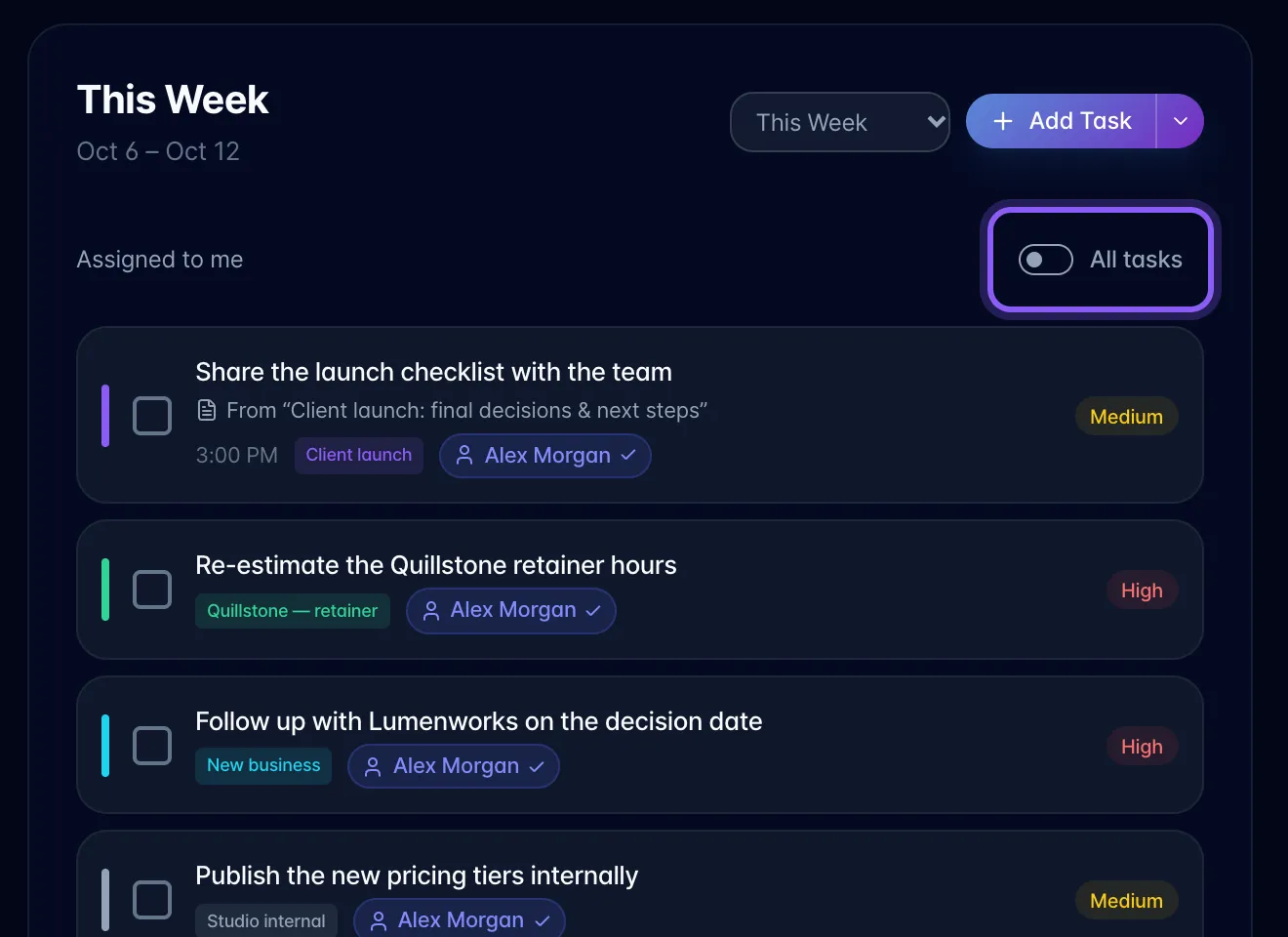
- The same assignment filter applies to the date-range list, overdue tasks, task statistics, and Scribe Focus suggestions. Calendar events keep their existing visibility.
- Look below a task title for From “recording title” when it came from a recording or meeting. Open the task to review its details.
- When no tasks match the selected range and assignment filter, Today says so. If Scribe Focus is enabled and has eligible suggestions, it appears below that message with other open tasks, including overdue, undated, or later work. It stays hidden while the selected range contains tasks. Suggestions use the same assignment filter; if none qualify, the empty message remains.
Personal recordings, recordings with In Tasks tab off, and completed-project tasks keep their existing visibility rules. The saved Scribe briefing remains separate and does not regenerate when you change this task filter.