
Recording chat: edit messages, resend, copy, and show playback
- Open the recording and choose Chat. Audio starts collapsed; Show playback, in the Playback row at the top of the recording above the tabs, reveals it. Video stays open.
- Type in the message box. Press Enter, or choose the Send button at the bottom right of the message box. Shift+Enter adds a line. Standard and Premium are at the bottom left inside the same box; the phone button is beside Send. When photos are attached to the recording, the paperclip is also inside the box.
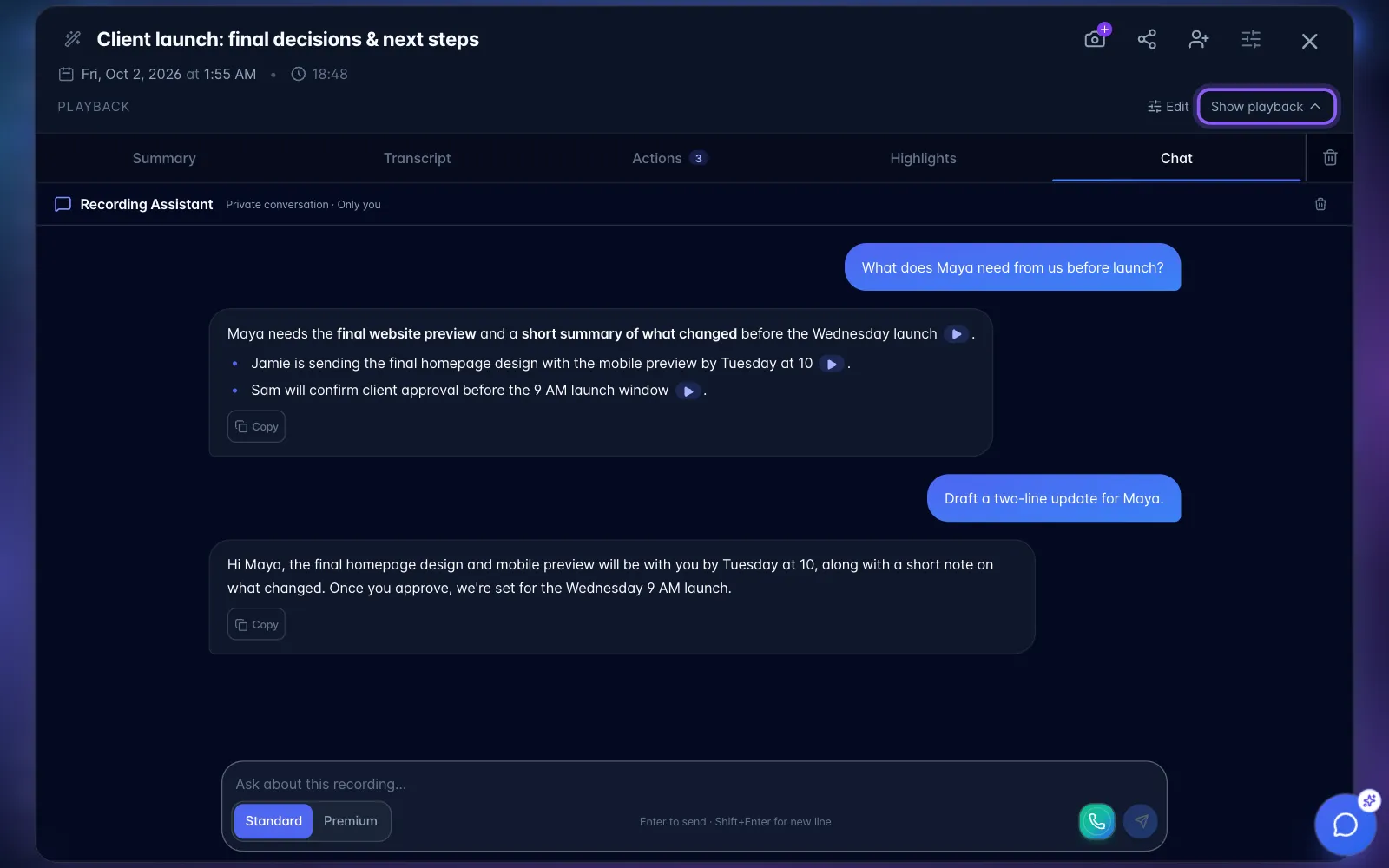
- To change a sent message, hover over it (on a touch screen, tap it) to show the Edit message pencil to its left. Choose the pencil, change the text, then choose Resend. This starts a new answer from that point in the conversation; later turns are replaced.
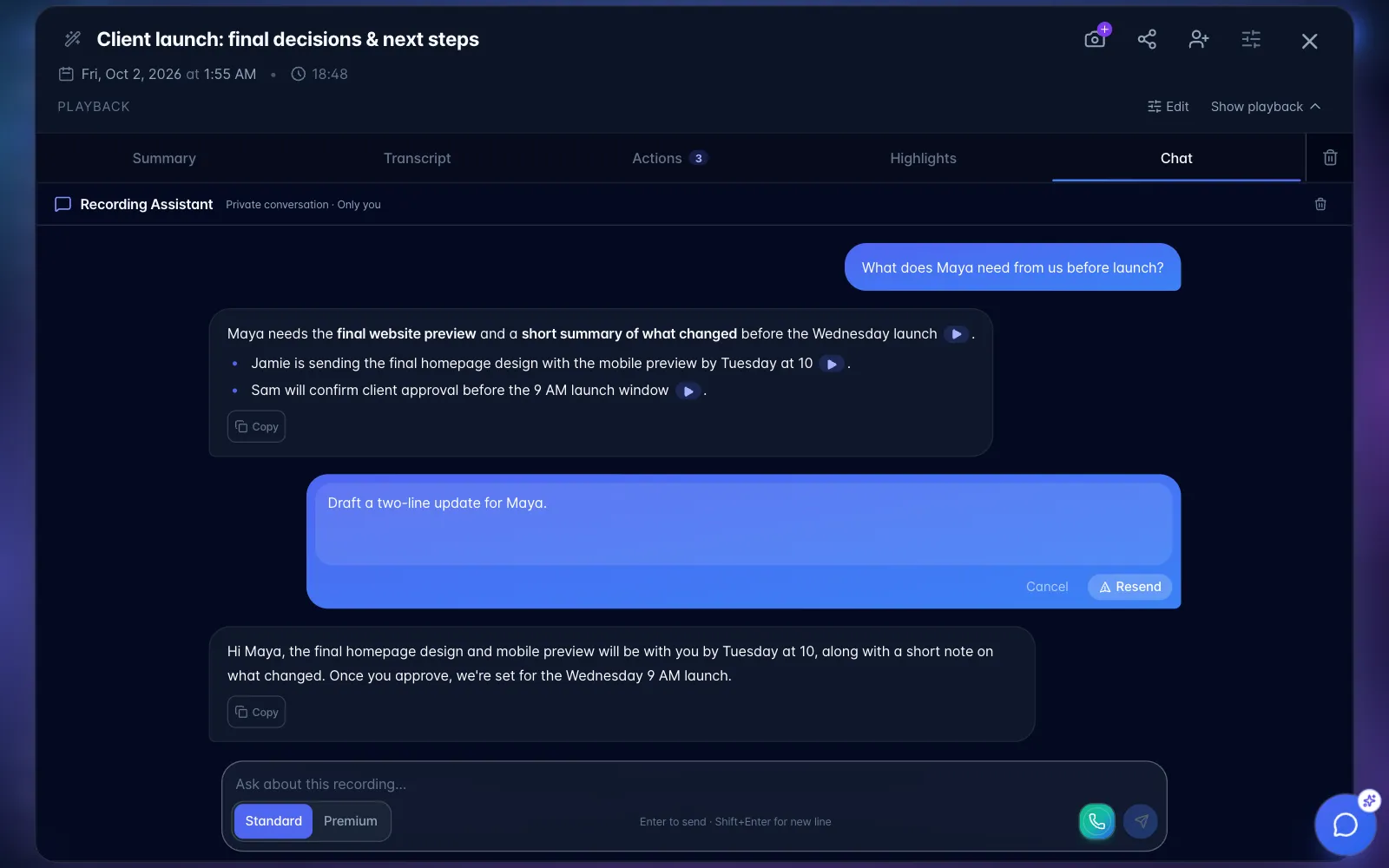
- Choose Cancel or press Escape to discard the edit and keep the recording open. Escape in a nested recording dialog dismisses that dialog first.
- Use Copy on a completed AI answer to copy formatted text into email or a document. Copying does not send an email. Review names, facts, and the signature before sending it yourself.
Each signed-in user has a separate conversation on the recording, including a shared recording. Edits to shared tasks are still visible to people with access to those tasks. Signing in as another account does not carry over the first account's conversation.